

In this video, I show you how to easily create a searchable drop-down list in Excel so users can enter a term in a search box that filters the results shown in the drop-down list. Choose to allow partial matches, or require exact or case-sensitive exact matches to suit your needs.
Step-by-Step Instructions
Below I outline the steps needed to create a searchable drop-down list in Excel.
Create a List of Options
The first step is to create a list of items you would like to be available in the drop-down list. These will be referred to as “options” in the following steps.
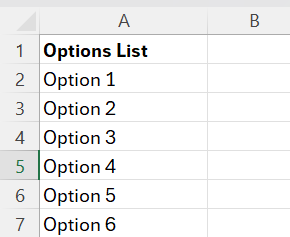
I entered the options in column A with a column header “options list” in cell A1 and all options listed below from A2 down.
This list is what will be filtered when entering a search term in the search box we’ll add next.
Choose a Cell for the Search Box & Drop-down list
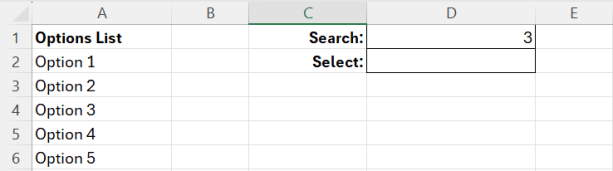
Next we want to decide where the search box should be located. This is the cell where the searching will be performed. I find it helpful to add a border around the cell and enter “search:” in the cell to the left so it’s easy to know where search terms can be entered.
I also chose a cell for the drop-down list that we will create in the last step of this process. I simply added a border around cell D2 and entered “select:” in the cell to the left like I did for the search box.
Use the FILTER Function to Generate Search Results
In this step, we will use the FILTER function to generate search results based upon what is entered in the search box we created in the previous step. This step will filter your list of options from step 1 based on what is entered in the search box from step 2.
I’m including 3 different FILTER choices so you can choose whether to allow partial matches, require exact matches, or require exact case-sensitive matches. In my video, I chose to allow partial matches so I don’t need to enter the full option name nor use the same upper/lower case as the option.
| Match Type | Results | Formula |
|---|---|---|
| Partial | Entering 3 will display any results containing 3, e.g., 3, 13, 403 | =FILTER(A2:A200, ISNUMBER(SEARCH(D1, A2:A200)), “”) |
| Exact | The search term must exactly match the option but is not case sensitive. e.g., entering “will” would NOT include “William” as a result; would need to search for “william” or “William” | =FILTER(A2:A200, A2:A200=D1, “”) |
| Case-sensitive exact | This search term must exactly match the option and is case-sensitive. e.g., entering “andrew” will NOT include “Andrew” as a result; would need to search for “Andrew” | =FILTER(A2:A200, EXACT(A2:A200, D1), “”) |
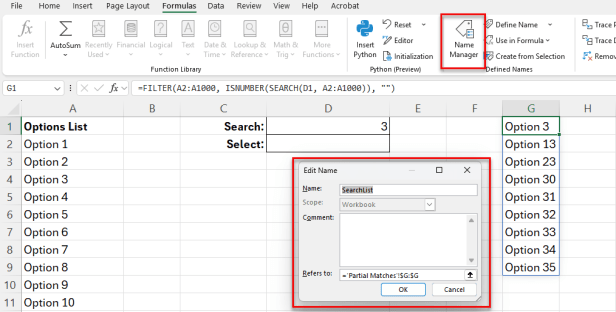
In my video, I chose to filter the results in column G, so I entered the partial match formula in cell G1. By default, all options will be displayed in column G, but once a value is entered in the search box (D1), the results will be filtered to display only results that match the value entered in the search box based on the type of matching selected.

Create a Named Range for the Filtered Results List
Next we will create a named range for the filtered results list we created in the last step. This is how we will tell the drop-down list where to find the filtered results in the next step.
- To create the named range, click on the Formulas tab then Name Manager
- Click “new” to create a new named range
- The name should be something easy to remember and type since we will be entering this name in the next step. I named mine “SearchList”
- In the refers to section, click on the arrow and select the column where your search results are. In my example, the results are in column G so I clicked on the G column header to select the entire column. The results may also included the sheet name.
- Click OK then close the name manager once done.
Apply Data Validation to Create the Drop-down List
The final step is to create the drop-down list using the data validation tool.
- Click in the cell where you want the drop-down box to be. Earlier, I chose cell D2 for this.
- Click on the Data tab, then click on the Data Validation button in the data tools section.
- On the settings tab, in the “allow” section, choose “list”
- In the source section, we’ll want to enter the name range we created in the last step preceded by the equals sign, so in my example I type =SearchList
- Click OK (if you receive an error, it likely means the source name was entered incorrectly, so double check that to ensure it is entered properly)

And that’s it! You should now be able to enter a value in your search box which filters the results that will be available in the drop-down list.
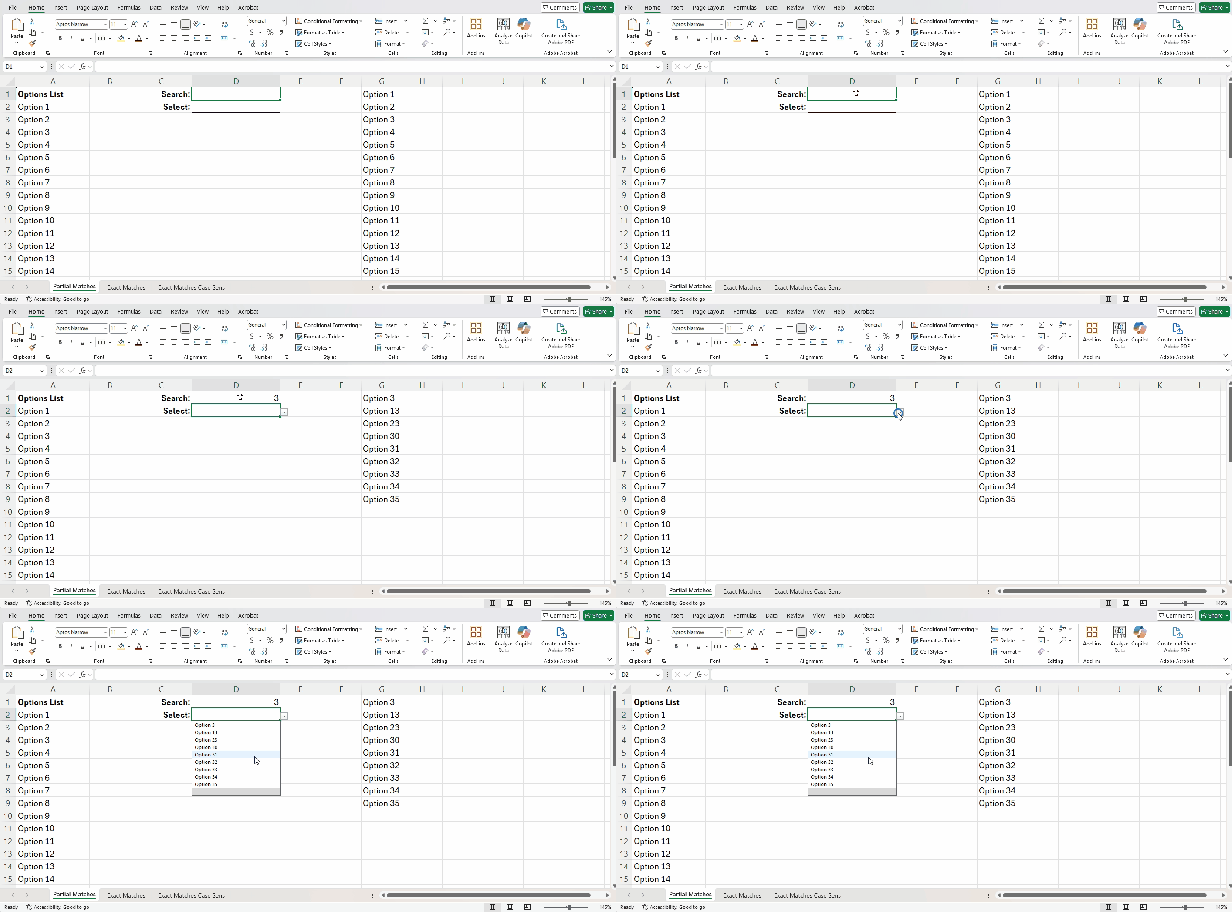
Need a working example? Download the Excel workbook I used for this tutorial, which includes tabs showing formulas for partial match, exact match and case-sensitive exact match.
Don’t forget to subscribe to my channel for more tutorials!
 Simple Software Tutorials