
If you use Gmail but prefer managing all of your email in one place, the new Outlook app makes it easy to connect your Google account. After signing in, Outlook securely redirects you to Google so you can authorize access before completing the setup.
In this tutorial, you’ll learn how to add a Gmail account to the new Outlook for Windows. This walkthrough covers the account setup process, Google authorization, and the final Outlook preferences you’ll choose before your inbox is ready to use.
What You’ll Learn
- Open and identify the new Outlook app in Windows.
- Add a Gmail account to Outlook.
- Authorize Outlook to access your Google account securely.
- Complete the Outlook setup process and choose your preferences.
- Start managing your Gmail messages from within Outlook.
Requirements & Compatibility
Requirements
- Windows with the new Outlook app installed.
- An existing Gmail (Google) account.
- Your Google account username and password.
Compatibility
This tutorial applies to the new Outlook for Windows (shown in Windows as Outlook (new)). If you’re using Outlook Classic or an older desktop version of Outlook, the setup process is different.
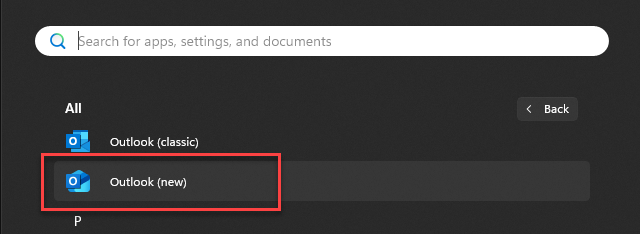
When looking through the apps on your computer, it will be listed as “Outlook (new)” as shown in the screenshot below.
Video Tutorial
Step-by-Step Instructions
- Click on the Windows icon to view apps on your computer
- Locate Outlook (new) and click to open Outlook
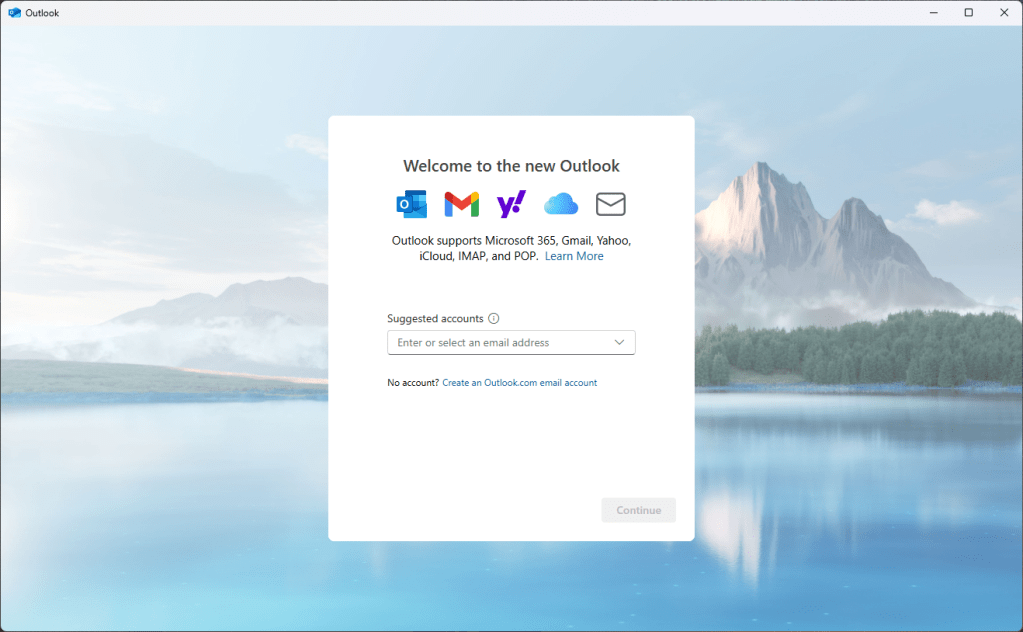
- Enter your Gmail address then click continue
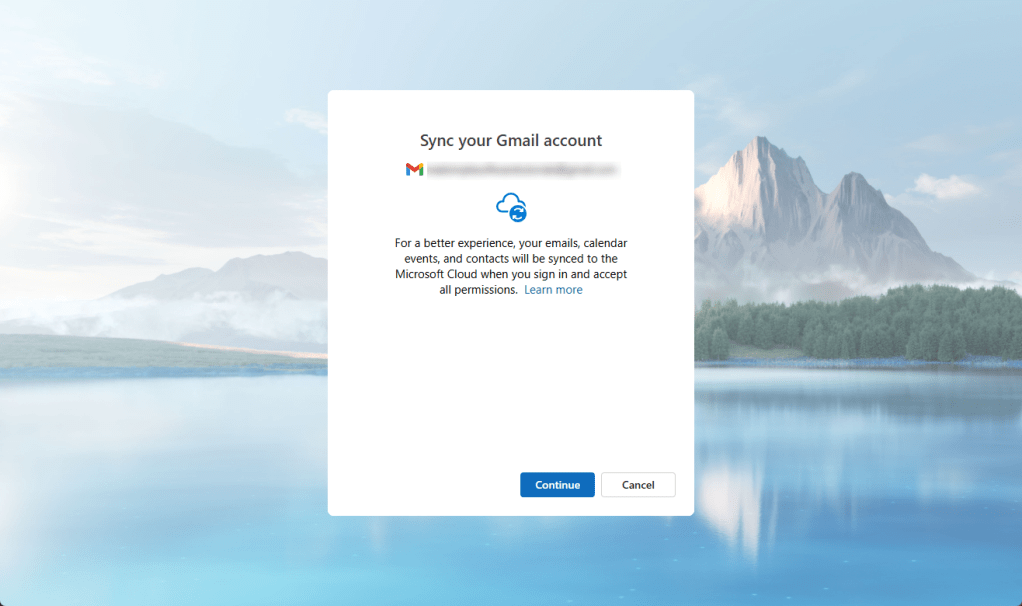
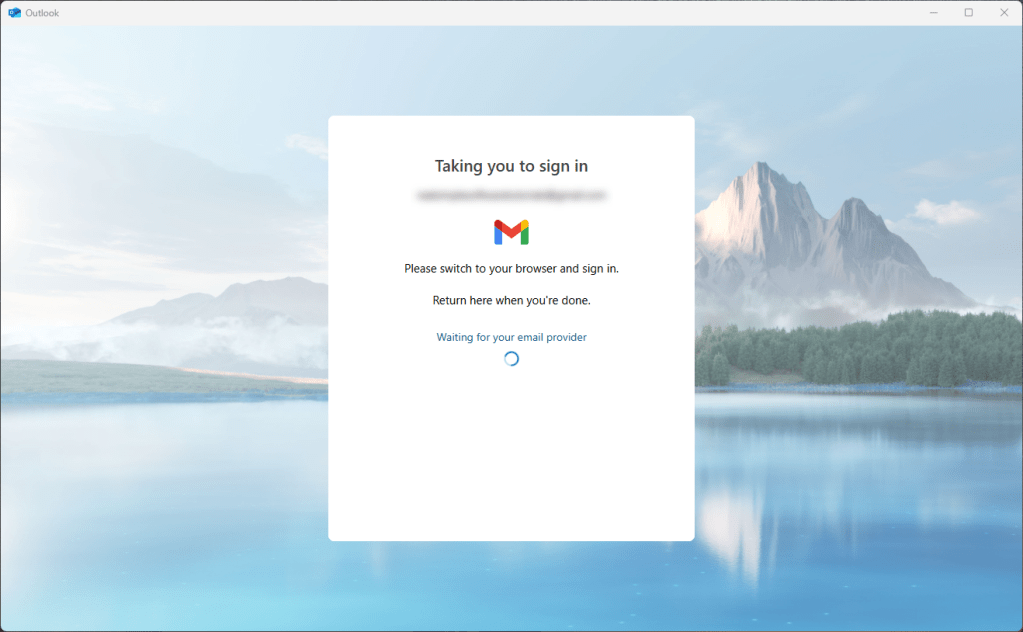
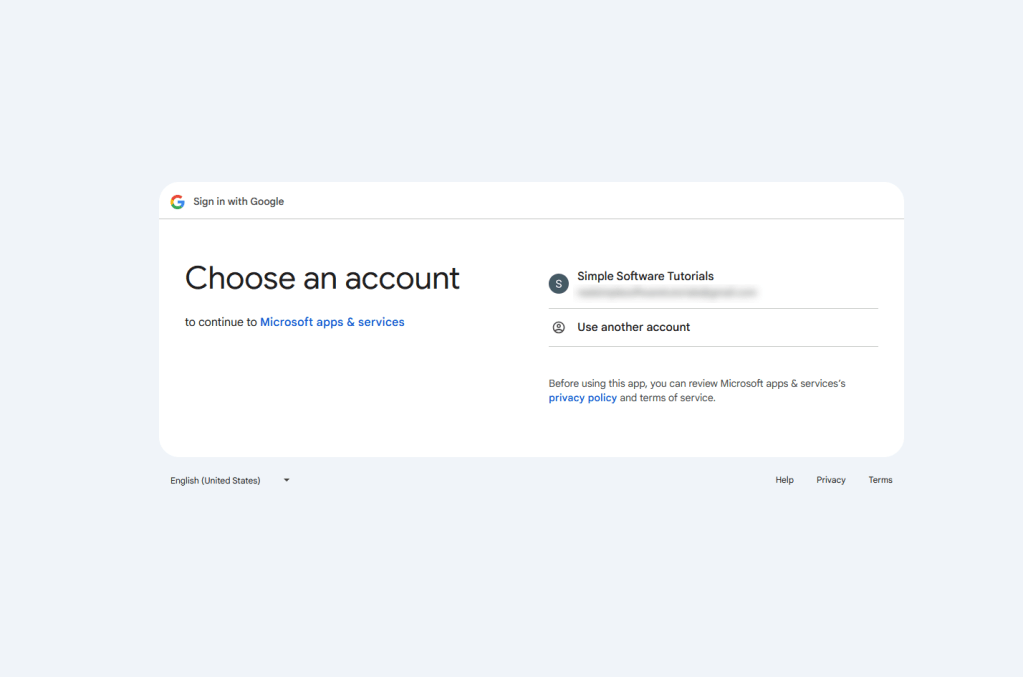
- Click continue to open your browser to select and authorize using your Gmail account in Micrcosoft Office
- Return to Outlook to select preferences and complete setup
Some screenshots of initial setup in the new Outlook:
Additional Tips
Helpful Tip
If your browser is already signed in to the correct Google account, the authorization process is even faster because you won’t need to enter your credentials again.
Common Issue
If Outlook doesn’t automatically return after authorizing Google, simply switch back to the Outlook window. In most cases, it will continue the setup automatically.
Frequently Asked Questions
Can I add more than one Gmail account to the new Outlook?
Yes. The new Outlook supports multiple email accounts, including multiple Gmail accounts. Simply repeat the account setup process for each Gmail address you want to add.
Will adding my Gmail account move my emails to Outlook?
No. Your email remains stored in your Gmail account. Outlook simply connects to your mailbox so you can send, receive, and organize your Gmail messages from within the Outlook app. Changes you make (such as reading, deleting, or moving messages) are synchronized with your Gmail account.
Is it safe to connect my Gmail account to Outlook?
Yes. During setup, Outlook redirects you to Google’s secure sign-in page, where you authorize Microsoft to access your Gmail account. Your Google password is entered on Google’s website—not directly into Outlook—which uses modern authentication (OAuth) for added security.
Do I need to enable IMAP in Gmail?
For most personal Gmail accounts, no. Google now keeps IMAP enabled by default, so you can simply sign in with your Google account during setup. If you’re using a Google Workspace account managed by an organization, your administrator may control these settings.
Can I still use Gmail in a web browser after adding it to Outlook?
Absolutely. Adding your Gmail account to Outlook doesn’t change how your account works. You can continue accessing Gmail through your web browser, mobile apps, or any other supported email client.
What should I do if Outlook can’t connect to my Gmail account?
First, make sure you’re signing in through the Google authorization window rather than attempting a manual setup. If the connection still fails, verify that you’re using the correct Google account, then try removing and re-adding the account. Restarting Outlook or checking for app updates can also resolve temporary issues.
Can I choose which Gmail folders sync with Outlook?
Yes. Outlook syncs your Gmail account using Google’s mail services, allowing you to access your Inbox, Sent Items, Drafts, and other folders. The folders available depend on your Gmail account and synchronization settings.
Related
How to Turn on & Use the Undo Send Option in Outlook
Learn how to turn on and use Undo Send in the new Outlook. This tutorial shows you how to choose a sending delay, find the Undo button, and return an email to draft form before it is delivered – giving you time to catch typos, missing attachments, or incorrect recipients.
How to Get Missing Inbox Columns Back in Outlook
Learn how to restore missing inbox columns such as Subject, From, or Received in Classic Microsoft Outlook. This tutorial also shows how to add new columns and customize the order of your inbox so you can display the information that’s most important to you.
How to Create Recurring Appointments & Tasks in Outlook
Learn how to create recurring appointments and recurring tasks in Microsoft Outlook. This step-by-step tutorial shows how to schedule daily, weekly, monthly, yearly, and custom recurring reminders in both Classic Outlook and New Outlook so you can automate your calendar and stay organized.
Stay Updated
There are two easy ways to get notified when new tutorials are published:
Subscribe on YouTube for new video tutorials: @SimpleSoftwareTutorials
or enter your email below to receive new blog posts directly in your inbox:

