
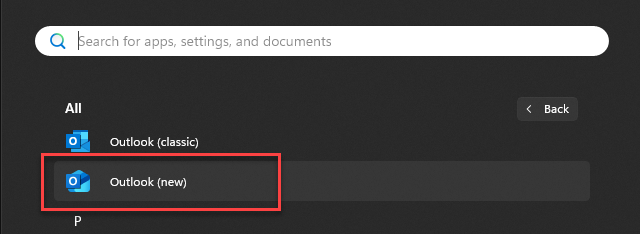
In this video, I show you how to set up a Gmail account in the new Outlook. When looking through the apps on your computer, it will be listed as “Outlook (new)” as shown in the screenshot below.
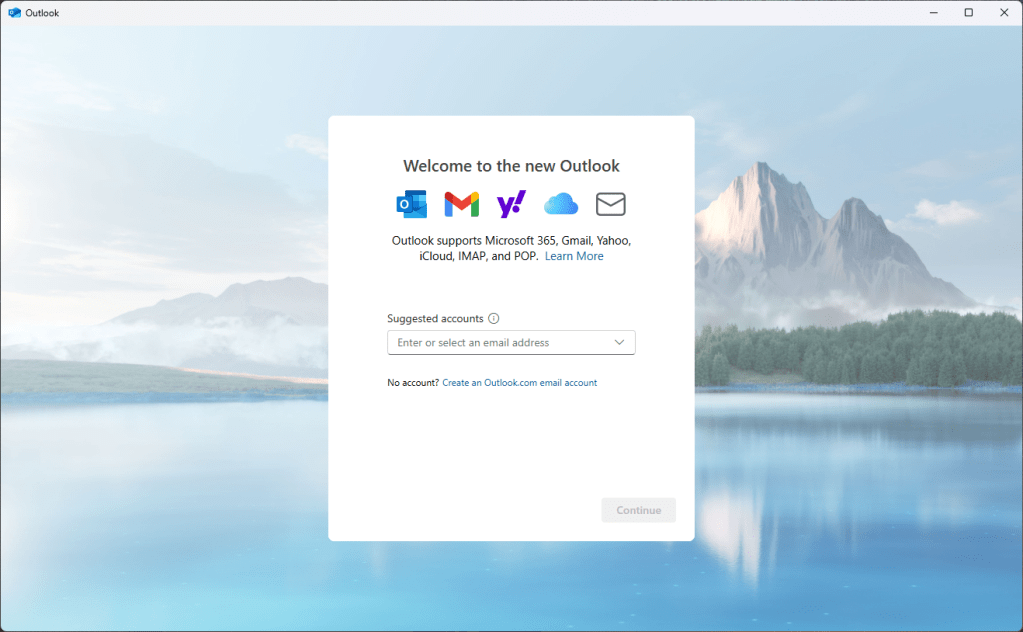
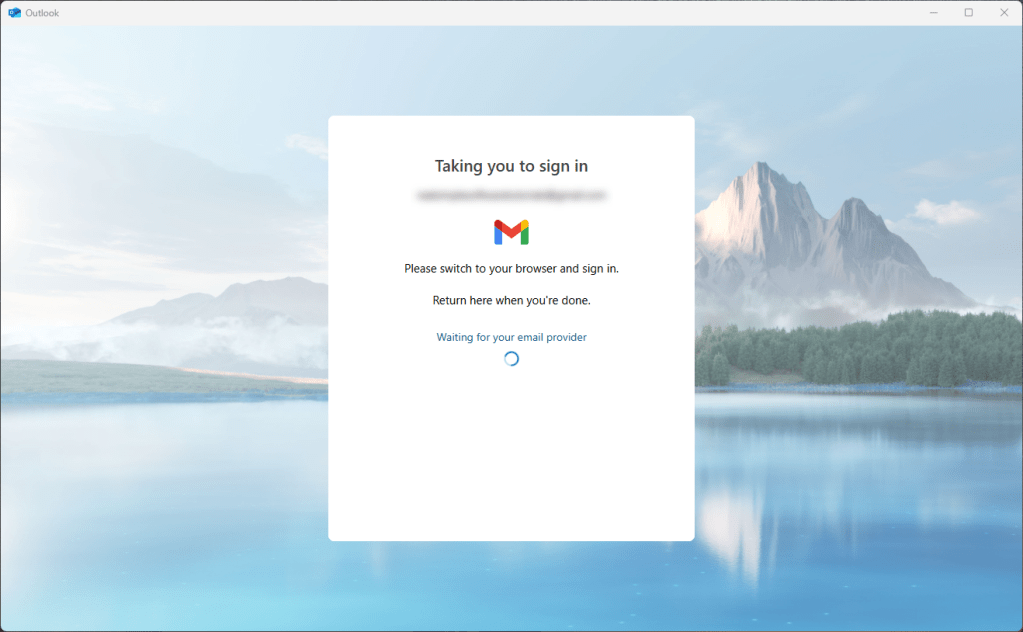
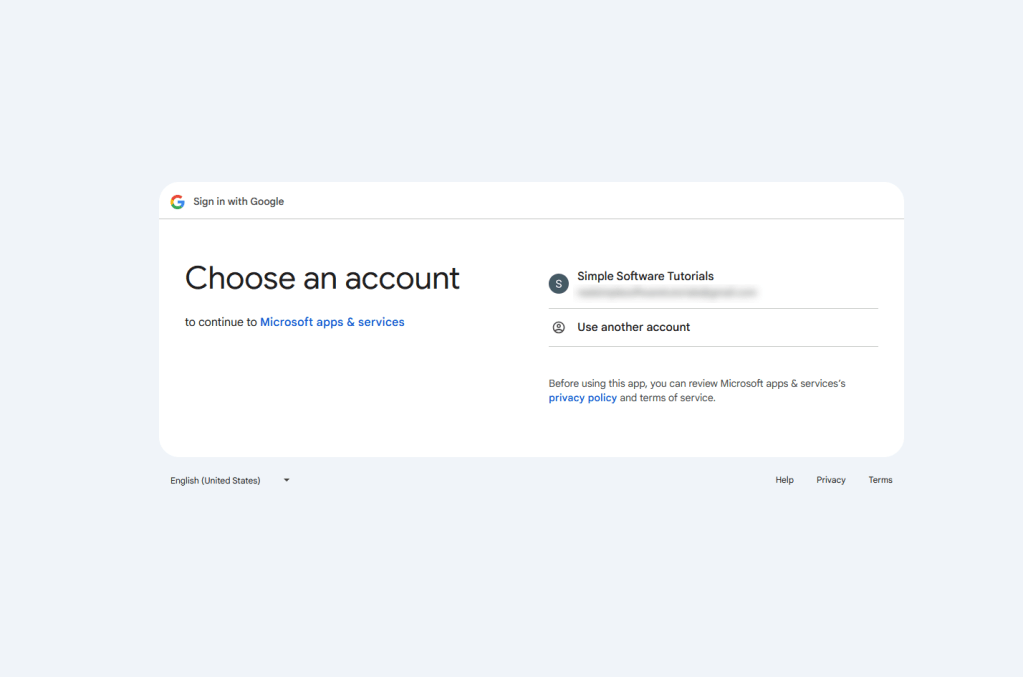
The app will guide you through entering your Gmail address, then a browser will open where you can authorize Outlook to use your Gmail account, set your preferences then complete setup. It’s a pretty quick and easy process and hopefully my video helps things go smoothly for you!
Steps:
- Click on the Windows icon to view apps on your computer
- Locate Outlook (new) and click to open Outlook
- Enter your Gmail address then click continue
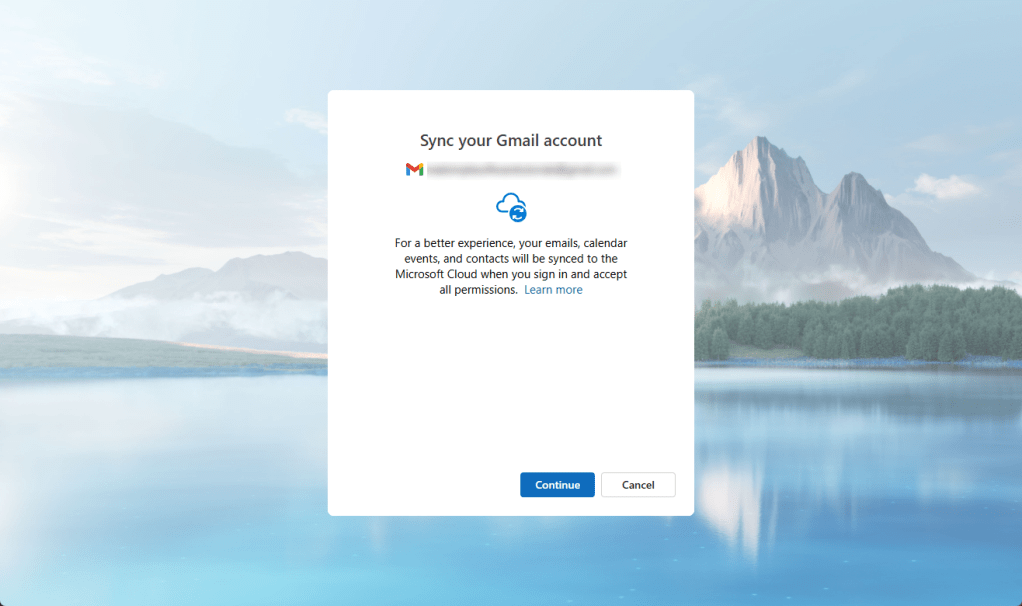
- Click continue to open your browser to select and authorize using your Gmail account in Micrcosoft Office
- Return to Outlook to select preferences and complete setup
Some screenshots of initial setup in the new Outlook:
Don’t forget to subscribe to my channel for more tutorials!
 Simple Software Tutorials