
The Undo Send feature in the new Outlook gives you a short grace period to stop an email after you click Send. It doesn’t recall the message from someone’s inbox; instead, Outlook simply delays sending for a few seconds so you can cancel it.
It’s a simple but very effective safety net, especially for catching typos, missing attachments, or those “oops, wrong person” moments.
What You’ll Learn
In this tutorial, you’ll learn how to:
- Turn on the Undo Send feature in the new Outlook
- Choose how long Outlook delays sending your messages
- Find and use the Undo button after clicking Send
- Return a message to draft form before it is sent
- Test the feature so you’re prepared to use it when needed
- Understand the difference between undoing a send and recalling a delivered message
Common Uses
Undo Send can be helpful when you need to quickly:
- Add a forgotten attachment
- Correct a typo or incomplete sentence
- Remove or change the recipient
- Add someone you forgot to copy
- Update the subject line
- Reconsider a message sent too quickly
- Stop an email that contains outdated or incorrect information
Requirements and Compatibility
This tutorial demonstrates the Undo Send feature in the new Outlook for Windows.
The steps may also be similar in Outlook on the web, although the settings names, available delay times, and placement of certain options may vary depending on your Outlook version, account type, and Microsoft 365 configuration.
Undo Send is different from the recall feature available in some Microsoft 365 and Exchange environments. Undo Send delays the message before it leaves your mailbox, while recall attempts to retrieve a message after it has already been delivered.
Microsoft’s documentation currently lists shorter delay options for some versions of Outlook, while newer versions may provide additional choices. Use the delay options available in your Outlook settings.
Note: These instructions are for the new Outlook rather than classic Outlook. If you do not see the Undo Send setting, confirm which version of Outlook you are using.
Video Tutorial
Prefer to follow along visually? Watch the video below to see how to turn on Undo Send, select a delay period, send a test message, and return the message to a draft before it is sent.
How it Works
The undo send feature is managed in Outlook settings and can be set to allow you to undo sending an email for up to 30 seconds.
Once this feature is set up:
- When you click Send, Outlook waits for a preset number of seconds.
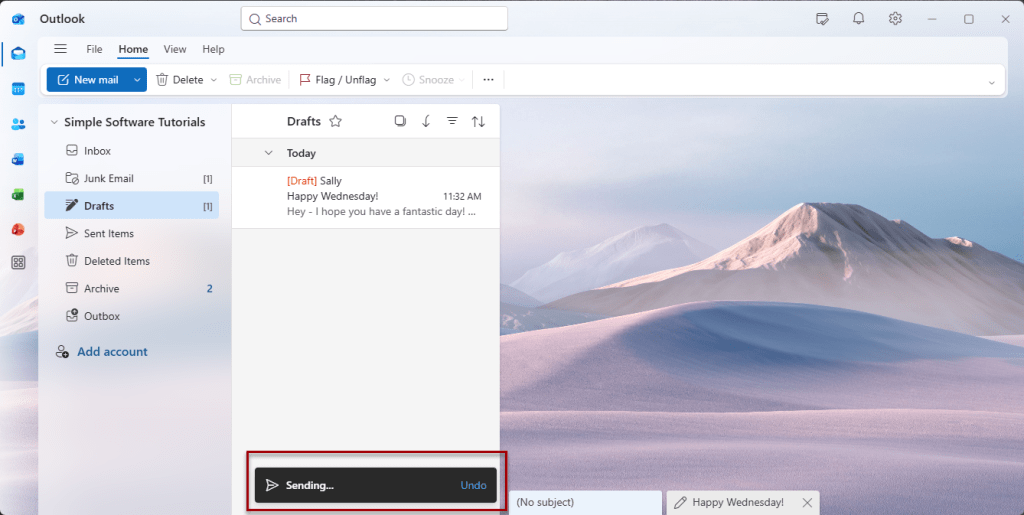
- During that delay, a small Undo button appears at the bottom of the window.
- If you click Undo, the email reopens as a draft so you can edit or delete it.
- If you don’t click Undo, the message sends automatically once the timer ends.
Step-by-Step Instructions
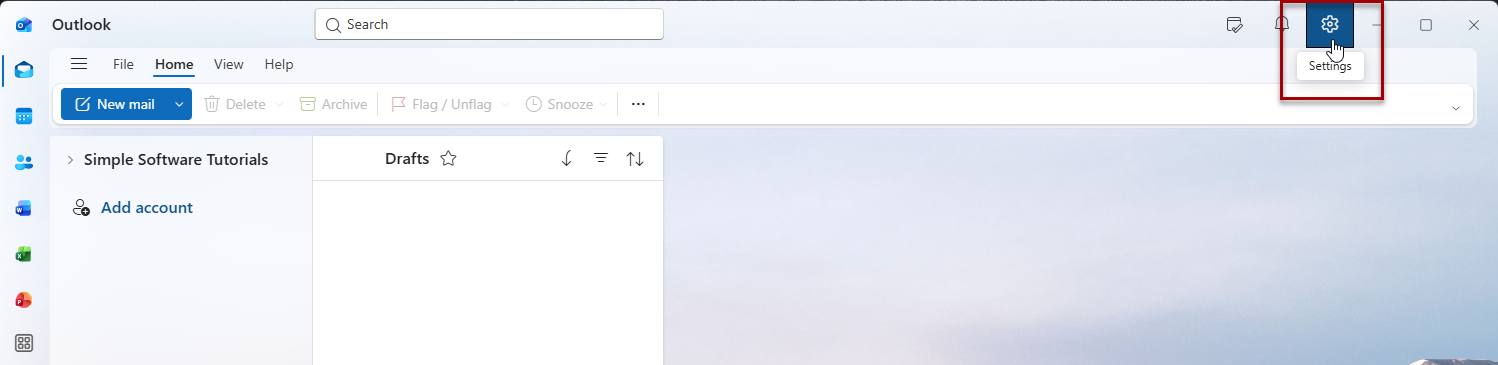
Step 1: Open settings
- Click on the settings icon to open Outlook settings
Step 2: Navigate to Mail > Compose > Undo send
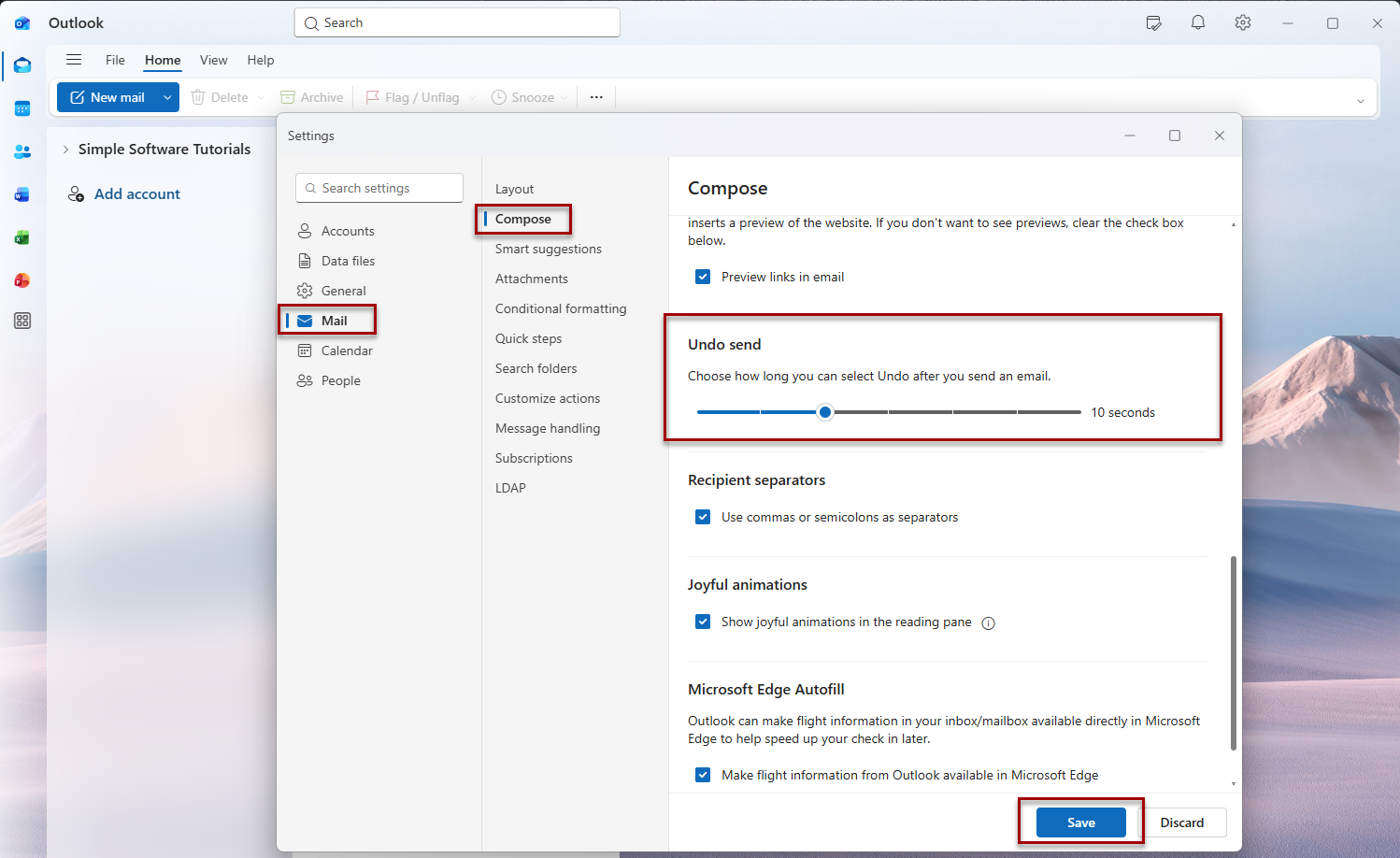
- From settings, click on mail > compose (or search settings for undo send)
- Scroll down to the undo send section
- Click and drag the slider to set how long you can select undo after sending an email
- Once you’re done, click on save then close the settings by clicking the X
Tip: Microsoft recommends setting this for up to 10 seconds. Choosing a delay longer than 10 seconds may result in the email not being sent due to network issues, the app closing, or the computer shutting down.
Step 3: Test it out
Once you’ve set up undo send, it’s helpful to test it out so you’re comfortable using it before you need to use it since you have a limited time to undo sending it.
- Create a new email message (you can test out undo send by sending a test email to yourself)
- Add your email subject and message
- Click send
- Look for the undo button at the bottom of Outlook
- Click the undo button
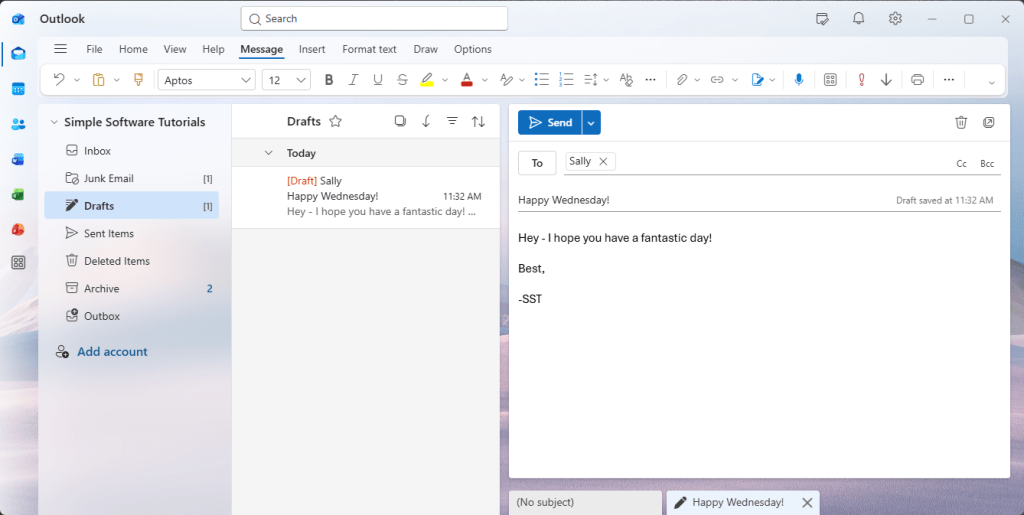
- Your email will return to a draft
Additional Tips
Choose a Practical Delay
A longer delay gives you more time to catch a mistake, but it also means every email will take longer to send. Consider choosing a delay that provides enough time to react without noticeably slowing down your normal email workflow.
Watch the Bottom of the Outlook Window
The Undo option only appears briefly after you click Send. Get into the habit of looking at the bottom of the Outlook window immediately if you realize something is wrong.
Test the Feature Before You Need It
Send a test message to yourself after turning on Undo Send. This lets you see where the Undo button appears and how quickly you need to click it.
Undo Send Does Not Recall a Delivered Email
Once the delay expires, the message is sent normally and the Undo button is no longer available. Undo Send should not be confused with Outlook’s message recall feature, which has different requirements and limitations.
Available Delay Times May Vary
The maximum delay shown in your settings may depend on your Outlook version, platform, account, or feature rollout. Select the delay that works best from the options available to you.
Use Schedule Send When You Need More Time
For an important email, consider using Schedule Send instead. This lets you choose a later delivery time and gives you more time to review or revise the message before it leaves your Drafts folder. Schedule Send is available in the new Outlook and Outlook on the web, although availability can depend on the account type.
Stay Updated
There are two easy ways to get notified when new tutorials are published:
Subscribe on YouTube for new video tutorials: @SimpleSoftwareTutorials
or enter your email below to receive new blog posts directly in your inbox:

