
Keeping your computer organized makes it much easier to find the files you need when you need them. Instead of searching through a cluttered desktop or scrolling through hundreds of files in your downloads folder, you can create a simple system that gives important documents, photos, and other files a logical place to live.
Your file organization system doesn’t have to be complicated or perfect. The goal is simply to create a structure that makes sense to you and is easy enough to maintain.
In this guide, we’ll look at how files and folders work in Windows, how to create a simple folder structure, how cloud storage fits into the picture, and some practical ways to start organizing the files you already have.
Start with File Explorer
File Explorer is the main Windows tool for viewing and organizing files and folders on your computer.
You can open File Explorer by clicking the folder icon on your taskbar.
You can also use the keyboard shortcut:
Windows key + E
When File Explorer opens, you may see locations such as:
- Desktop
- Documents
- Downloads
- Pictures
- Music
- Videos
- OneDrive
- This PC
These locations help you navigate to different places where files may be stored.
If you’ve ever downloaded a file from a website or email and then wondered where it went, for example, the Downloads folder is usually a good place to start looking.
Files vs. Folders
Before organizing anything, it helps to understand the difference between a file and a folder.
A file is an individual item stored on your computer.
For example:
- a Word document
- a PDF
- a photo
- an Excel spreadsheet
- a PowerPoint presentation
- a downloaded receipt
A folder is a container you can use to group related files together.
Folders can also contain other folders.
For example, instead of keeping every tax document you’ve ever received in one large folder, you could create:
Taxes
→ 2024
→ 2025
→ 2026
The Taxes folder is the broad category, while the folders inside it separate your files by year.
This type of structure is sometimes called a folder hierarchy, but you don’t need to memorize that term. It simply means organizing folders inside other folders to make information easier to find.
How to Create a New Folder in Windows
Once you know what a folder is, the next step is learning how to create one.
In File Explorer:
- Open the location where you want to create the folder.
- Right-click an empty area.
- Select New.
- Select Folder.
- Type a name for the folder.
- Press Enter.
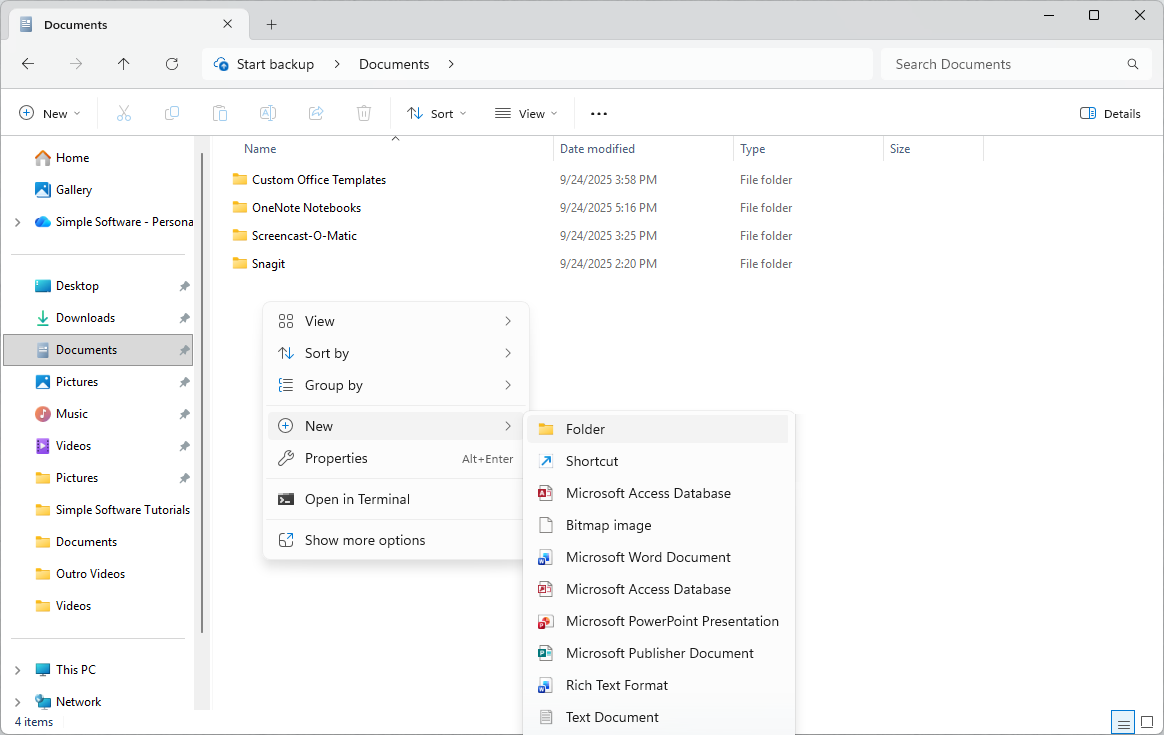
You can also create a folder using the New button near the top of File Explorer, then select Folder.
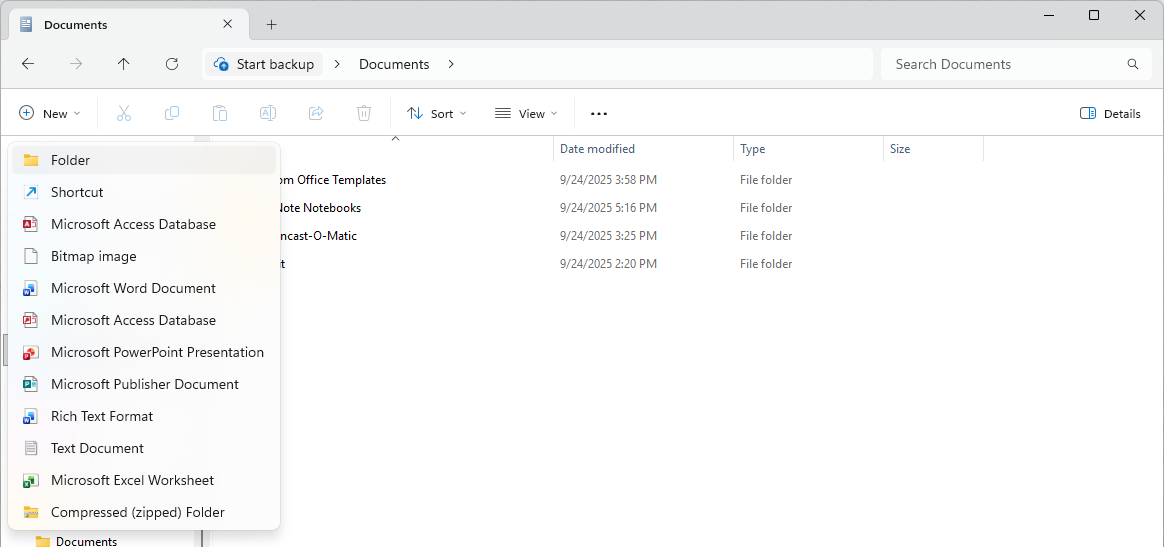
For example, if you want to create a folder for tax documents, you might open your Documents or OneDrive folder and create a new folder called:
Taxes
Then open the Taxes folder and create additional folders inside it for each year:
Taxes
→ 2024
→ 2025
→ 2026
You can create folders inside folders as often as needed, but try to keep the structure simple enough that files remain easy to find.
Shortcut: Create a New Folder
In many places in Windows, you can also use:
Ctrl + Shift + N
This creates a new folder in the location you currently have open.
As with other keyboard shortcuts, you do not type the plus signs. Hold Ctrl and Shift, press N, then release the keys.
Watch: How to Organize and Manage Files in Windows
Prefer to see the process in action? In this video, I walk through a realistic example of cleaning up a cluttered Windows desktop and organizing files step by step. You’ll see how to use File Explorer, create folders, move and rename files, remove unnecessary shortcuts, create a temporary folder for items you want to sort later, and more.
You can follow along with the video or continue through the written guide below for more detailed explanations and organization tips.
Where Should You Store Your Files?
Files can be stored locally on your computer, in cloud storage, on external storage devices, or sometimes in a combination of those places.
Local Storage
A locally stored file is stored on the physical computer you’re using. For example, you may save a file to your computer’s documents folder or desktop.
If that computer is the only place the file exists and the computer is lost, damaged, or stops working, you could potentially lose the file too.
Cloud Storage
Cloud storage allows files to be stored through an online service and accessed through your account.
Common cloud storage services include:
- Microsoft OneDrive
- Google Drive
- Apple iCloud Drive
Depending on how the service is configured, files may be synchronized between the cloud and your computer so you can work with them much like other files on your device.
One advantage of cloud storage is that you may be able to access the same files from multiple devices.
For example, you could save a document using OneDrive on your Windows computer and later access it through your OneDrive account from another computer or phone.
Windows integrates closely with Microsoft OneDrive, so you may already see OneDrive listed in File Explorer.
Cloud storage can also provide additional protection if a device is lost or damaged, but syncing files is not exactly the same thing as creating a separate backup. Changes and deletions can sometimes synchronize as well, so especially important files may still need an additional backup.
Start by Looking at What You Already Have
If your computer currently feels disorganized, don’t start by trying to design the perfect folder system.
Instead, take a look at the files you already have.
Your desktop or downloads folder might contain a mixture of things such as:
- photos
- resumes
- receipts
- recipes
- tax documents
- school files
- work documents
- PDFs
- screenshots
- travel information
Look at those files and start grouping them into categories in your mind.
You might notice that several files relate to: Finances
Others might relate to: Job Search
And others might belong to: Photos
Those categories can become your folders.
Create Broad Categories First
Start with a small number of broad folders rather than creating a different folder for every individual type of file.
Depending on your needs, your folders might include:
- Personal
- Work
- School
- Finances
- Taxes
- Photos
- Recipes
- Job Search
- Travel
- Home
- Projects
There isn’t a correct list of folders everyone should use.
Your categories should reflect the types of files you actually have.
For example, someone who takes a lot of photos may want an entire folder structure dedicated to photos, while someone who rarely saves photos may not need one at all.
Create Folders Within Folders
Once you have your broad categories, you can add additional folders where they help keep things organized.
For example:
Job Search
→ Resumes
→ Cover Letters
→ Job Descriptions
→ Interview Prep
Or:
Taxes
→ 2024
→ 2025
→ 2026
Or:
Photos
→ 2025
→ 2026
→ Vacation
→ Holidays
Think of this like a filing cabinet: The first folder is the large category. The folders inside it divide that category into smaller groups.
Keep Your Folder Structure Simple
More folders do not necessarily mean better organization.
If you have to open six or seven folders just to reach one document, your organization system may be making the file harder to find instead of easier.
For many files, a structure such as:
Main Category → Year or Project → File
is enough.
For example: Taxes → 2026 → W-2.pdf
or: Job Search → Resumes → Learning Design Resume.docx
Create another level only when it actually helps you organize a group of files.
Give Files Names You’ll Understand Later
Folders are only part of a good organization system. File names matter too.
Names such as: Document1.docx
or: resume-new-final2.docx
may make sense while you’re working on the file, but they can become confusing later.
Instead, give files descriptive names that will help you recognize them months or even years from now.
For example:
- Resume – Learning Design – 2026.docx
- Electric Bill – August 2026.pdf
- Chicago Vacation Itinerary – 2026.pdf
- 2026 Tax Documents – W2.pdf
Dates can also be useful in filenames when you’ll have multiple versions of similar documents.
If you work with a lot of date-based files, you may eventually see dates written in a format such as: 2026-08-10
Using year-month-day allows files to sort chronologically when sorted by filename, but you don’t have to use this format for every file. The most important thing is that the filename makes sense to you.
Move Files Into Their New Folders
Once you’ve created a few folders, you can begin moving your existing files into them.
You don’t have to reorganize your entire computer at once.
Try starting with 10 or 20 files from your Desktop or Downloads folder.
For each file:
- Decide what category it belongs to.
- Move it into the appropriate folder.
- Rename it if the current filename won’t make sense later.
As you organize more files, you may notice that you need another folder or that two categories should be combined. That’s okay.
Your organization system can change as you figure out what works best for you.
Don’t Use Downloads as Permanent Storage
Your Downloads folder can fill up quickly because many files downloaded from websites, email, and other sources are automatically placed there.
It can be helpful to think of Downloads as a temporary holding area.
For example, if you download a tax form, you might move it from: Downloads to Taxes → 2026
If you download a resume from your email, you might move it to: Job Search → Resumes
You don’t necessarily need to move every temporary file you download. But important files should generally be moved somewhere that will make sense when you need them again.
What About the Desktop?
Saving files to your Desktop can be convenient because they’re easy to see.
The problem is that the Desktop can quickly become cluttered if everything is stored there.
It’s fine to temporarily keep files you’re actively working with on the Desktop, but consider moving completed or important files into your regular folder structure when you’re done.
Think of your Desktop like the top of a physical desk: Keeping a few things you’re currently working on there can be useful. Keeping every document you’ve ever created there probably isn’t.
Consider a Temporary “To File” Folder
Sometimes you don’t have time to decide exactly where something belongs.
You could create a folder called To File, Needs Sorting, or something similar.
Place files there temporarily and organize them later.
The important word is temporarily.
If the folder eventually contains hundreds of files you never organize, you’ve essentially created another Downloads folder.
Organize Important Documents Carefully
Some files are especially important because you may need to find them months or years later.
Examples include:
- tax documents
- employment records
- contracts
- insurance documents
- important receipts
- financial records
- resumes
- home records
For example, you might organize tax files like this:
Taxes
→ 2026
→ Income
→ Expenses
→ Tax Forms
→ Receipts
When tax time arrives, you already know where to look instead of searching through email, Downloads, and random folders for everything you need.
The same idea works for any documents you’ll need to reference later.
Protect Sensitive Files
Being able to find important files is useful, but you should also consider who else may be able to access them.
Files containing financial information, tax documents, identification information, or other sensitive information should be stored securely.
Good basic security practices include:
- protecting your computer account with a password or PIN
- using a strong, unique password for your cloud storage account
- enabling multi-factor authentication when available
- avoiding storing sensitive documents in folders you’ve shared publicly
- being careful about who has access to shared computers
Cloud storage accounts such as OneDrive, Google Drive, and iCloud are connected to your account, so protecting that account is an important part of protecting the files stored there.
Search Can Help You Find Files Too
Even with a good organization system, there may be times when you don’t remember exactly where you saved something.
File Explorer includes search tools that can help.
For example, if you remember that a filename contained the word resume, you can search for “resume” rather than opening every folder manually.
You can also sort files by things such as:
- name
- date modified
- file type
- size
Organization and search work well together: Folders give your files logical homes, while search gives you another way to locate something when you don’t remember exactly where it lives.
This is another reason why it’s important to give your files logical names – so that it’s easier to find them when you need them.
Try It: Organize 10 Files
If your computer currently has files everywhere, don’t feel like you need to reorganize everything today.
Start small.
Open your Desktop or Downloads folder and choose 10 files.
For those 10 files:
- Look at what types of files you have.
- Identify a few broad categories.
- Create folders for those categories.
- Move each file into the folder where it belongs.
- Rename any files with confusing names.
Once those files are organized, try another 10 later.
The goal isn’t to create a perfectly organized computer in one afternoon. It’s to gradually create a system that makes your files easier to manage.
Create a System That Works for You
There is no single correct way to organize files and folders.
One person may organize photos by year, while another organizes them by event. Someone may keep all financial information inside one Finances folder, while someone else may prefer separate folders for Taxes, Banking, and Bills.
A useful file organization system should be:
- easy for you to understand
- easy to maintain
- simple enough that you’ll actually use it
- organized enough that you can find important files when you need them
If you’re unsure where to begin, start with a few broad categories and organize a small number of files.
You can always refine your system later.
The most important habit is simply giving important files a logical home instead of letting them disappear into your Desktop, Downloads folder, or a collection of folders with names you no longer understand.
Example File Storage Setup
If you’d like to see what a simple file organization system can look like in practice, I created an Example File Storage Setup you can browse for ideas.
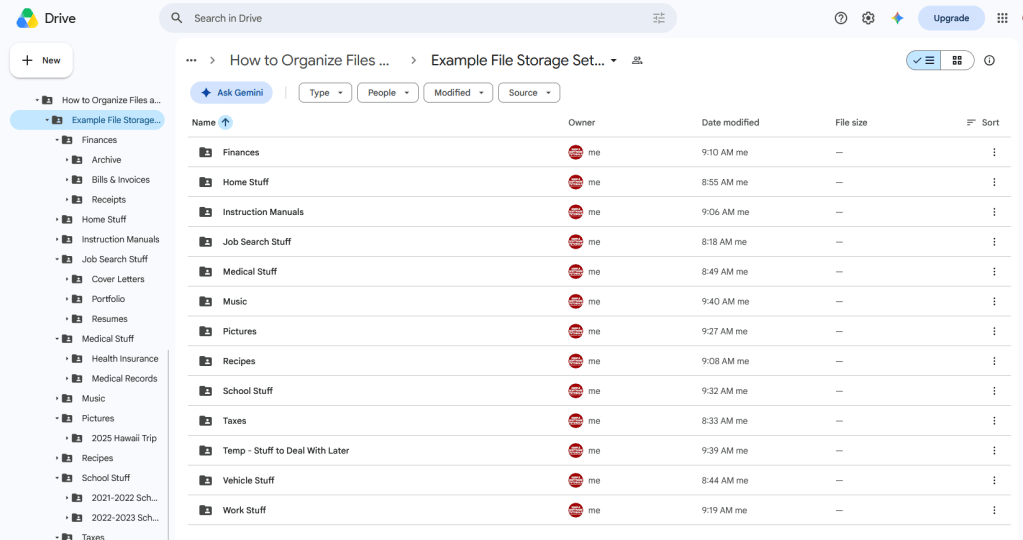
It includes sample top-level folders such as finances, job search, pictures, taxes, work, recipes, and other everyday categories, along with subfolders that show how you might organize information within each area.
The example is meant to provide inspiration, not a structure you need to copy exactly. Your own folders should reflect the files and information that make sense for your life, work, or school.
All files and information in the example are fictional, blank templates, or sample materials included for demonstration purposes only. Nothing in the example should be considered legal, financial, medical, tax, or other professional advice, and any sample documents should not be used as official forms or relied on for real-world decisions.
View the Example File Storage Setup
Related
How to Free Up Storage on Your Computer Without Deleting Your OneDrive Files
Learn how to free up disk space on your Windows computer using Microsoft OneDrive Files On-Demand. This step-by-step tutorial explains how to remove local copies of files without deleting them from OneDrive, understand file status icons, and manage which files stay available offline to help you make better use of your computer’s storage.

What Is a Search Engine? Google, Bing, DuckDuckGo, and More Explained
Learn what a search engine is, how it differs from a web browser, and how Google, Bing, DuckDuckGo, Yahoo, and other search engines work. This guide also explains default search engines, privacy differences, why search results vary, and how to tell which search engine you’re using.
How to Change the Default Search Engine in Microsoft Edge
Learn how to change the default search engine in Microsoft Edge so searches from the address bar use Google, DuckDuckGo, Yahoo, Bing, or another available option. This step-by-step guide shows the quickest way to find the setting, where it is located, and how to switch back later.
Stay Updated
There are two easy ways to get notified when new tutorials are published:
Subscribe on YouTube for new video tutorials: @SimpleSoftwareTutorials
or enter your email below to receive new blog posts directly in your inbox:

