
Over time, files like photos, screenshots, documents, and videos can take up quite a bit of storage space on your computer. If you’re running low on disk space, you might notice your computer slowing down or running into other performance issues.
If you use Microsoft OneDrive, there’s a feature called Files On-Demand that can help free up space on your computer without deleting your files. Instead of keeping a copy of every file stored on your computer, you can keep files in OneDrive and download them only when you need them.
In this tutorial, I’ll explain how OneDrive Files On-Demand works, what to know before using it, and how to free up disk space while keeping your files accessible.
What OneDrive Files On-Demand Actually Does
When you use OneDrive, your files can exist in two places:
- In the cloud: The file is stored in your OneDrive account on Microsoft’s servers.
- Locally: A copy of the file is downloaded and stored on your computer’s internal drive.
With OneDrive Files On-Demand, you can view and access files through Windows File Explorer without keeping a full local copy of every file on your computer – you’re basically seeing a preview of the file without it taking up space on your computer.
When you use the Free up disk space feature, OneDrive can remove downloaded local copies of eligible files while retaining the files in your OneDrive cloud storage.
The files still appear in File Explorer, so it doesn’t look like they’ve disappeared. However, instead of having the entire file stored locally, Windows displays a small placeholder that represents the file stored in OneDrive. When you open an online-only file, OneDrive downloads it to your computer so you can use it.
Understanding the OneDrive File Status Icons
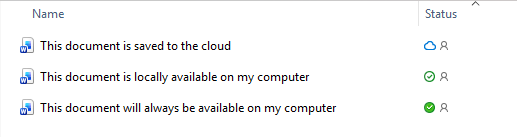
Windows displays icons in the “status” column when viewing files in Windows Explorer (shortcut: windows key + E). This makes it easy to know at a glance whether the file is stored in the cloud, downloaded to your computer, or designated to always be stored on your computer, even when freeing up disk space.
- Blue cloud: Online-only. The full file is stored in OneDrive, not locally on your computer. Opening it requires an internet connection and downloads a local copy.
- Green outlined checkmark: Locally available. The file has been downloaded to your computer. You can use it without an internet connection, but it takes up disk space.
- Solid green circle with white checkmark: Always available. You’ve selected Always keep on this device. OneDrive keeps the file downloaded, even when you’re offline.
Will freeing up disk space actually speed up your computer?
Potentially, yes, but it depends on what’s making your computer slow.
When your computer is running low on available storage:
- Windows has less room for temporary files and system operations.
- Some applications may struggle to create temporary working files.
- Windows updates may fail or have difficulty installing.
- Applications that need disk space for caching or editing large files may run less efficiently.
Freeing up disk space can help resolve these problems. However, having lots of files stored on your computer doesn’t automatically make it run slowly.
For example, if your computer has a 1 TB SSD with 500 GB of available space, moving another 100 GB of files to online-only storage probably won’t produce a noticeable improvement in performance.
If that same computer has only 5 GB of available space, freeing up 100 GB could make a significant difference.
Other factors, such as insufficient RAM, excessive background applications, high CPU usage, or drive problems, can also affect performance.
An Important Distinction About the “Free up disk space” Button
Microsoft’s documentation states: The “Free up disk space” setting doesn’t necessarily mean that every locally downloaded OneDrive file will immediately become online-only.
Microsoft explains that files created directly on your computer remain available offline by default, even when the space-saving setting is enabled. That means you could still have quite a few files using local storage.
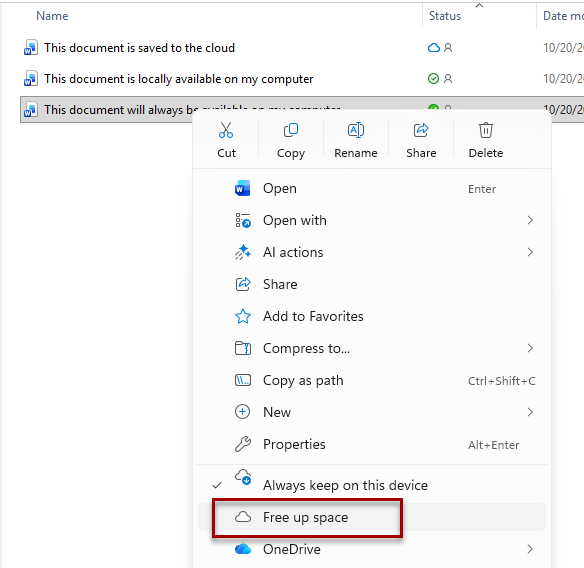
To manually remove the local copies of existing files or folders:
- Open File Explorer.
- Navigate to your OneDrive folder.
- Right-click a file or folder that you don’t need available offline.
- Select Free up space.
- Wait for OneDrive to finish processing the change and look for the blue cloud icon.
Key Things to Understand
Below are some important things to understand about OneDrive and storage:
- Internet access: Online-only files need an internet connection to download before they can be opened.
- Cloud storage: Making files online-only saves local storage, but does not reduce the space used in a OneDrive account.
- File deletion: Deleting a file from a synced OneDrive folder generally deletes it from OneDrive as well.
- Active projects: Frequently used files may be better kept locally, especially large videos or files that need to be accessed offline.
- Sync completion: Files should be fully synced to OneDrive before their local copies are removed.
- Backups: OneDrive synchronization is not a substitute for maintaining independent backups of important files.
Step-by-Step Instructions
Below, I’ll walk you through the simple steps to free up disk space with OneDrive Files On-Demand for Windows.
1. Check Current Available Storage (Optional)
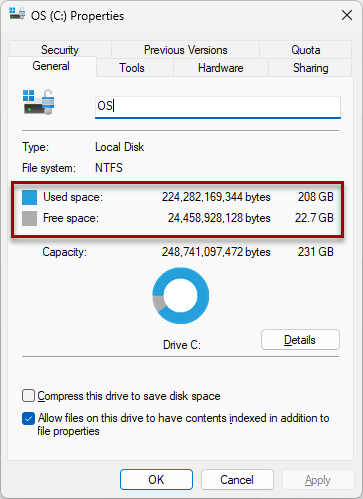
It’s helpful to understand how much storage space is available compared to how much is being used, then to re-check those amounts after following these steps
- Open File Explorer (Windows key + E)
- Locate the C drive, right click on it and select properties
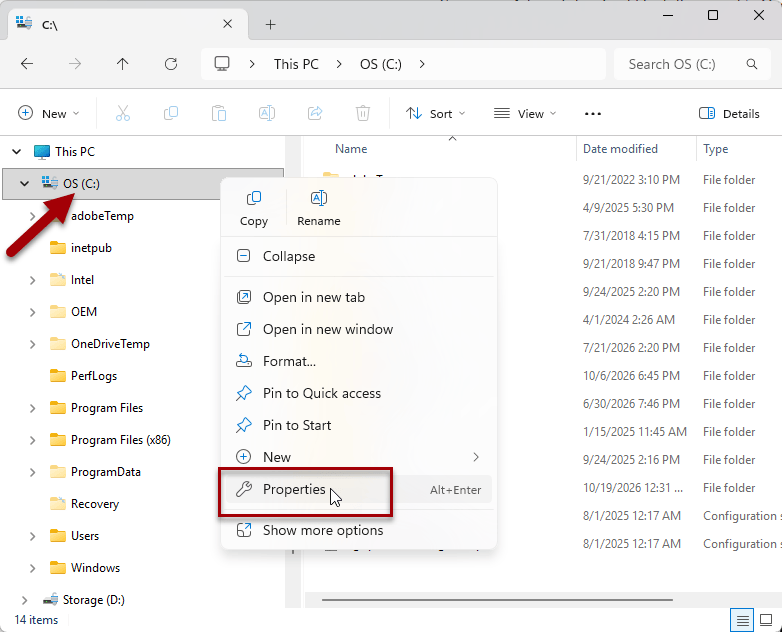
Note the amount of used space and free space to compare to how much space has been freed up later.
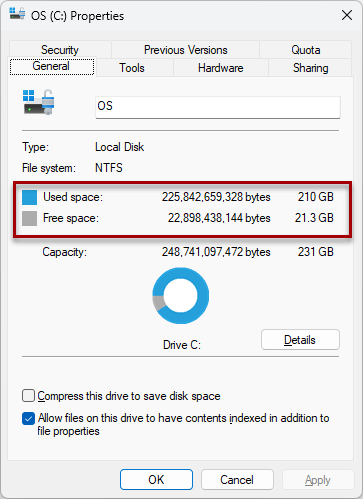
2. Open OneDrive Settings
The OneDrive icon is typically near the clock in the taskbar. If it’s not showing as in my example below, you may need to click on the arrow icon to show hidden icons.
- Right click on the OneDrive icon then click on the settings icon.
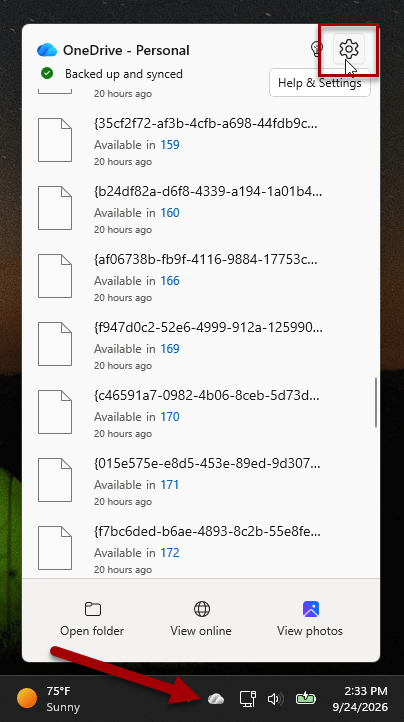
3. Navigate to Advanced Settings
- Scroll down the settings page and click on Advanced settings
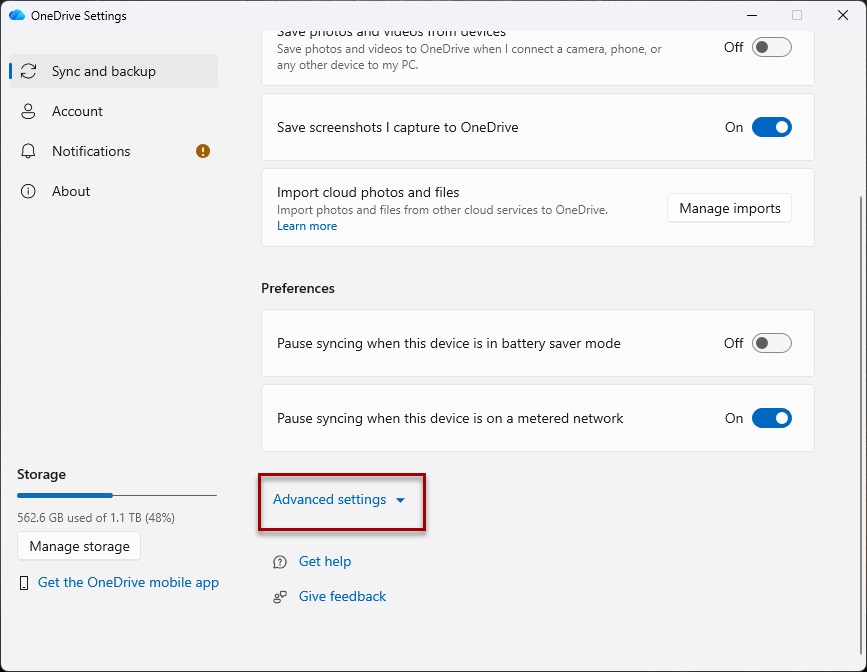
4. Free up Disk Space
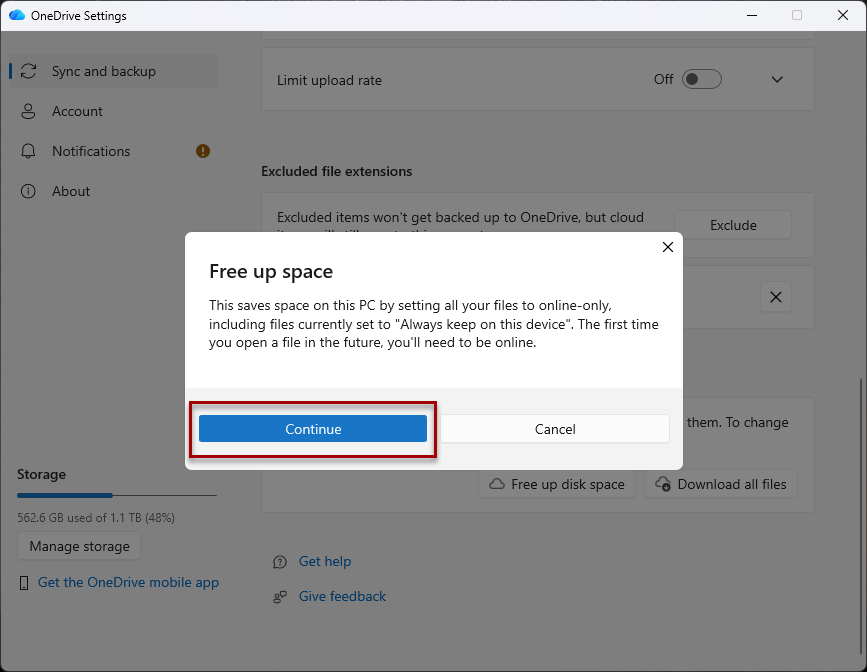
- Click on Free up disk space
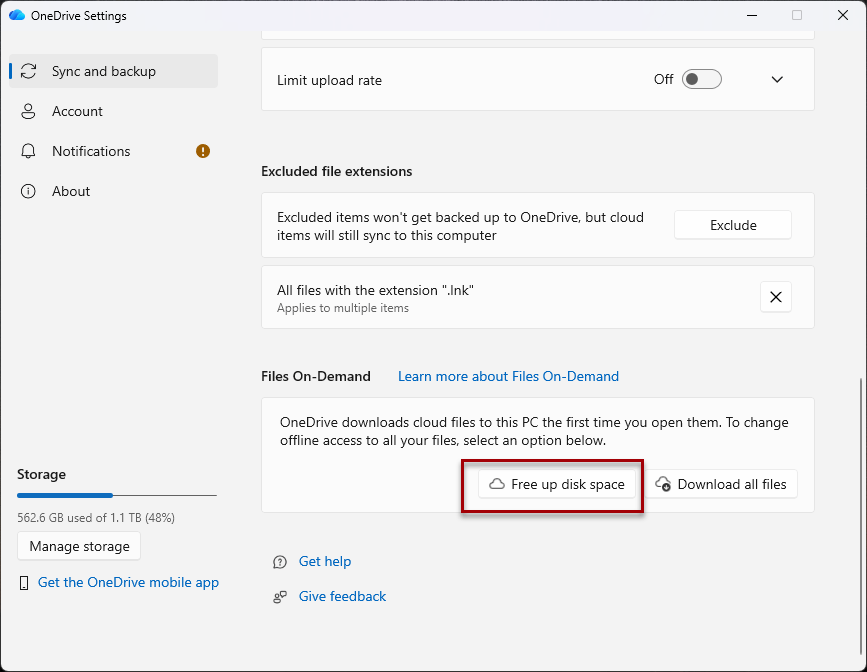
- Click Continue
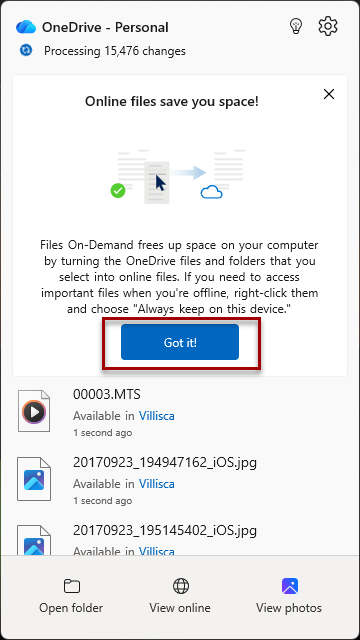
Clicking on the OneDrive icon may now display progress. This may take some time to process, but this concludes the steps needed to clear up some space using OneDrive Files On-Demand for Windows.
5. Re-Check Current Available Storage (Optional)
- Open File Explorer (Windows key + E)
- Locate the C drive, right click on it and select properties
- Note the amount of free space compared to before this process
- Note: it may take some time for Windows to clear up space, so changes may not be immediately noticeable
Opening Files After Freeing Up Disk Space
After freeing up disk space following this process, your files will still appear in your folders and they can be opened by clicking on them as usual – it just might take a moment to download them to local storage before opening.
How to Always Keep a File on Your Computer
If you want to ensure a file is always available on your computer, even when offline:
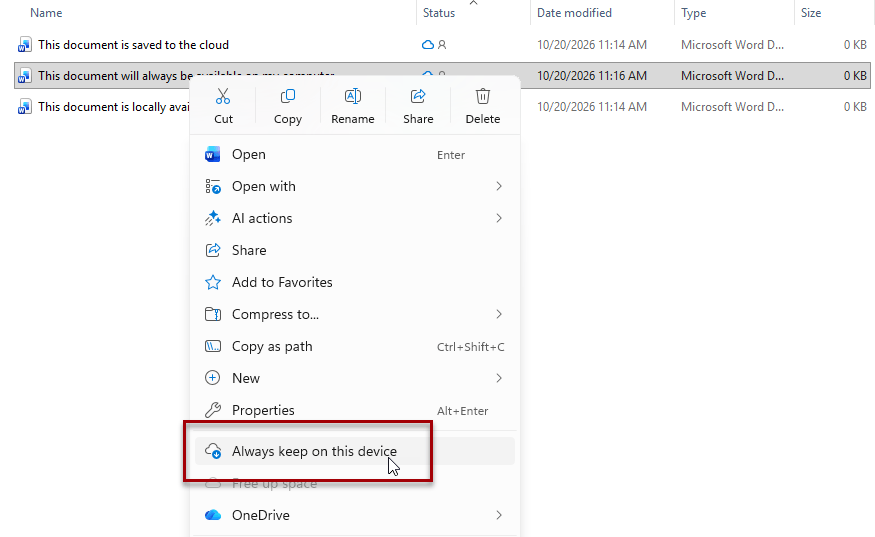
- Right click on the file
- Select Always keep on this device
Related

How to Take a Screenshot on Your Computer
Learn how to take a screenshot on a Windows computer using built-in tools and keyboard shortcuts. This guide covers Snipping Tool, Print Screen, capturing part of the screen or a single window, saving screenshots, using the Clipboard, and finding your screenshot files afterward.

How to Organize Files and Folders in Windows
Learn how to organize files and folders in Windows with a simple system that makes important documents easier to find. This guide covers File Explorer, folder structures, file naming, Downloads, cloud storage, and practical organization tips to help you create a filing system that works for you.

10 Keyboard Shortcuts Everyone Should Know
Learn 10 useful keyboard shortcuts for Windows and Mac that can make everyday computer tasks faster and easier. This guide explains shortcuts for undo, copy, paste, save, find, print, switching between apps, and more, with simple instructions for reading and using keyboard shortcuts correctly.
Stay Updated
There are two easy ways to get notified when new tutorials are published:
Subscribe on YouTube for new video tutorials: @SimpleSoftwareTutorials
or enter your email below to receive new blog posts directly in your inbox:

