
Sometimes you may want to send someone an existing email without simply forwarding its contents. Gmail lets you attach one or more emails to another message so the recipient can open them as separate email files.
In this tutorial, I’ll show you two ways to attach emails in Gmail on the web: using forward as attachment and dragging and dropping messages into a new email. I’ll also explain Gmail’s email size limits and what to keep in mind when attaching multiple messages.
Because the Gmail mobile app doesn’t offer the same attachment options as the desktop version, I’ll also show you a workaround you can use on your phone. You’ll find step-by-step instructions, screenshots, and a video walkthrough so you can choose the method that works best for your device.
Video Tutorial
Email File Size Limits
Gmail enforces strict size limits on how much data you can attach to a single message.
25 MB limit: The maximum combined size of your email body and all attachments (including .eml or .pdf files) is 25 megabytes.
Encoding overhead: Attaching files adds roughly 33% to their size due to technical encoding, meaning a 20 MB file on your computer might push the email over the 25 MB threshold.
Google Drive fallback: If your attached emails or files exceed 25 MB, Gmail will automatically upload them to your Google Drive and insert a shareable link into the text instead.
Step-by-Step Instructions
Below are two ways to attach one or more emails to a new email in the Gmail web application and one workaround to do this in the Gmail mobile app. For each method, start in your inbox.
Method 1: Forward as Attachment
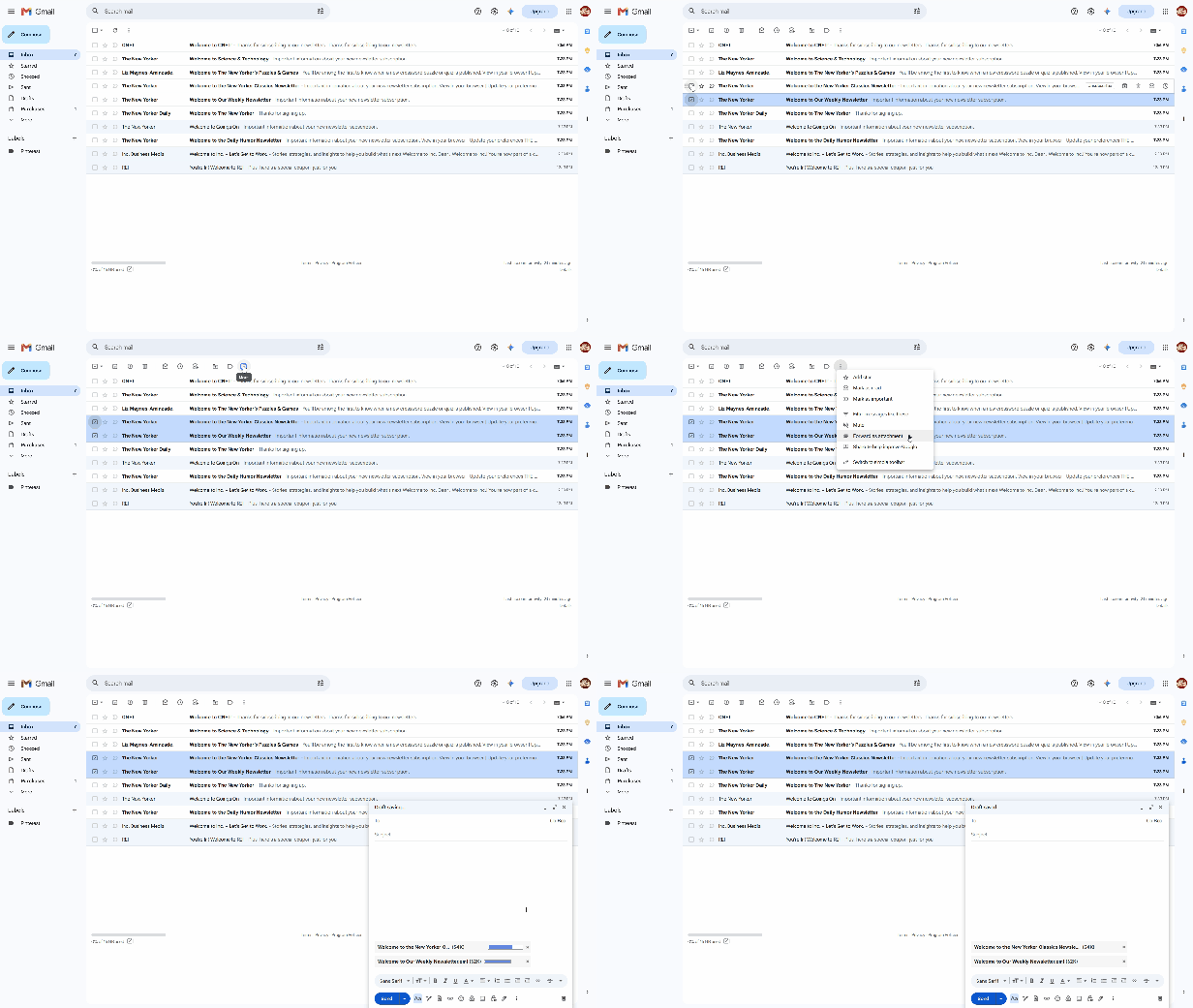
In this method, one or more emails can be selected by checking the box next to the message and using the “forward as attachment” option.
- Select the checkbox next to the email or emails you want to attach.
- Click the three vertical dots (More) icon in the top toolbar.
- Select Forward as attachment from the drop-down menu.
- A new compose window will open with your email(s) attached as a
.emlfile ready to send.
Method 2: Drag and Drop
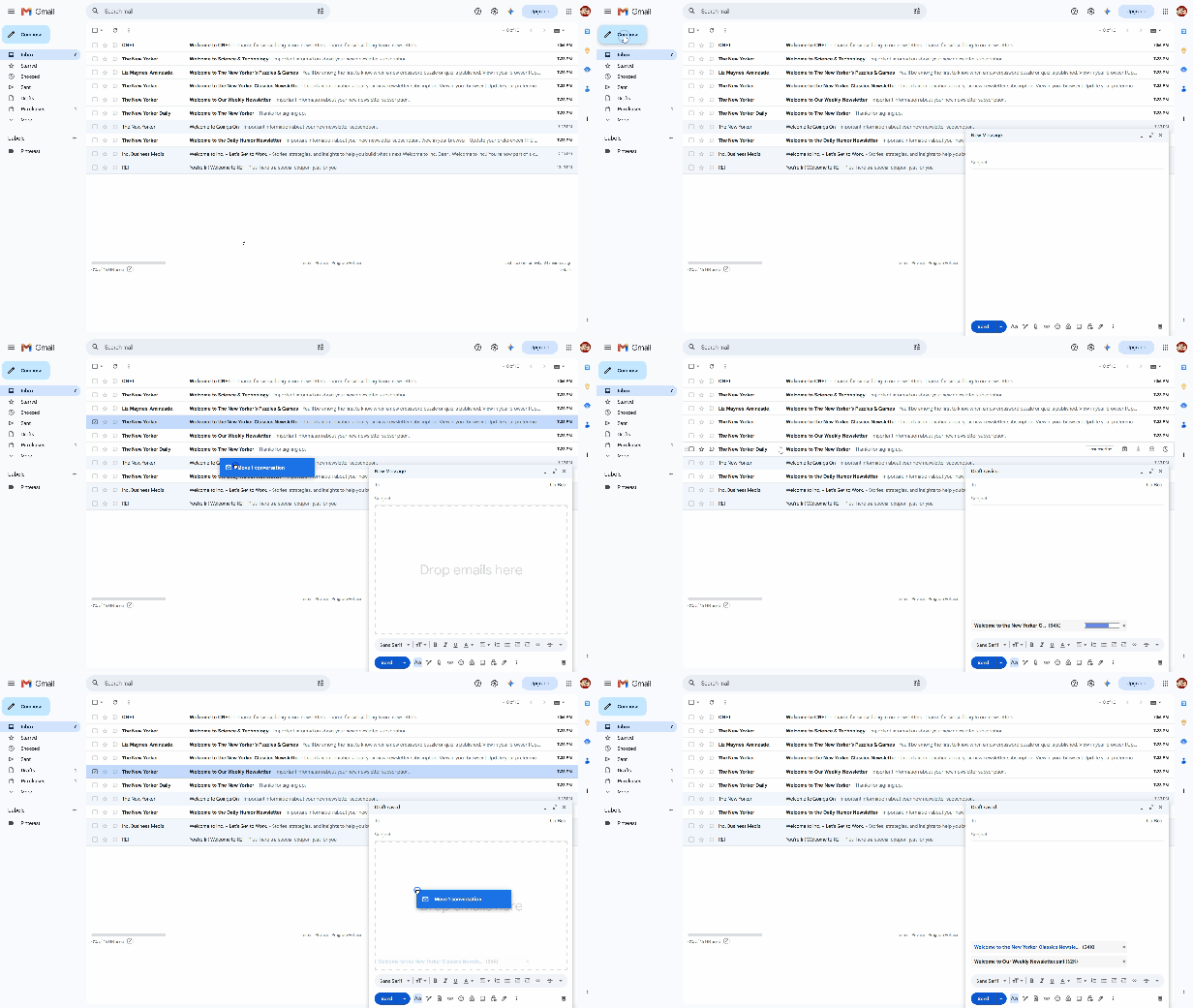
In this method, one or more emails can be dragged and dropped into a new email message.
- Open Gmail and click Compose to start a new message (or open an existing reply and click the pop-out icon to make it a floating window).
- Arrange your browser window or pop-out window so you can still see your inbox list.
- Click and hold the email you want to send.
- Drag the email into the body of your compose window where it says “Drop emails here” and release the mouse button.
Mobile PDF Workaround
Because the Gmail mobile app does not support attaching emails directly, you must convert the email into a PDF file first when sending through the app.
The below steps may vary slightly based on what device you’re using, but should provide a general guide of how to forward an email in the Gmail app.
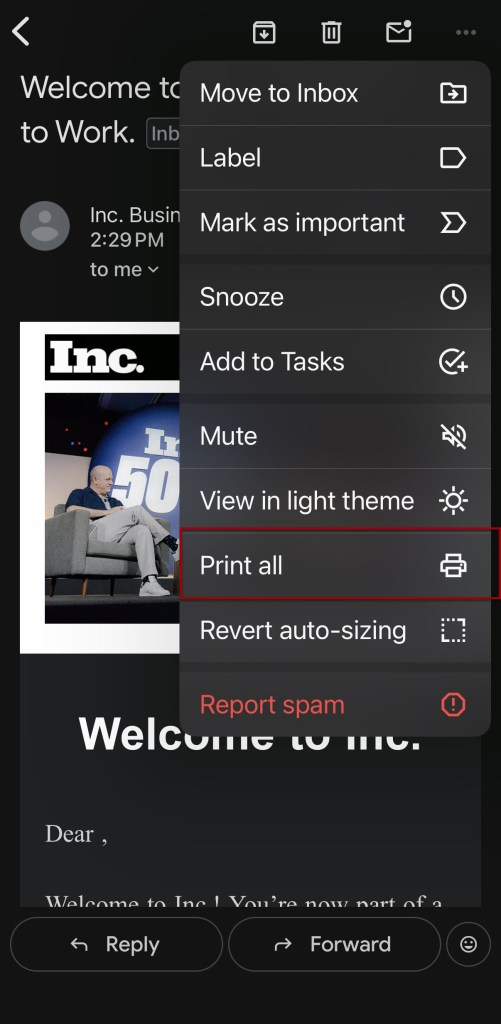
- Open the email you want to attach in the Gmail app.
- Tap the three dots inside the email.
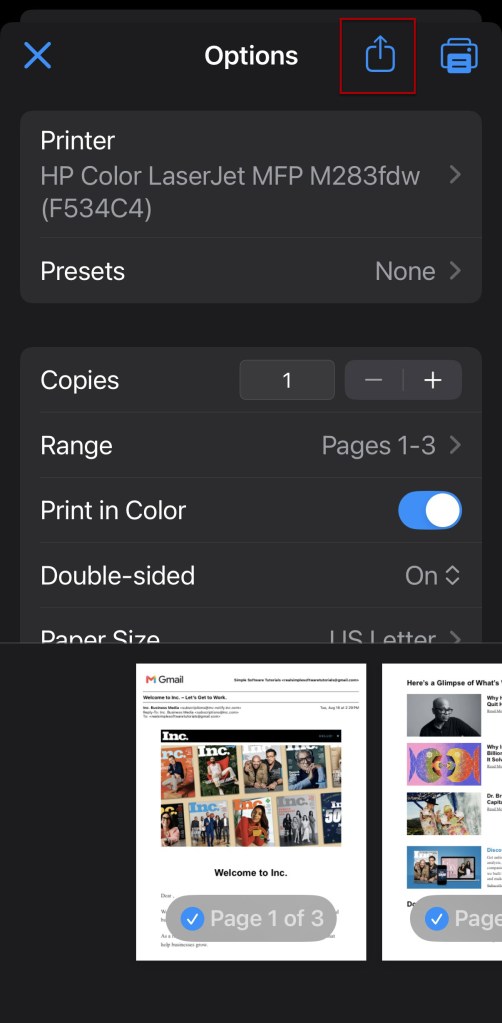
- Select Print from the menu options.
- Change the printer selection to Save as PDF at the top of the screen.
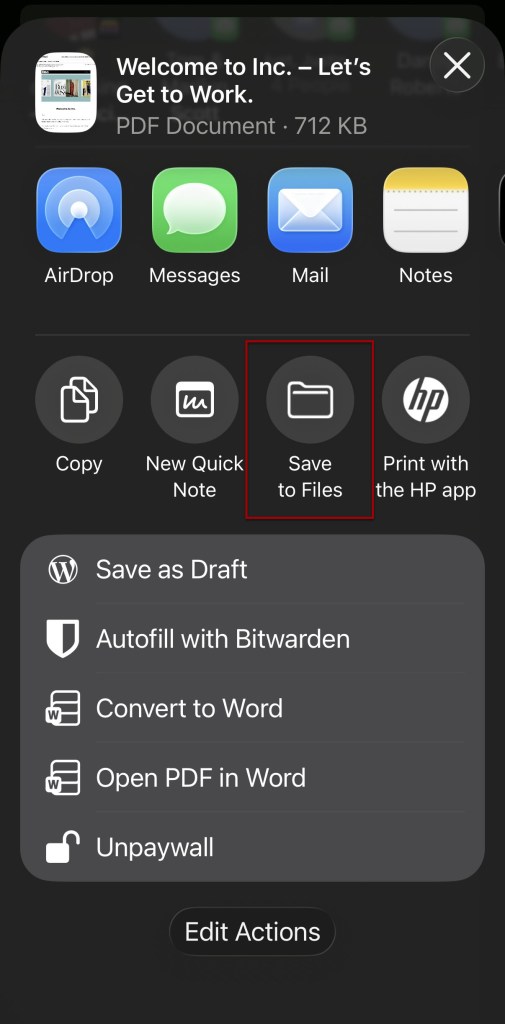
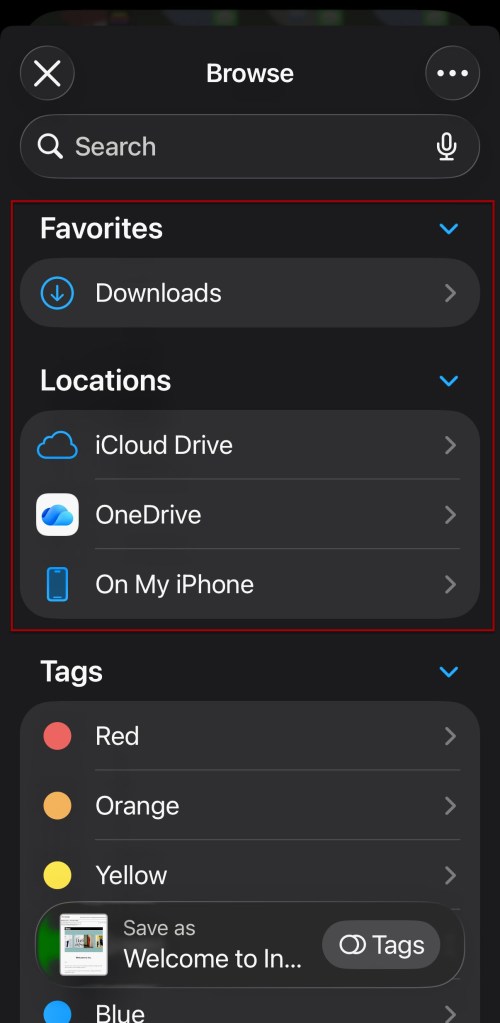
- OR select Save to Files if that’s an option.
- Tap the PDF download icon to save the file to your phone’s storage.
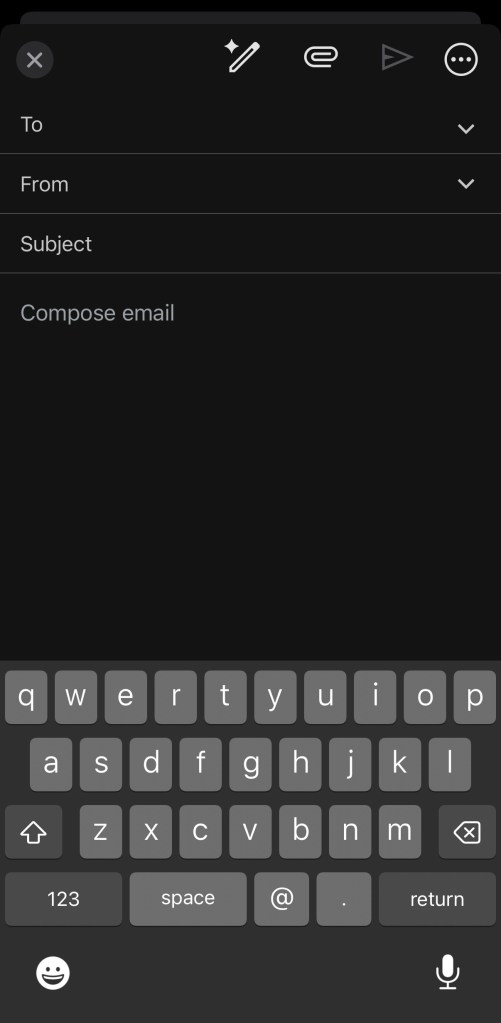
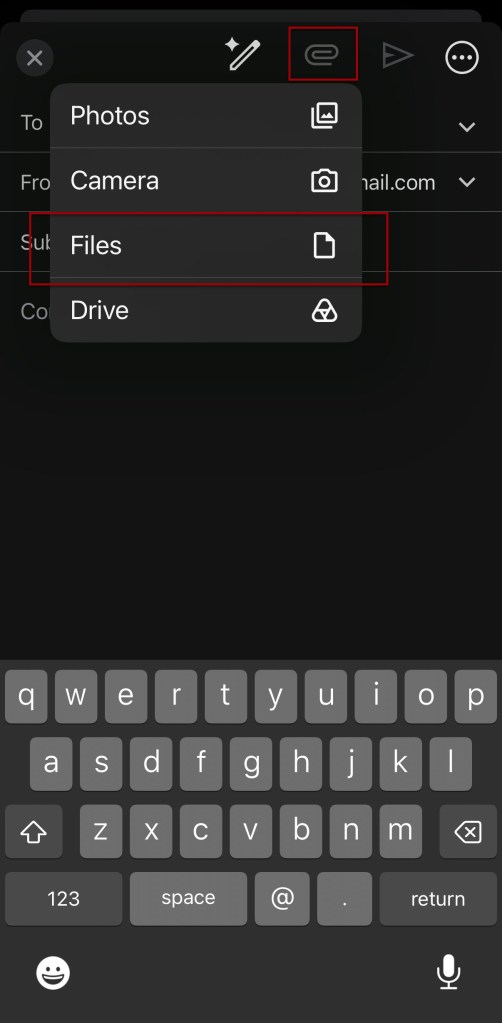
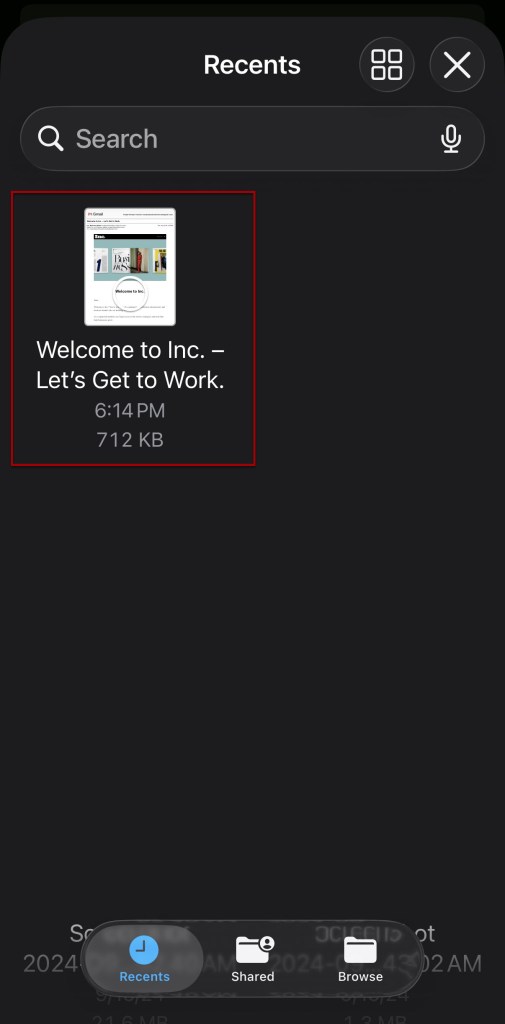
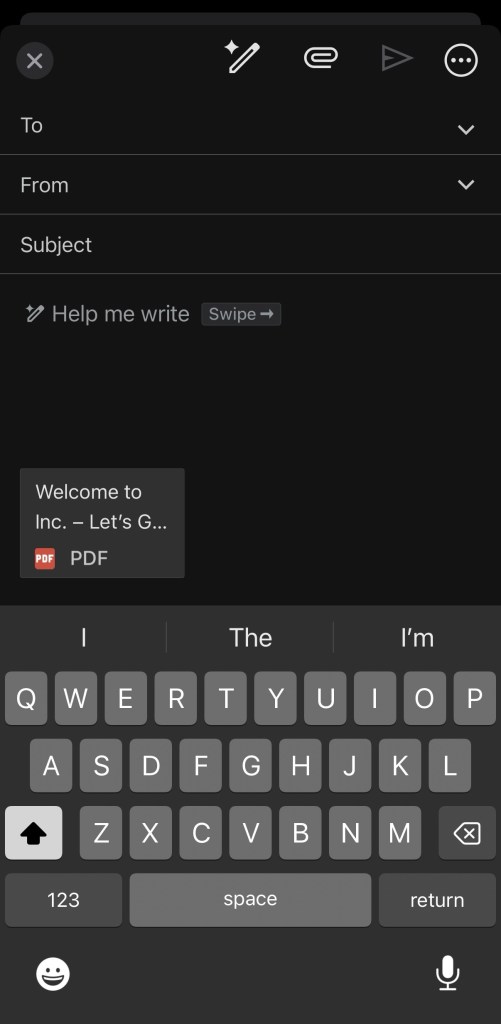
- Compose a new email, tap the Paperclip (Attach) icon, and select your saved PDF.
Below are screenshots demonstrating this method on an iPhone 16 Pro iOS version 26.6.
Related
How to Label Emails From a Specific Date Range in Gmail
Learn how to find Gmail emails from a specific date range using after: and before: search operators, then create and apply a label to organize those messages for easy access later. This tutorial also includes practical copy-and-paste date range examples for years, months, projects, travel, taxes, and more.
How to Automatically Apply a Label Based on Email Age in Gmail
Learn how to automatically apply a Gmail label based on email age using Google Apps Script. This tutorial shows how to create the label, customize an `older_than:` rule, test and authorize the script, and set up a daily trigger so older messages are labeled automatically.
Stay Updated
There are two easy ways to get notified when new tutorials are published:
Subscribe on YouTube for new video tutorials: @SimpleSoftwareTutorials
or enter your email below to receive new blog posts directly in your inbox:
 Simple Software Tutorials