

A web browser is one of the main tools you use to access the internet, but if no one has ever explained what a browser actually is, the terminology can be confusing.
You may have heard names like Google Chrome, Microsoft Edge, Safari, or Firefox without realizing that they are all different versions of the same type of software: a web browser.
In this guide, we’ll look at what a web browser does, some of the most common browsers, how browsers differ from search engines and websites, and the basic browser features you’ll use while navigating the internet.
What Is a Web Browser?
A web browser, sometimes called an internet browser, is a software program or app that lets you view and interact with websites on the internet.
You use a browser when you:
- read a news website
- shop online
- search for information
- watch YouTube
- use web-based email
- apply for a job
- access your bank’s website
- use online tools such as Google Docs
- read this tutorial
Common web browsers include:
- Google Chrome
- Microsoft Edge
- Apple Safari
- Mozilla Firefox
There are others as well, but they all serve the same basic purpose: helping you access and use websites.
Browser vs. Search Engine vs. Website
These terms are related, but they don’t mean the same thing.
| Term | What it is | Examples |
|---|---|---|
| Web browser | A program used to access the web | Chrome, Edge, Safari, Firefox |
| Search engine | A service used to search for information online | Google, Bing, DuckDuckGo |
| Website | A specific location you visit on the web | YouTube, Wikipedia, Amazon |
One of the most common sources of confusion is Google vs. Google Chrome.
Google Chrome is a web browser.
Google Search is a search engine.
You can use Google Search inside Chrome, but you can also use Google Search from Edge, Safari, Firefox, or another browser.
For example, you might:
- Open Chrome, your browser.
- Go to Google, your search engine.
- Search for “how to organize files in Windows.”
- Click a result that takes you to a website.
Understanding the difference between these three terms makes many other internet instructions easier to follow.
Common Web Browsers
You have several browsers to choose from, and you can even have more than one installed on the same computer or phone.
Google Chrome
Google Chrome is Google’s web browser.
It is available on Windows, Mac, Android, iPhone, and iPad.
Chrome may be especially convenient if you use other Google services such as:
- Gmail
- Google Drive
- Google Docs
- Google Sheets
- Google Calendar
If you sign into Chrome with your Google account and enable synchronization, you may also be able to access browser information across multiple devices.
Microsoft Edge
Microsoft Edge is Microsoft’s web browser.
It is included with Windows, which means most Windows computers already have a browser available even if you haven’t installed another one.
You do not need to install Chrome just because you’re using Windows. Edge can access websites just like other modern browsers.
Edge may be convenient for people who use Microsoft products and services or simply want to use the browser that is already included with Windows.
Apple Safari
Safari is Apple’s web browser.
It is included with Apple devices such as:
- Mac computers
- iPhones
- iPads
Safari is closely integrated with Apple’s other software and services, making it a natural choice for people who primarily use Apple devices.
Mozilla Firefox
Firefox is a web browser created by Mozilla.
It is available on Windows, Mac, and mobile devices and is another popular alternative to Chrome, Edge, and Safari.
Firefox may appeal to people who prefer its approach to privacy, customization, or simply want a browser that isn’t made by Google, Microsoft, or Apple.
Other Browsers
You may also encounter browsers such as:
- Brave
- Opera
- Samsung Internet
- DuckDuckGo browser
You don’t need to learn every browser. Once you understand how one modern browser works, many of the basic skills transfer to the others.
Which Browser Should I Use?
For everyday internet use, major modern browsers can perform most of the same basic tasks.
Your choice may come down to things such as:
- which browser is already installed
- which devices you use
- which online services you use most often
- privacy preferences
- features you prefer
- whether you want information synchronized between devices
For example:
If you primarily use Google services, you may prefer Chrome.
If you use Windows and don’t want to install anything else, Edge may be perfectly suitable.
If you primarily use Apple devices, Safari may feel the most natural.
If you prefer an alternative browser, Firefox may be a good option.
You can also install more than one browser and use different browsers for different purposes.
Browsers Look Different but Work in Similar Ways
Different browsers may place buttons and menus in slightly different locations, but they generally include many of the same basic features.
These include:
- an address bar
- Back and Forward buttons
- Refresh or Reload
- tabs
- bookmarks or favorites
- browsing history
- downloads
- browser settings
- private or incognito browsing
Once you understand what these features do, you’ll be able to recognize them in different browsers even if they don’t look exactly the same.
What Is the Address Bar?
The address bar is usually located near the top of the browser window.

It can be used to enter a specific website address, such as: youtube.com
You can also usually type a search directly into the address bar, such as: easy dinner recipes
If you enter a web address, the browser tries to take you directly to that website.
If you enter a question or search phrase, the browser usually sends it to your default search engine.
This means you often don’t have to visit Google or another search engine first. You can search directly from the address bar.
What Are Browser Tabs?
Browser tabs let you have multiple webpages open inside the same browser window.
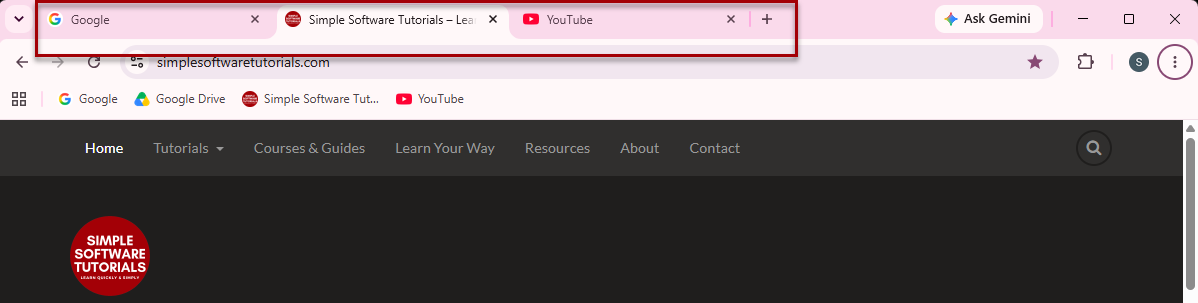
For example, while working you might have separate tabs open for:
- your calendar
- a spreadsheet
- a news article
- a website you’re researching
Each tab contains a different webpage.
Tabs make it easy to move among several webpages without opening a completely separate browser window every time.
Two useful keyboard shortcuts are:
Windows: Ctrl + T
Mac: Command + T
These open a new browser tab.
To close the current tab:
Windows: Ctrl + W
Mac: Command + W
Browser vs. Window vs. Tab
These three terms can also be confusing.
Imagine you’re using Google Chrome.
Browser: Google Chrome itself
Browser window: One open Chrome window on your screen
Tab: An individual webpage open inside that window
You could have one Chrome window containing five tabs.
You could also have two separate Chrome windows, each containing several tabs.
What Are Bookmarks or Favorites?
A bookmark saves the address of a webpage so you can easily return to it later.

Microsoft Edge also commonly uses the term Favorites.
You might bookmark:
- a website you visit regularly
- an online reference guide
- a recipe you want to make later
- a useful tutorial
- your company’s employee portal
Bookmarking a page does not normally save a copy of the webpage onto your computer.
Instead, the browser saves the web address so it can take you back to that page later.
Bookmarks are especially helpful for resources you expect to use repeatedly.
What Are Browser Downloads?
When you download something through a browser, you are taking a file from the internet and saving it to your device.

Examples of downloaded files include:
- PDFs
- photos
- resumes
- spreadsheets
- Word documents
- software installers
- ZIP files
Your browser usually keeps a list of files you’ve recently downloaded.
The actual file is also saved somewhere on your computer, often in your Downloads folder unless you’ve selected another location.
If you’ve ever clicked Download and then wondered where the file went, checking the browser’s download history or your Downloads folder is a good place to start.
What Is Browser History?
Your browser’s history is a record of webpages you’ve recently visited. This can be useful if you remember seeing something online but didn’t bookmark it.

History and bookmarks are different:
History is created automatically as you browse.
Bookmarks are pages you intentionally choose to save.
Depending on your browser settings, history may eventually be deleted or may not be recorded in certain browsing modes.
What Is Private or Incognito Browsing?
Most browsers offer a private browsing mode.
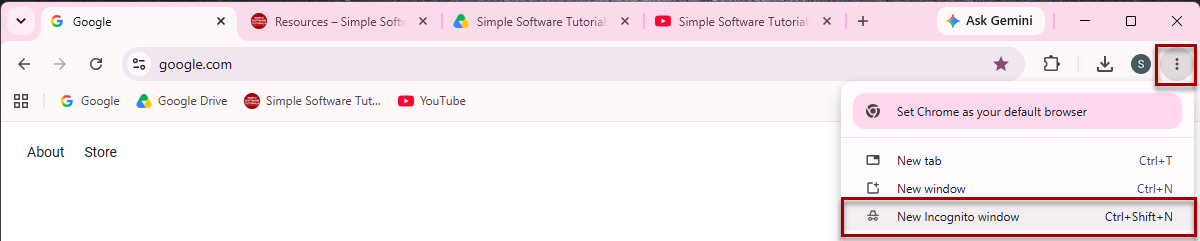
Depending on the browser, you may see names such as:
- Incognito
- InPrivate
- Private Browsing
Private browsing generally prevents the browser from keeping some information from the session, such as browsing history, after you close the private window.
However, private browsing does not make you invisible on the internet.
Websites, internet service providers, employers, schools, or other systems may still be able to see or record activity depending on the situation.
It’s better to think of private browsing as a way to reduce what is stored locally in your browser, not as a way to browse the internet anonymously.
What Are Browser Extensions?
Browser extensions are small add-ons that give your browser additional features.
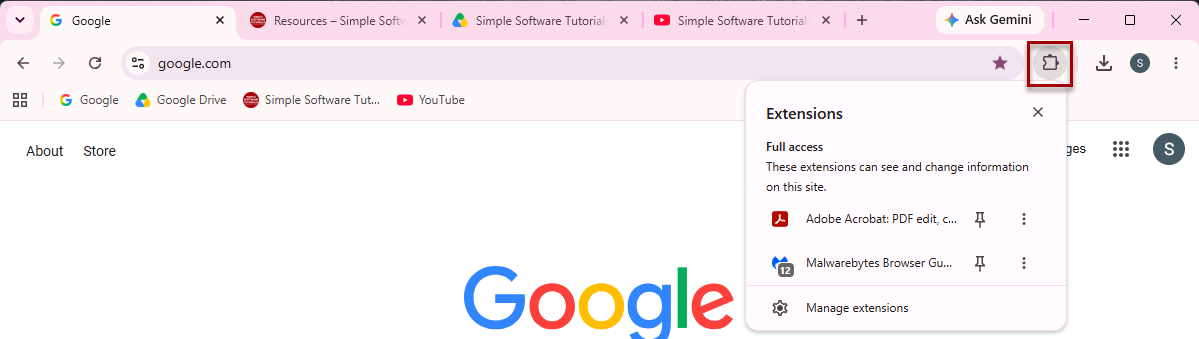
Examples might include:
- password managers
- grammar checkers
- accessibility tools
- ad blockers
- productivity tools
Extensions can be useful, but they may also request permission to view or interact with information in your browser.
Only install extensions you trust, and pay attention to the permissions they request.
What Is a Default Browser?
You may have several browsers installed, but your computer usually has one set as the default browser.
The default browser is the browser your computer automatically uses when you click a web link from another program.
For example, if Microsoft Edge is your default browser and you click a website link inside an email, Windows may automatically open that link in Edge.
This does not mean Edge is the only browser you can use.
You could still open Chrome, Firefox, or another installed browser whenever you want.
Your Phone Uses a Browser Too
Web browsers aren’t limited to desktop and laptop computers. Your smartphone has a browser as well.
On an iPhone or iPad, you’ll commonly see Safari.
On Android devices, Chrome is common, although some phone manufacturers may also include another browser.
You can usually install additional browsers on a phone just as you can on a computer.
If you’ve ever opened Chrome or Safari on your phone to visit a website, you already have experience using a web browser.
The browser on a computer may have more visible controls and a larger screen, but the basic idea is the same.
You May Be Able to Sync Browser Information Between Devices
Some browsers allow you to sign into an account and synchronize information between devices.
Depending on the browser and your settings, this might include:
- bookmarks
- saved passwords
- browsing history
- open tabs
- settings
For example, if you’re signed into Chrome on both your computer and phone, you may be able to access some of the same browser information on both devices.
Synchronization is optional, and you should review the browser’s privacy and synchronization settings before deciding what you want to share between devices.
Why Would a Website Tell Me to Use a Different Browser?
Most websites work in all major modern browsers, but occasionally a website may not behave correctly in a particular browser.
You may encounter instructions such as: For the best experience, use Chrome or This browser is not supported.
There are several reasons this can happen.
A website may:
- use a feature that doesn’t work properly in every browser
- require a newer version of the browser
- have been tested more thoroughly in certain browsers
- rely on a browser-specific extension or feature
If a website isn’t working properly, trying it in another browser can also be a useful troubleshooting step.
For example, if a webpage won’t load correctly in Chrome but works normally in Edge, that gives you a clue that the problem may be related to Chrome rather than your entire computer or internet connection.
Keep Your Browser Updated
Browsers receive regular updates that may improve:
- security
- compatibility with websites
- performance
- features
- bug fixes
Most modern browsers update automatically.
Sometimes you may see a message asking you to restart or relaunch the browser to complete an update.
Keeping your browser current can help websites work properly and can also help protect your computer while you’re online.
Try It: Get to Know Your Browser
The best way to become comfortable with browsers is to use one.
Try completing these activities:
- Identify which browser you’re using right now.
- Find the browser’s address bar.
- Open a new tab.
- Type the address of a website you know and visit it directly.
- Open another tab and type a search phrase into the address bar.
- Bookmark or favorite a useful webpage.
- Find the bookmark you just created.
- Locate the browser’s Downloads area.
- Look for the browser’s History.
- Find the browser’s Settings menu.
You don’t need to change any settings just yet. The goal is simply to learn where these basic features are located.
Different browsers may look different, but once you can identify features like the address bar, tabs, bookmarks, history, and downloads, you’ll have a much easier time using any modern browser.
You Don’t Have to Know Every Browser
You don’t need to memorize the differences between Chrome, Edge, Safari, Firefox, and every other browser.
The important thing is understanding the basic concept:
A browser is the program or app you use to access websites on the internet.
Once you understand how browsers work, you’ll also be better prepared to follow instructions that tell you to open a new tab, bookmark a page, check your downloads, clear your history, or try a different browser.
Like many computer skills, the exact buttons may change depending on the program you’re using, but the underlying concepts stay largely the same.
Related

What Is a Search Engine? Google, Bing, DuckDuckGo, and More Explained
Learn what a search engine is, how it differs from a web browser, and how Google, Bing, DuckDuckGo, Yahoo, and other search engines work. This guide also explains default search engines, privacy differences, why search results vary, and how to tell which search engine you’re using.
How to Change the Default Search Engine in Microsoft Edge
Learn how to change the default search engine in Microsoft Edge so searches from the address bar use Google, DuckDuckGo, Yahoo, Bing, or another available option. This step-by-step guide shows the quickest way to find the setting, where it is located, and how to switch back later.

How to Search Google More Effectively
Learn how to search Google more effectively by choosing better search terms, adding useful context, using exact phrases and filters, evaluating search results, and finding reliable sources. This guide also explains sponsored results, official sources, safer downloads, and how Google Search can work alongside AI tools.
Stay Updated
There are two easy ways to get notified when new tutorials are published:
Subscribe on YouTube for new video tutorials: @SimpleSoftwareTutorials
or enter your email below to receive new blog posts directly in your inbox:

