
If you use a Mac, there may be times when you need to know exactly which version of macOS you’re running or which Mac model you have.
That information can be useful when:
- following a tutorial
- checking whether software is compatible with your computer
- troubleshooting a problem
- deciding whether an operating system update is available
- contacting Apple Support or IT
- checking whether your Mac meets a program’s system requirements
Fortunately, most of this information is easy to find in one place.
In this guide, we’ll look at how to find your macOS version, Mac model, processor or chip, memory, storage, and a few other useful details about your computer.
How to Open About This Mac
The easiest place to start is About This Mac.
On your Mac:
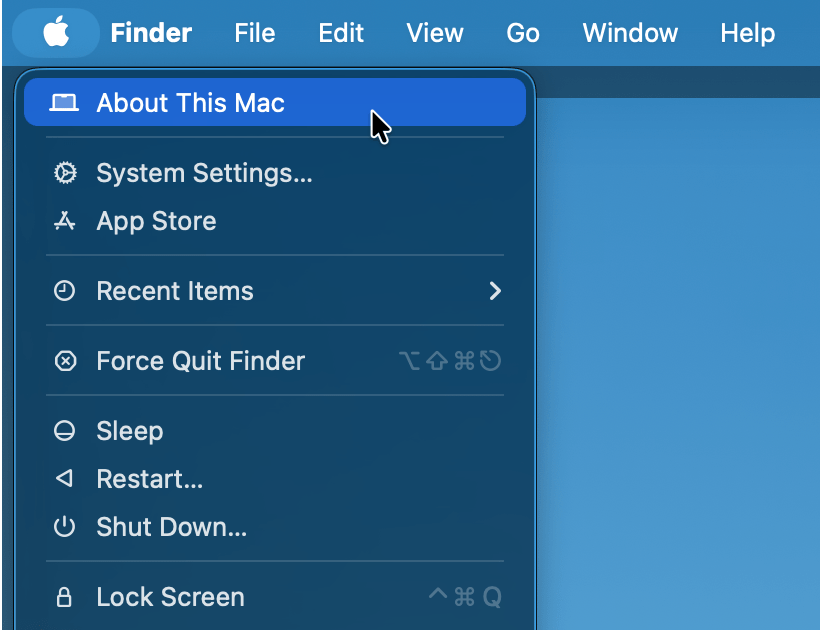
- Click the Apple menu in the upper-left corner of the screen.
- Select About This Mac.
This gives you a quick overview of your computer. You can also find more detailed information by going to:
Apple menu → System Settings → General → About
Apple’s current macOS settings include information about the computer, operating system, warranty coverage, storage, and access to a more detailed System Report.
How to Check Which Version of macOS You Have
Your Mac’s operating system is called macOS. This is similar to how many PCs run Windows, while iPhones run iOS.
When you open About This Mac, look for the macOS name and version number.
For example, you may see something similar to: macOS Tahoe 26
The exact version can matter because software sometimes requires a certain version of macOS or newer.
You can also go to: Apple menu → System Settings → General → About
If you need the more detailed version information, Apple notes that you can click the macOS version number to display the exact version.
Why does the macOS version matter?
Knowing your macOS version can help when:
- downloading software
- following troubleshooting instructions
- checking compatibility
- installing updates
- looking for help online
For example, instructions written for an older version of macOS may not look exactly the same on a newer Mac.
How to Find Your MacBook Model
It can also be useful to know exactly which Mac you have.
For example, simply knowing that you own a MacBook Pro may not be enough if you’re checking hardware compatibility or looking for support information.
The easiest place to start is again: Apple menu → About This Mac
Apple recommends About This Mac as the simplest way to find the name of your Mac model.
Depending on your Mac, you may see information such as: MacBook Pro
along with details that help identify the specific generation or configuration.
Apple maintains model-identification pages that list details such as the year introduced, model identifier, chip, ports, and newest compatible operating system for different MacBook Pro models.
Why does your Mac model matter?
Your model can help you determine:
- whether your Mac supports a particular version of macOS
- whether certain accessories are compatible
- what ports your computer has
- which hardware specifications apply to your computer
- whether troubleshooting instructions apply to your particular Mac
How to Tell Whether Your Mac Uses Apple Silicon or Intel
Another important detail is the processor or chip inside your Mac.
Older Macs commonly used Intel processors. Newer Macs use Apple’s own chips, often referred to as Apple silicon.
You may see chip names such as:
- Apple M1
- Apple M2
- Apple M3
- Apple M4
- Apple M5
Older Macs may instead show an Intel processor.
Look in About This Mac or System Settings → General → About
If your Mac uses Apple silicon, you should see information identifying the Apple chip.
If you have an older Intel-based Mac, you may see processor information instead.
Why does the chip matter?
Sometimes software downloads or troubleshooting instructions differ depending on whether your Mac uses Apple silicon or Intel.
You may occasionally see a website offer separate downloads for each type.
If you’re unsure which one to choose, knowing the chip in your Mac can help.
How to Check Your Mac’s Memory
You may also see a specification called Memory.
Memory, also known as RAM, is temporary working space your computer uses while programs are running.
You may see an amount such as 8 GB, 16 GB, 32 GB, or another amount depending on your Mac.
Memory can be important when checking whether your computer meets the system requirements for certain software.
Memory is not the same as storage
These two terms are easy to confuse:
- Memory (RAM) helps your computer work with programs and information while you’re actively using them.
- Storage is where files, programs, photos, documents, and other information are kept longer-term.
You can think of it somewhat like a desk and filing cabinet:
- Memory is the space on your desk while you’re working.
- Storage is the filing cabinet where you keep things when you’re done.
You don’t need to understand the technical details to use your Mac, but knowing the difference can make software requirements and troubleshooting information easier to understand.
How to Check Your Mac’s Storage
Storage tells you how much space your Mac has for things such as:
- apps
- documents
- photos
- videos
- downloads
- system files
To view storage information:
- Click the Apple menu.
- Open System Settings.
- Select General.
- Select Storage.
Apple’s Storage settings show how much space is being used and how much remains available. You can also view how different categories of files are using that space.
Why does available storage matter?
If your Mac is running low on storage, you may have trouble:
- downloading large files
- installing software
- installing macOS updates
- saving additional photos or documents
Checking Storage can help you determine whether you need to remove, move, or back up files.
How to View More Detailed Mac Information
For most everyday situations, the information shown in About This Mac or System Settings → General → About will be enough.
However, your Mac also has a more detailed System Report.
To access it:
- Open System Settings.
- Select General.
- Select About.
- Click System Report.
The System Report includes detailed information about your Mac’s hardware, software, connected devices, and network connections.
You probably won’t need most of this information during normal computer use.
However, it can be helpful when:
- troubleshooting
- checking hardware details
- working with technical support
- identifying connected devices
Apple also notes that you can hold the Option key while opening the Apple menu and select System Information to access detailed system information directly.
Other Information You May See
Depending on where you’re looking, you may also see information such as:
- your Mac’s name
- serial number
- warranty or coverage information
- display information
- model identifier
Some of these details are mostly useful when working with Apple Support or troubleshooting a specific problem.
Be Careful Sharing Your Serial Number
Your serial number uniquely identifies your Mac.
You may need to provide it to Apple or another trusted support provider, but you generally don’t need to include it in screenshots you post publicly.
If you’re creating a screenshot to share online, consider hiding or cropping out identifying information such as your serial number.
What Information Should You Know About Your Mac?
You do not need to memorize all of these details.
For most everyday computer use, it’s enough to know how to find them when you need them.
The most useful details are usually:
- Mac model — such as MacBook Pro
- macOS version
- Apple silicon or Intel
- chip or processor
- memory
- available storage
If a tutorial, software installer, or support technician asks for one of these details, you’ll know where to look.
Try It: Learn About Your Mac
Open About This Mac or:
System Settings → General → About
Then see if you can identify:
- Which Mac model do you have?
- Which version of macOS are you running?
- Does your Mac use an Apple chip or Intel processor?
- Which chip or processor do you have?
- How much memory does your Mac have?
- How much storage space is available?
You don’t need to memorize the answers.
The goal is simply to become familiar with where this information lives so you can find it again when you need it.
Knowing Your Mac Makes Other Instructions Easier
You don’t need to understand every technical specification inside your Mac to use it comfortably.
But knowing basic information about your computer can make it much easier to follow tutorials, install software, troubleshoot problems, and ask for help.
If someone asks which version of macOS you’re using or whether your Mac has an Apple chip, you now know where to find the answer.
Related

How to Take a Screenshot on a Mac
Learn how to take screenshots on a Mac using keyboard shortcuts and the built-in Screenshot tools. This guide explains how to capture the full screen, a selected area, or a single window, plus where screenshots are saved, how to copy them to the Clipboard, and how to change the save location.

10 Keyboard Shortcuts Everyone Should Know
Learn 10 useful keyboard shortcuts for Windows and Mac that can make everyday computer tasks faster and easier. This guide explains shortcuts for undo, copy, paste, save, find, print, switching between apps, and more, with simple instructions for reading and using keyboard shortcuts correctly.

What Is an Operating System? Windows, macOS, and More Explained
Learn what an operating system is, how Windows, macOS, ChromeOS, and other systems differ, and how to tell which one your computer uses. This beginner-friendly guide explains operating systems in plain language so you can better understand your computer and follow software tutorials with confidence.
Stay Updated
There are two easy ways to get notified when new tutorials are published:
Subscribe on YouTube for new video tutorials: @SimpleSoftwareTutorials
or enter your email below to receive new blog posts directly in your inbox:

