

Zero values are the 0s that Excel displays when a cell contains a formula that calculates to zero. While these values are often useful, they can make reports, budgets, templates, and other spreadsheets look cluttered—especially when many cells haven’t been filled in yet.
In this tutorial, you’ll learn two simple ways to hide zero values (those 0s you see in your worksheet) without changing your formulas or calculations. This walkthrough covers both a worksheet setting and a conditional formatting technique, so you can choose the method that works best for your spreadsheet.
Still works in current versions of Excel
Although the accompanying video was originally created using Excel 2010, I’ve verified that both methods shown here still work in current versions of Microsoft Excel, including Microsoft 365. The screenshots and written instructions below have been updated to match today’s interface where needed.
What You’ll Learn
- How to hide all zero values for an entire worksheet
- How to hide zero values using Excel’s Advanced worksheet options
- How to hide selected zero values with Conditional Formatting
- When to use each method
- The differences between hiding zeros and deleting values
- How hidden zero values affect printing and calculations
What are zero values in Excel?
A zero value is simply a cell that displays 0 because its value or formula equals zero. Hiding zero values doesn’t delete your data or change your formulas – it only changes how the worksheet displays those cells.
Common Uses
- Financial reports
- Monthly budget worksheets
- Expense trackers
- Sales reports
- Inventory spreadsheets
- Dashboards
- Templates that will be filled in over time
- Any worksheet where zero values create unnecessary visual clutter
Practice & Resources
Need a quick refresher later? This tutorial includes a printable reference guide that summarizes the steps and key concepts covered in the lesson.
Click the button below to view the resources available for this tutorial.
Requirements / Compatibility
This tutorial works with Microsoft Excel 2010 and remains applicable to modern versions of Microsoft Excel, including Microsoft 365, Excel 2016, Excel 2019, Excel 2021, and newer. While the interface has been updated over the years, both methods shown in this tutorial are still available.
Video Tutorial
Breaking Down the Concept
In Excel, a zero value simply means a cell displays 0 because the formula inside it evaluates to zero.
For example, if a formula adds two empty cells together, Excel often displays 0 instead of leaving the cell blank. When this happens throughout a worksheet, those zeros can make the spreadsheet harder to read—even though the formulas are working correctly.
This tutorial demonstrates two different ways to hide those zeros while leaving your formulas and calculations intact.
Method 1: Hide all zero values for an entire worksheet
Using Excel’s Advanced Options, you can tell Excel not to display zero values anywhere on the current worksheet. The underlying values and formulas remain unchanged.
Method 2: Hide zero values with Conditional Formatting
Conditional Formatting lets you hide only the zero values you choose by changing their font color (or applying another format). This provides more flexibility when you only want certain areas of a worksheet to hide zeros.
Neither method changes your formulas or calculations, only how the values are displayed.
Step-by-Step Instructions
Note: Although the accompanying video was created several years ago, these steps have been verified and remain accurate in current versions of Microsoft Excel.
Hide all zero values for an entire worksheet
The first option is done by using advanced Excel options and un-checking the “show a zero in cells that have zero value” box:
Click on: File > Options > Advanced to open advanced settings for Excel
Scroll down the advanced options page until you see Display options for this worksheet, right above the Formulas section.
Locate the option Show a zero in cells that have zero value and uncheck the box next to this option.

Hide zero values with Conditional Formatting
The second method is done by using conditional formatting:
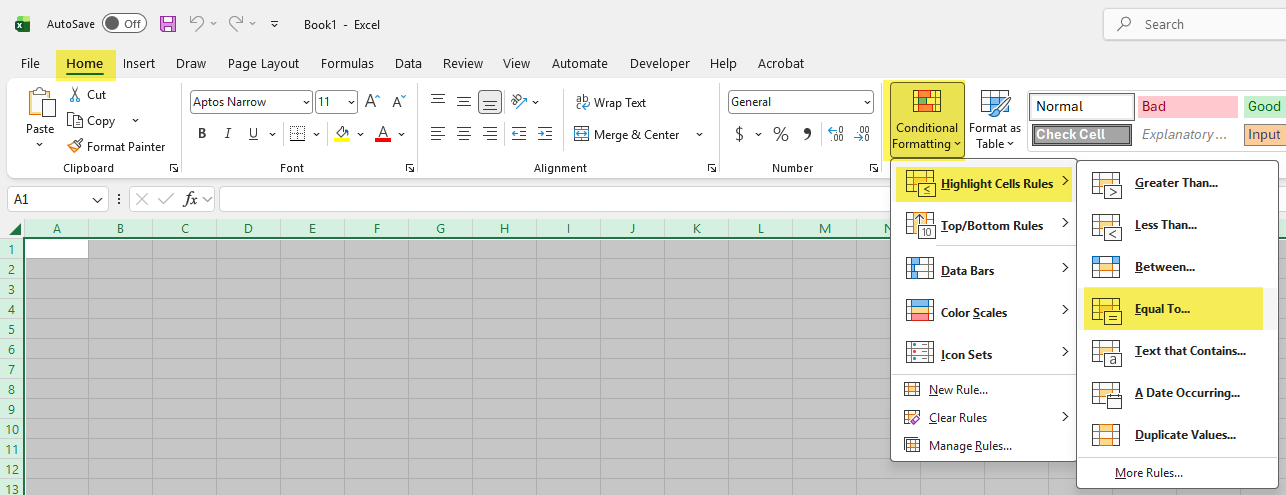
Select all of or part of the worksheet where you want to hide unwanted zeros (I just click in the corner to the left of A/above 1 or CTRL + A to select the whole sheet).
On the Home tab, click on Conditional Formatting > Highlight Cells Rules > Equal To… to open conditional formatting settings.
In the box on the left, type 0 then in the dropdown on the right, select Custom Format.
On the Font tab, locate the Color dropdown, and select White then click OK.
This changes all zero values to white so they are hidden from view and from printing.


Additional Tips
- If you only want to hide zeros in one section of a worksheet, Conditional Formatting is usually the better choice.
- Hiding zero values does not remove the underlying numbers or affect formulas – they’re simply hidden from view.
- If you later need to display the zeros again, simply reverse the setting or remove the conditional formatting rule.
- Another option is to modify your formulas (such as using the
IFfunction) so they return a blank cell instead of zero when appropriate. - If your worksheet will be printed, remember that hidden zero values won’t appear on the printed page.
Related

How to Remove Extra Spaces in Excel
Learn how to remove extra spaces from text in Microsoft Excel using the TRIM function. This beginner-friendly tutorial explains what TRIM removes, when to use it, and why it’s one of the most useful functions for cleaning imported or inconsistent data.

How to Create an Order Form with Drop-Down Menus in Microsoft Excel
Learn how to create a professional order form in Microsoft Excel using drop-down menus, Data Validation, and named ranges. This step-by-step tutorial also covers formatting dates, ZIP codes, and credit card fields to build cleaner, more accurate spreadsheets for real-world business use.

How to Auto-Populate Fields in Excel Using a Drop-Down and VLookup
Learn how to combine a drop-down list with VLOOKUP to automatically populate customer information in Microsoft Excel. This step-by-step tutorial demonstrates a practical business workflow that can be adapted for order forms, packing lists, customer databases, contact management, and other data-entry tasks.
Stay Updated
There are two easy ways to get notified when new tutorials are published:
Subscribe on YouTube for new video tutorials: @SimpleSoftwareTutorials
or enter your email below to receive new blog posts directly in your inbox:

