
I created this shortcut and added it to my control center simply because I can never remember the steps to restart my phone, especially since those steps have changed over the generations of iPhones I’ve had. Apple’s Control Center already has a power button, but that opens the option to shut down your iPhone rather than restart it.
If you’re looking for instructions on how to restart your iPhone, this Apple support article explains it.
However, if you want a really simple option to restart your iPhone by just swiping down from the top right of your phone and tapping a button, this guide will show you how to set that up.
I’ve included a video to guide you through each step of this process, as well as written step-by-step instructions below.
If you want to add a different shortcut to your control center, click here to skip down to those instructions.
Video Tutorial
Step-by-Step Instructions
First I created the restart shortcut, then I added it to the control center on my iPhone.
Create the Restart Shortcut
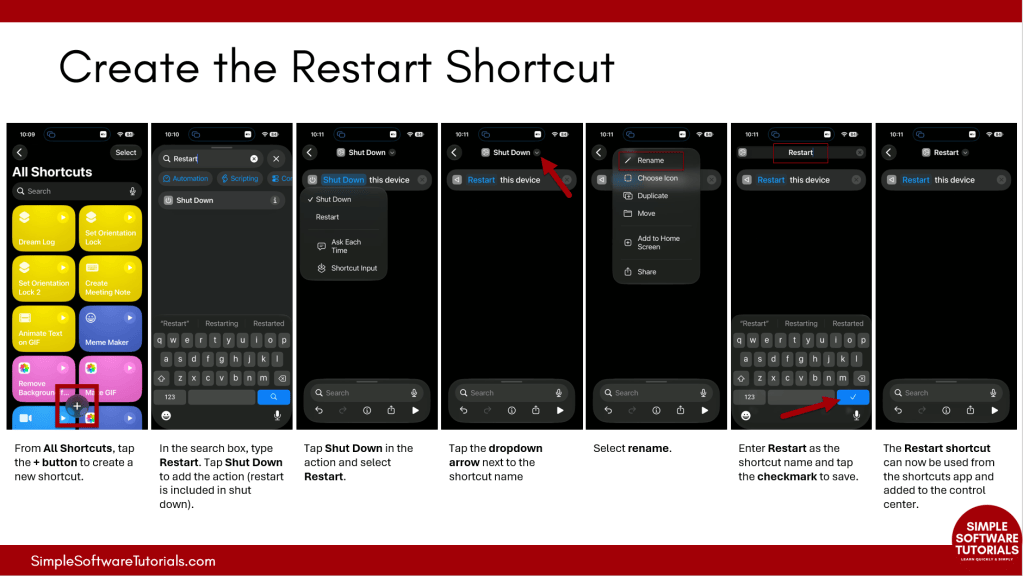
Start by creating the restart shortcut:
- Open the Shortcuts app on your iPhone.
- From All Shortcuts, tap the + button to create a new shortcut.
- In the search box, type Restart.
- Tap Shut Down to add the action (restart is included in shut down).
- Tap Shut Down in the action and select Restart.
- Tap the dropdown arrow next to the shortcut name and select Rename.
- Enter Restart as the shortcut name and tap the checkmark to save.
Add the Shortcut to the Control Center
Next, add the shortcut to the control center. These same steps can be used to add other shortcuts to the control center as well.
- Swipe down from the top-right corner of your iPhone to open Control Center.
- Tap the + button in the upper-left corner.
- Tap Add a Control.
- Search for Shortcut and select Run Shortcut.
- Tap Choose and select the Restart shortcut you just created.
- Tap outside the selection window to return to Control Center.
- Tap an empty area of the screen to exit edit mode.
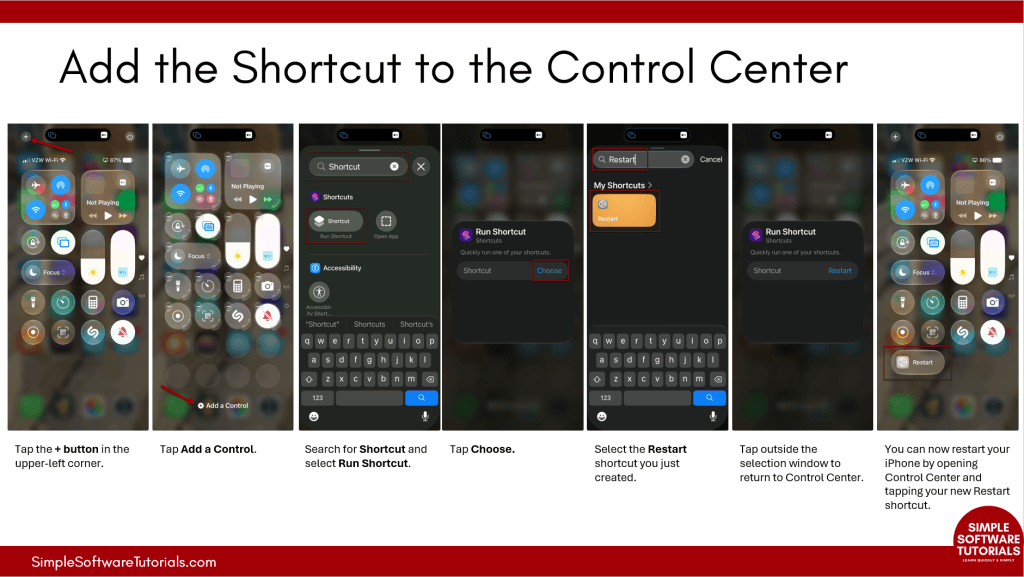
That’s it! You can now restart your iPhone by opening Control Center and tapping your new Restart shortcut. You may be prompted to confirm the restart.
Related
iPhone Shortcut: Automatically Lock and Unlock Screen Orientation by App
Learn how to automatically lock and unlock screen orientation when using specific iPhone apps. This step-by-step tutorial shows you how to use Apple’s Shortcuts app to create automations that prevent unwanted screen rotation, then turn Orientation Lock off when you leave the selected apps. No manual adjustments needed!
How to Delete One or Multiple iPhone Shortcuts
Learn two easy ways to delete shortcuts from the Shortcuts app on your iPhone. This step-by-step tutorial shows you how to remove an individual shortcut using the action menu or select and delete multiple shortcuts at once, making it easy to clean up shortcuts you no longer need.

iPhone Shortcut: Automatically Lower Screen Brightness at Bedtime
Learn how to create an iPhone Shortcut that automatically lowers your screen brightness when Sleep Focus begins. This simple automation helps reduce eye strain, makes nighttime phone use more comfortable, and runs automatically every night using Apple’s Shortcuts app.
Stay Updated
There are two easy ways to get notified when new tutorials are published:
Subscribe on YouTube for new video tutorials: @SimpleSoftwareTutorials
or enter your email below to receive new blog posts directly in your inbox:

