
Have a few shortcuts you no longer need? Whether you’re cleaning up your iPhone’s Shortcuts app or removing shortcuts you created while experimenting, deleting them is quick and easy.
In this tutorial, I’ll show you two ways to delete shortcuts from your iPhone. You can remove them individually using the shortcut’s action menu or select multiple shortcuts to delete them all at once.
Video Tutorial
Device & Software: This tutorial was demonstrated using an iPhone 16 Pro running iOS 27.0.1. Steps and menu options may vary depending on your device and iOS version.
Step-by-Step Instructions
Method 1: Delete a Single Shortcut
This method is for deleting one shortcut at a time.
- Open the Shortcuts app on your iPhone.
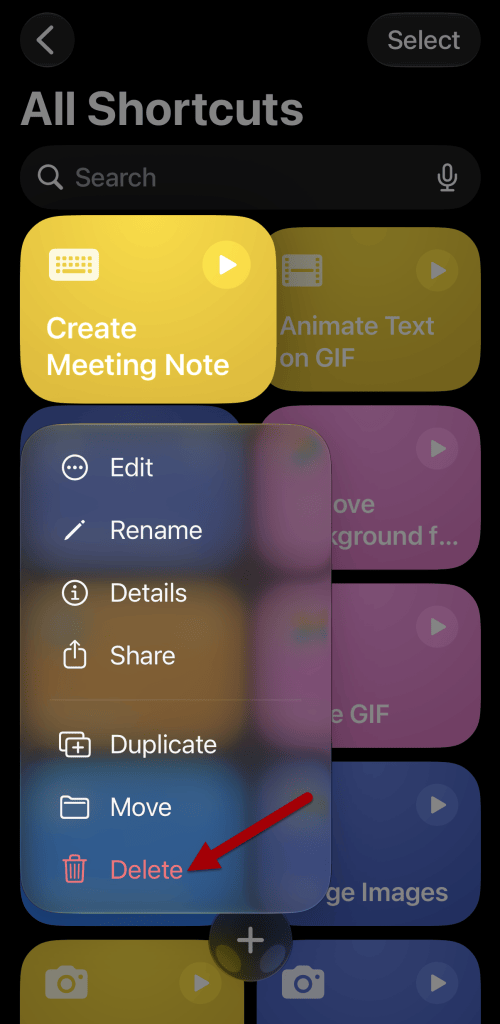
- Press and hold down on the shortcut you want to remove.
- Tap Delete on the menu that pops up.
- Tap on the Delete Shortcut button to confirm.
Method 2: Delete Multiple Shortcuts at Once
This method is for deleting one or more shortcuts at a time.
- Open the Shortcuts app on your iPhone.
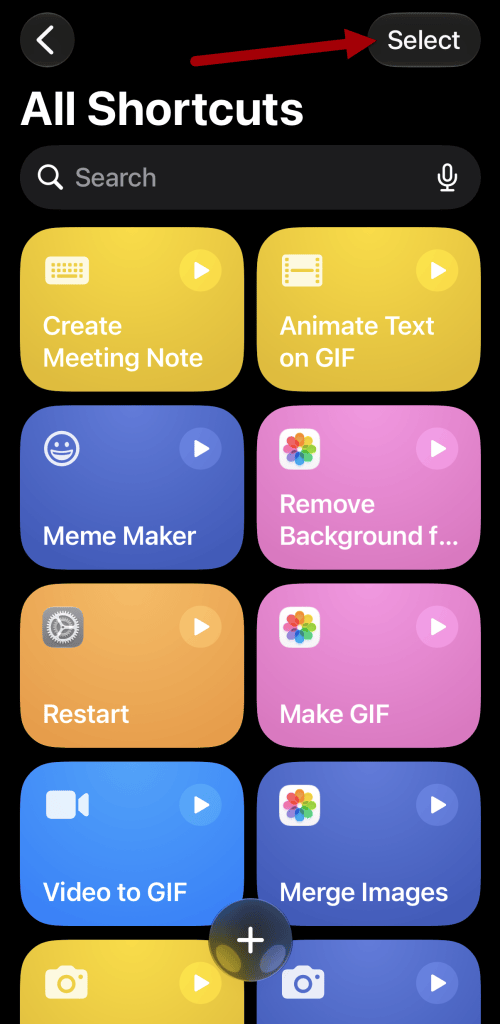
- Tap Select in the top right corner of the screen.
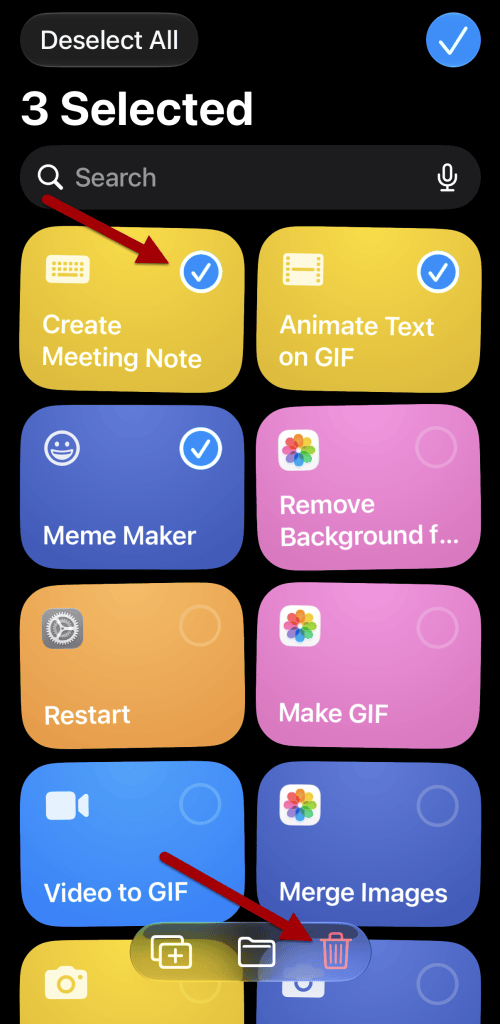
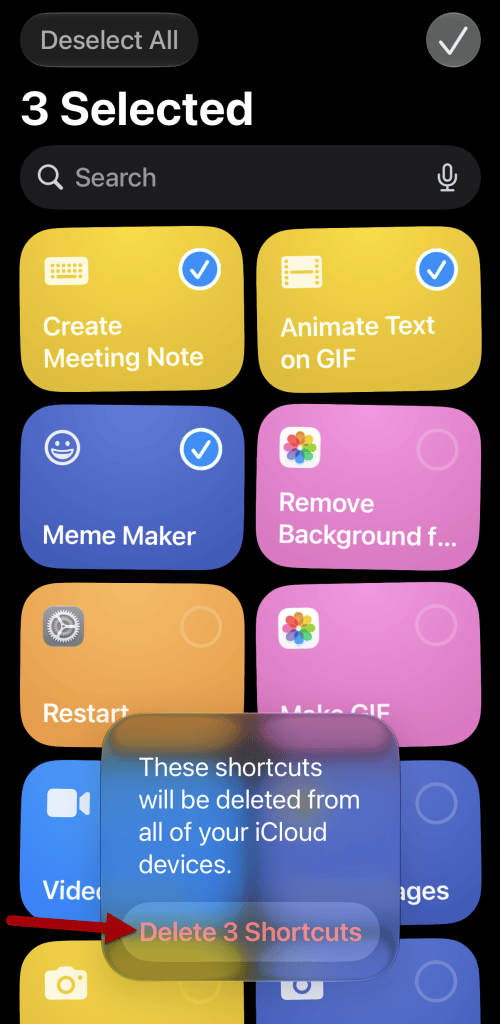
- Tap each shortcut you want to delete so a checkmark appears.
- Tap the trash can icon at the bottom of the screen
- Tap on the Delete Shortcut button to confirm.
Related

iPhone Shortcut: Automatically Lower Screen Brightness at Bedtime
Learn how to create an iPhone Shortcut that automatically lowers your screen brightness when Sleep Focus begins. This simple automation helps reduce eye strain, makes nighttime phone use more comfortable, and runs automatically every night using Apple’s Shortcuts app.

How to Automatically Lower iPhone Volume When Opening Apps
Learn how to automatically lower your iPhone’s volume whenever specific apps are opened using Apple’s Shortcuts app. This simple automation helps prevent unexpectedly loud videos while giving you complete control over which apps trigger the volume change.

Stay Updated
There are two easy ways to get notified when new tutorials are published:
Subscribe on YouTube for new video tutorials: @SimpleSoftwareTutorials
or enter your email below to receive new blog posts directly in your inbox:

