
Dropdown lists in Google Sheets make it easier to keep information consistent and reduce the need to type the same values repeatedly.
Instead of manually entering an option each time, you can create a list of choices and select the one you need from a dropdown menu.
In this tutorial, I’ll show you how to quickly create a dropdown list for an entire column in Google Sheets.
Video Tutorial
Step-by-Step Instructions
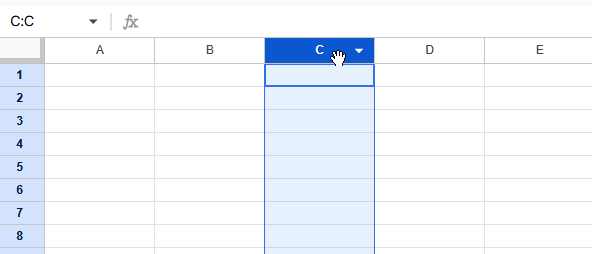
Step 1: Click the column header to select the column
First, we need to identify where the dropdown should be. In my example, I wanted the cells in column C to have dropdown list options, so I clicked the C to select the whole column.
If you only want the dropdown in a specific area, select that area instead of a whole column.
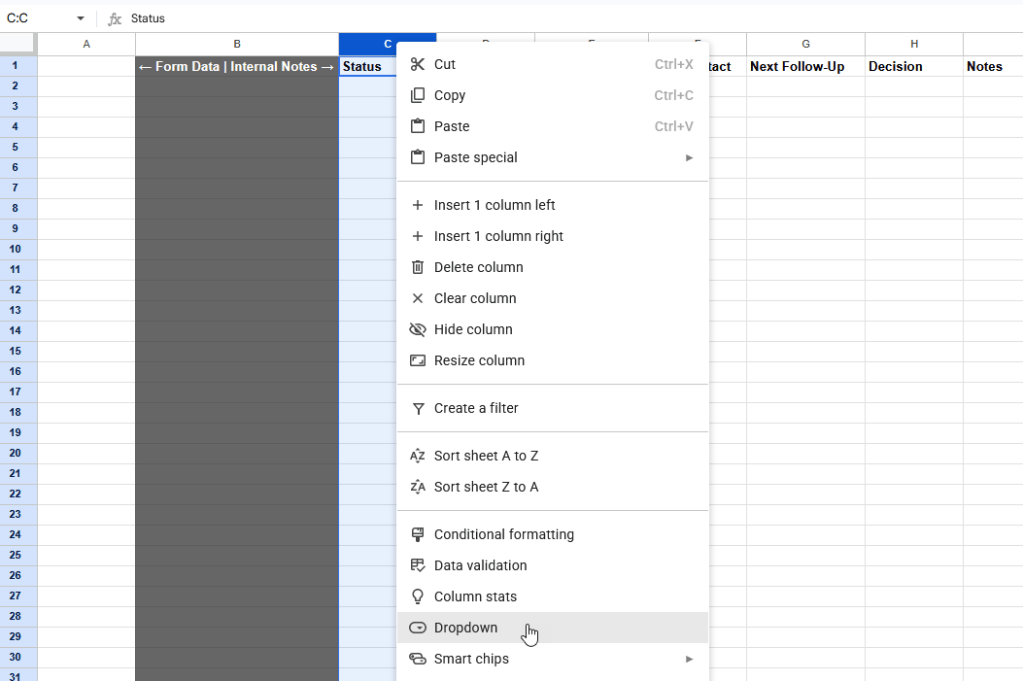
Step 2: Right click on the column to open the menu & select Dropdown
Now we need to open the contextual menu by right-clicking on the area where the dropdown should go, then select dropdown.
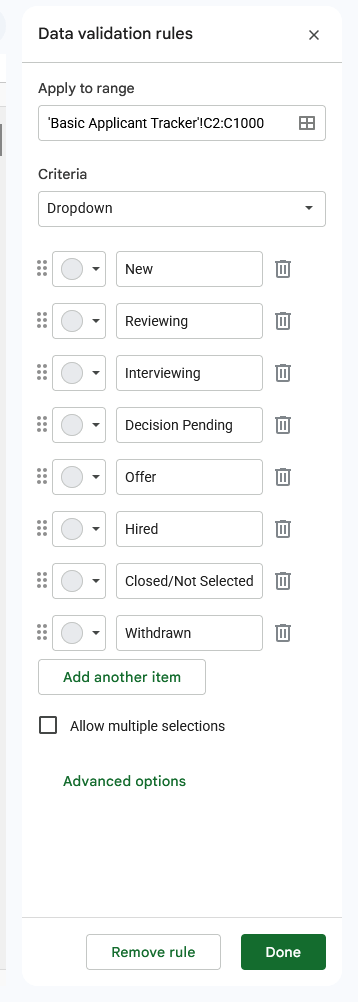
This will open the data validation rules panel where the dropdown values can be added.
Step 3: Add the dropdown values
Add each value you want in the dropdown list in the fields below the Criteria > Dropdown box.
Press the Enter key or click on Add another item to add each item.
Optional: If you want to be able to select multiple options from the list, check the Allow multiple selections box.
When done, click Done.
Step 4: Test the dropdown list
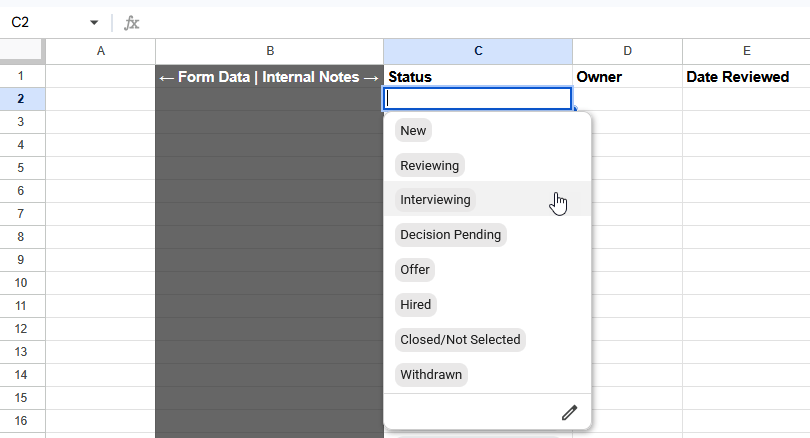
Once you’ve saved your list, test it to ensure it works as expected by clicking on the cell and choosing a value from the list.
You should be able to view and select an item from the list (or multiple items, if you selected that option).
To clear the value, hold the backspace button or click the cell and press the delete button. This will only delete the selection, not the dropdown functionality.
Related
How to Create a Google Form That Automatically Saves Responses to Google Sheets
Learn how to create a Google Form that automatically saves every response to Google Sheets. This tutorial shows how to build a form, connect it to a spreadsheet, customize settings, test submissions, and organize your data for analysis, reporting, or future projects.
Stay Updated
There are two easy ways to get notified when new tutorials are published:
Subscribe on YouTube for new video tutorials: @SimpleSoftwareTutorials
or enter your email below to receive new blog posts directly in your inbox:

