
Most people have several versions of their résumé saved across different computers, email accounts, folders, and online job applications. Each version may contain slightly different details, and valuable information about older roles can gradually disappear as résumés are shortened and updated.
A Career Source of Truth solves this problem by keeping your complete career history in one searchable document.
Instead of limiting yourself to the information that fits on a one- or two-page résumé, you can preserve detailed records of your responsibilities, accomplishments, projects, skills, tools, metrics, education, and professional development.
You can then refer to this document whenever you need to:
- Create or update a résumé
- Complete a job application
- Refresh an online professional profile
- Prepare for an interview
- Remember the details of an older project
- Confirm employment dates or job titles
- Review your experience and career development
This can be especially valuable when a job unexpectedly comes to an end.
Job loss can be stressful and disorienting. Having your career information already organized means you do not have to immediately search through years of old files while also trying to update your résumé and begin applying for new opportunities.
In this tutorial, I’ll explain how to use my Career Source of Truth & Master Resume – Template to create a detailed, reusable record of your professional history.
What You’ll Learn
In this tutorial, you’ll learn how to:
- Keep your complete career history in one location
- Create a clear timeline of your employment
- Document responsibilities, accomplishments, and projects
- Preserve important metrics and results
- Maintain lists of professional skills and technology
- Create a reusable bank of résumé summaries and bullet points
- Record missing information that needs to be researched later
- Copy the template to Google Drive or download it as a Word document
- Duplicate the job details section for each position in your career
- Keep the document organized and easy to navigate as it grows
Common Uses
You can use your Career Source of Truth to:
- Create a new résumé
- Update an existing résumé
- Tailor résumé content for a particular opportunity
- Complete detailed job applications
- Update LinkedIn or another professional profile
- Review the skills associated with each position
- Prepare examples for interviews
- Locate metrics and accomplishments
- Create portfolio case studies
- Write a professional biography
- Confirm employment dates and title changes
- Identify recurring themes throughout your career
- Preserve information before leaving a company
- Maintain a record of freelance, contract, volunteer, or independent work
Requirements and Compatibility
The Career Source of Truth & Master Resume – Template is available as a Google Doc.
You can:
- Make a copy and save it to your own Google Drive
- Edit it online using Google Docs
- Download it as a Microsoft Word document
- Store an additional backup copy on your computer or another secure drive
Google Docs automatically saves changes while you are working online. Its heading structure also makes it easier to navigate a long document using the tabs and outlines panel.
A free Google account is required to save an editable copy to your own Google Drive. Microsoft Word is only required if you choose to download and edit the Word version.
Breaking Down the Concept
What Is a Career Source of Truth?
A Career Source of Truth is a detailed master document containing the information behind your résumés, applications, professional profiles, and interview answers. It is not intended to be submitted to an employer as-is.
A submitted résumé is selective. It generally includes only the information most relevant to a particular opportunity and may need to fit within a limited number of pages.
Your Career Source of Truth is different. It preserves the details that may be removed from shorter résumés, including:
- Older responsibilities
- Additional accomplishments
- Projects
- Tools and technology
- Metrics
- Career transitions
- Title changes
- Training and certifications
- Problems you helped solve
- Supporting materials
- Information that still needs to be verified
You can think of your résumé as the highlight reel and this document as the complete archive.
Why One Master Document Is Helpful
When people update a résumé, they often replace older information with newer experience. Over time, useful details can be lost.
You may remember that you improved a process or created a training resource, but forget:
- What the original problem was
- How many people were affected
- Which software you used
- What measurable result you achieved
- When the project occurred
- Which position it belonged to
Keeping the information in one document gives you a stable reference that can grow throughout your career.
It also reduces the need to compare numerous résumé files to determine which version contains the most complete or accurate information.
How the Template Is Organized
The template contains several sections designed to preserve different types of career information.
Career Timeline
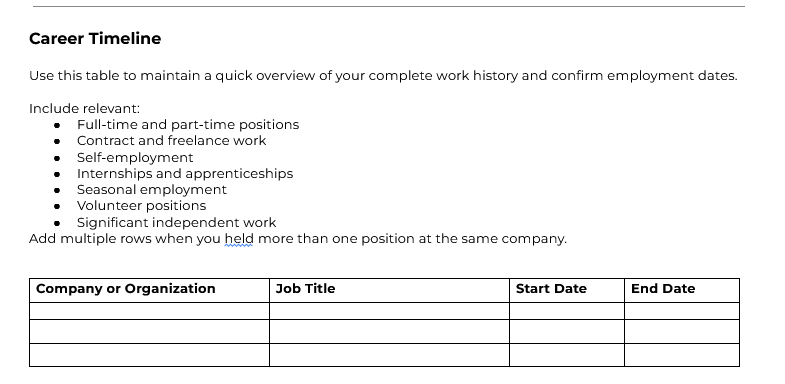
The Career Timeline provides a quick overview of your complete work history.
Use the table to record:
- Company or organization
- Job title
- Start and end dates
Add additional rows as needed. Include separate rows when you held multiple titles at the same company.
Master Career History
This is the main section of the template.
It contains a repeatable job details section beginning with: Company or Organization | Job Title
The section ends with the note: End of job details section. Duplicate the above section for each position.
Copy and paste everything between those two points for each position you want to document.
Each job section provides space for:
- Employment details
- A role overview
- Responsibilities
- Accomplishments and results
- Problems solved
- Key projects
- Skills and tools
- Reusable career content
- Supporting materials
- Additional notes
You do not need to complete every subsection for every position.
A short-term or older role may only require a role overview, several responsibilities, and one or two accomplishments. A recent or significant role may require more detail.
Master Skills List
The Master Skills List provides one consolidated record of your professional skills.
For each skill, you can document:
- The roles in which you used it
- How you used it
- Your approximate amount of experience
This can be useful when updating a résumé, completing an application, or reviewing the skills on a professional profile.
Tools and Technology
Use this table to record software, platforms, equipment, and technology you have used throughout your career.
Documenting how each tool was used provides more context than a simple software list and helps distinguish meaningful experience from brief exposure.
Metrics and Accomplishments Bank
This section gives you one central location for important results and supporting numbers.
Examples might include:
- Number of people trained
- Number of documents or resources created
- Time saved
- Errors reduced
- Processes improved
- Projects launched
- Teams or locations supported
- Adoption or participation increases
Record the associated role or project and note whether each result is verified, approximate, or still needs confirmation.
Education and Professional Development
Use these tables to preserve information about:
- Education
- Certifications
- Credentials
- Courses
- Workshops
- Professional training
Career Highlights
This section is intended for especially meaningful accomplishments or professional milestones that may span multiple jobs or deserve additional context.
Future Updates
The Future Updates section acts as a reminder list.
Use it to record missing dates, metrics that require verification, older résumés you still need to locate, projects you want to document, and other information that should be added later.
This allows you to keep making progress without stopping every time you encounter a missing detail.
Using the Guiding Text
Some sections include explanatory text, prompts, examples, and questions to help you understand what information to add.
You can:
- Leave this guidance in place
- Delete it after completing a section
- Replace it with your own notes
- Keep only the instructions you find useful
Leaving the prompts in place may be helpful if you plan to return to the document and add information gradually.
Navigating the Template in Google Docs
The template uses headings to organize its sections.
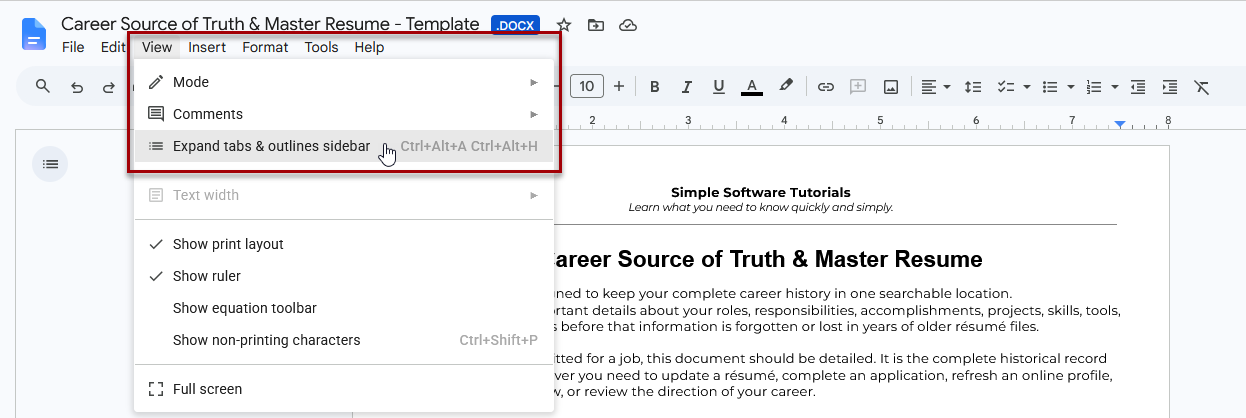
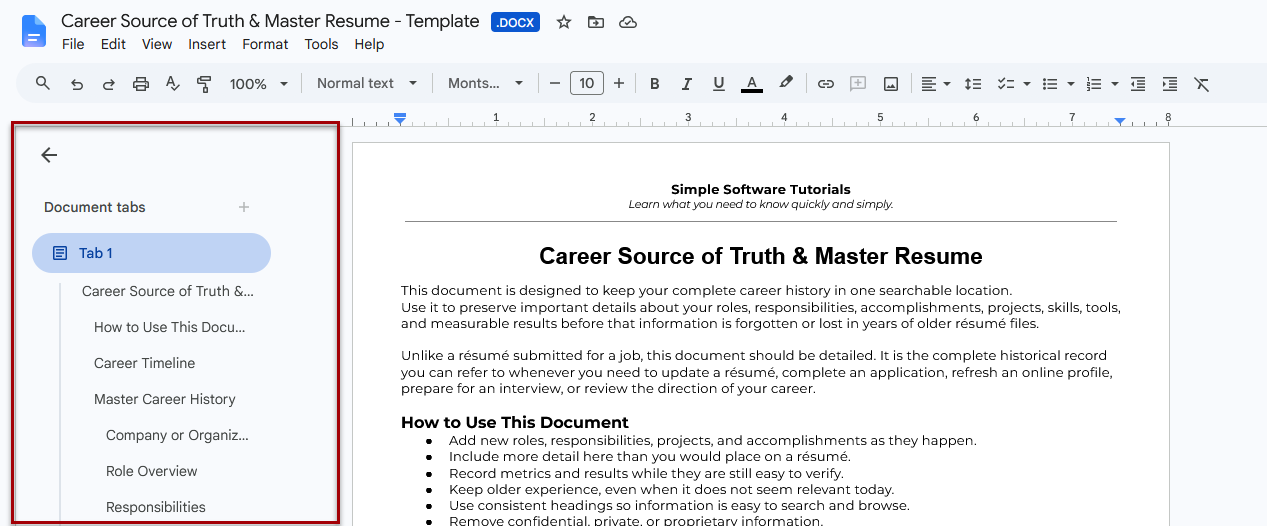
In Google Docs, the tabs and outlines panel can display the document structure on the left side, allowing you to select a heading and move directly to that section. Google’s current instructions say the panel can be opened by clicking View > Expand tabs & outlines sidebar or by using the Show tabs & outlines control near the upper-left area of the document. The outline can then be shown or hidden for the active document tab.
This is particularly helpful after you have added several jobs and the document has grown beyond a few pages.
Step-by-Step Instructions
The following instructions walk through how to access, copy or download the template, storage suggestions, and editing guidance. This documentation is for your own use, so think of this as a starting point and feel free to modify your copy however best suits your needs.
Step 1: Open the Template
Open the Career Source of Truth & Master Resume – Template.
The template will open in Google Docs as a viewable document.
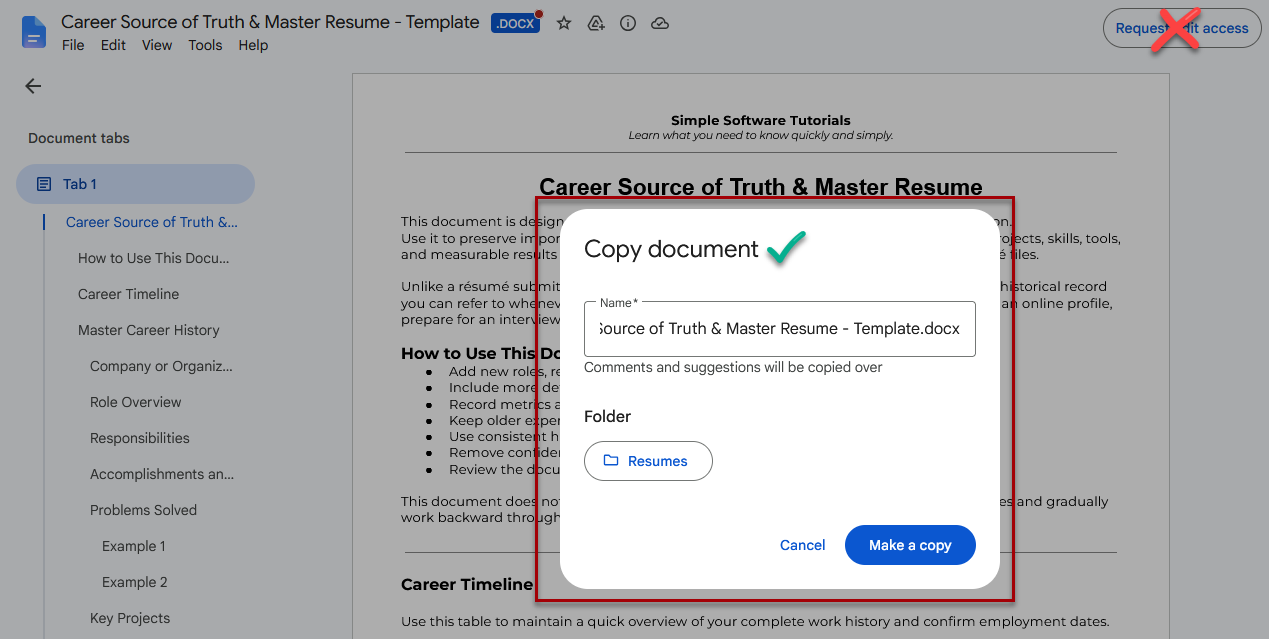
Do not request editing access to the original template. Instead, create your own copy or download it.
Step 2: Save a Copy to Your Google Drive
To create an editable copy in Google Docs:
- Open the template.
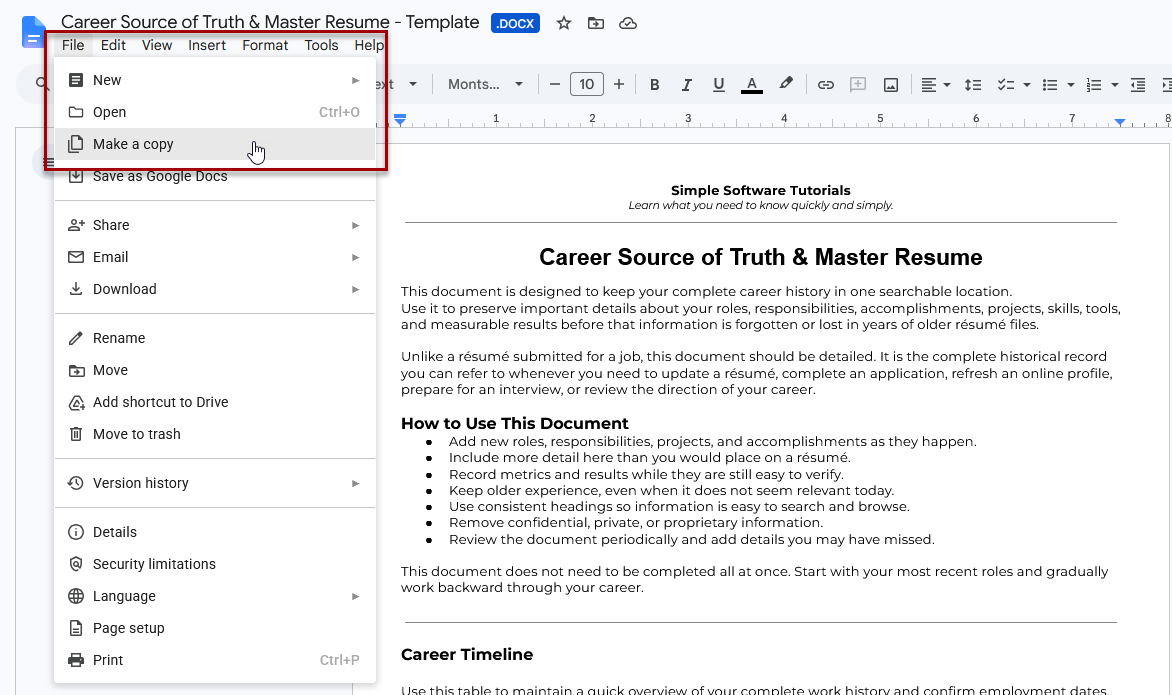
- Select File.
- Select Make a copy.
- Enter a name for your document.
- Choose the Google Drive folder where you want to store it.
- Select Make a copy or OK, depending on the screen displayed.
Google’s current desktop instructions use File > Make a copy, followed by entering a file name and selecting where the new copy should be saved.
Consider giving your copy a name such as: Your Name – Career Source of Truth & Master Resume
This makes it easy to identify later.
Step 3: Download the Template as a Word Document
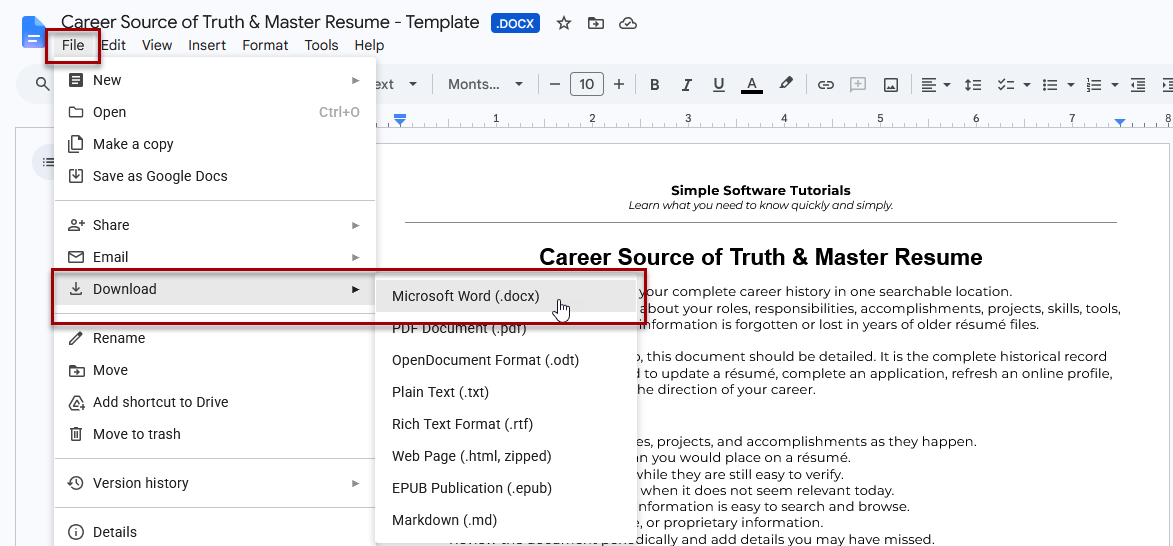
To use the template in Microsoft Word:
- Open the Google Docs template.
- Select File.
- Select Download.
- Choose Microsoft Word (.docx).
- Open the downloaded file in Microsoft Word.
- Save it in a secure folder.
Google Docs currently allows documents to be downloaded through File > Download, followed by selecting the desired file type.
Review the file after downloading it to confirm that the headings, tables, page breaks, and other formatting appear as expected.
Step 4: Choose a Safe Storage Location
Store the document somewhere you can access even after changing jobs or computers.
Possible locations include:
- A private Google Drive
- Microsoft OneDrive
- Another secure cloud-storage service
- A personal computer with a reliable backup
- An encrypted external drive
Do not keep the only copy on an employer-owned computer, email account, or storage system. You may lose access when your employment ends.
Avoid including confidential company information, protected customer data, passwords, trade secrets, or files you are not authorized to retain.
Step 5: Complete the Career Timeline
Begin with the Career Timeline near the top of the template.
Add one row for each position and include:
- Company or organization
- Job title
- Start date
- End date
- Employment type
- Location
Do not worry if you cannot confirm every date immediately. Add the information you know and record missing details in the Future Updates section.
The timeline provides a useful overview before you begin documenting each role in greater detail.
Step 6: Complete the First Job Details Section
Locate the Master Career History section.
The repeatable section begins with:
Company or Organization | Job Title
Replace that heading with your actual employer and title.
Complete the relevant information beneath it, including:
- Employment details
- Role overview
- Responsibilities
- Accomplishments
- Problems solved
- Projects
- Skills
- Tools
- Reusable summaries and résumé bullets
- Supporting materials
- Additional notes
Start with your most recent position or the role you remember most clearly.
Step 7: Duplicate the Job Details Section
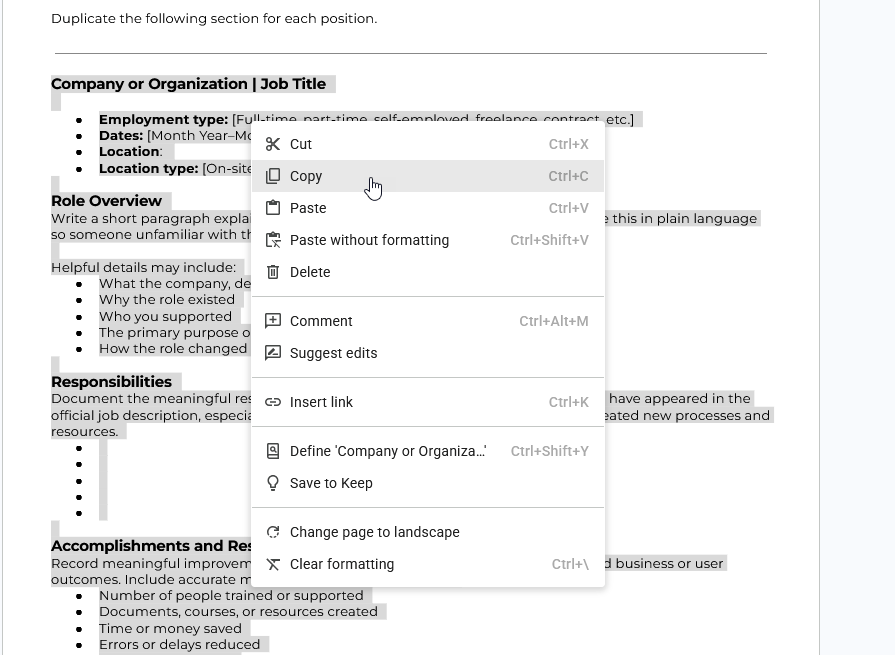
When you are ready to add another position:
- Locate the beginning of the job details section.
- Select everything from Company or Organization | Job Title through the note marking the end of the job details section.
- Copy the selected content.
- Place your cursor below the completed section.
- Paste the copied section.
- Replace the sample or previous information with the details for the next position.
Repeat this process for each role.
Be careful to copy the complete section so you do not accidentally omit headings or leave part of the previous job’s information behind.
Step 8: Add Rows to Tables as Needed
Several sections use tables, including:
- Career Timeline
- Master Skills List
- Tools and Technology
- Metrics and Accomplishments Bank
- Education
- Certifications
- Professional Development
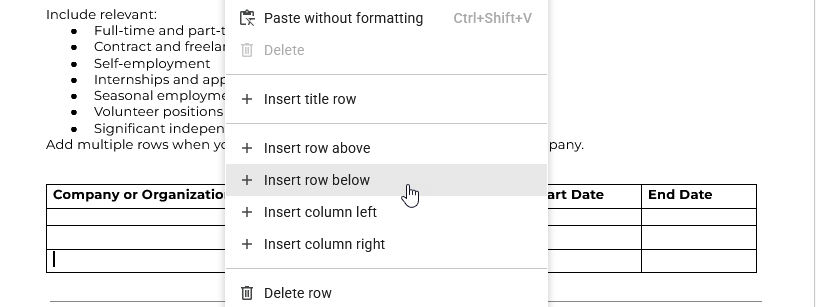
Add additional rows whenever needed.
In Google Docs, you can generally add a row by right-clicking inside the table and selecting the option to insert a row above or below. The exact wording or placement may vary as the interface changes.
Step 9: Add Information Gradually
You do not need to finish the entire document in one session.
A manageable approach might be:
- Complete the Career Timeline.
- Document your current or most recent position.
- Add your strongest accomplishments and metrics.
- Work backward through earlier roles.
- Add skills, tools, and supporting materials as you encounter them.
- Record missing information in Future Updates.
Even a partially completed Career Source of Truth can be more useful than a collection of disconnected résumés.
Step 10: Review and Maintain the Document
Update the document when:
- Starting or leaving a position
- Completing an important project
- Taking on new responsibilities
- Learning a new tool
- Receiving measurable results
- Completing a course or certification
- Receiving recognition
- Creating a new résumé
- Remembering an accomplishment that was previously undocumented
Brief, regular updates are much easier than trying to reconstruct several years of experience at once.
Practice & Resources
Use this editable template to create a complete, searchable record of your career history:
Career Source of Truth & Master Resume – Template
The template includes sections for:
- Career timeline
- Detailed role history
- Responsibilities
- Accomplishments and results
- Problems solved
- Key projects
- Skills
- Tools and technology
- Reusable résumé content
- Metrics and accomplishments
- Education and professional development
- Career highlights
- Future updates
You can copy the template to your Google Drive and edit it using Google Docs or download it as a Microsoft Word document.
Best Practices
Keep It Detailed but Useful
This document should contain more detail than a submitted résumé, but it does not need to include every small task you ever completed.
Focus on information that may help you explain:
- What you were responsible for
- What problems you solved
- What you created or improved
- What skills you developed
- What results you achieved
- How your role changed
- What evidence or supporting materials still exist
Write in Plain Language First
Do not worry about making every sentence sound like a résumé bullet while documenting your history. Preserve the facts and context first. You can create shorter, more polished language later. A detailed paragraph written in plain language may help you remember far more than an overly condensed bullet.
Record Information While It Is Fresh
Add accomplishments, metrics, projects, and new responsibilities while you can still remember the details. It is much easier to document a completed project now than to reconstruct it several years later.
Maintain Your Own Copy
Keep the document in a personal account and on equipment you control.
Do not rely on access to:
- A company laptop
- A work email account
- An employer’s cloud-storage system
- Internal project management software
- A company learning platform
- A work portfolio system
Access to those resources may end immediately when a job ends.
Organize Supporting Files
Consider creating a private career folder alongside your master document.
Possible subfolders might include:
- Résumés
- Job descriptions
- Certificates
- Performance reviews
- Work samples
- Portfolio materials
- Project notes
- Professional biographies
- Cover letters
- Awards and recognition
Use clear file names that include a date, company, role, or project so materials remain understandable later. Only retain files you are authorized to keep, and remove confidential or personally identifiable information.
Keep a Backup
Even when the primary document is stored online, consider maintaining a second copy or periodic backup. A backup protects you from accidental deletion, account-access problems, file corruption, or unintended edits.
Use the Future Updates Section
Do not let one missing date or forgotten metric prevent you from documenting the rest of a role. Add the missing item to Future Updates and continue. The document can become more complete over time.
Review Before Sharing Information Publicly
Your Career Source of Truth may include more information than should appear on a public profile or submitted résumé.
Before reusing content, remove:
- Confidential company information
- Internal terminology that outsiders would not understand
- Unsupported or approximate metrics
- Customer or employee information
- Private contact details
- Outdated claims
- Information irrelevant to the intended use
Additional Tips
Start With the Information You Already Have
Old résumés are useful starting points, even when they are incomplete.
You may also find helpful information in:
- Job descriptions
- Performance reviews
- Project plans
- Professional profiles
- Certificates
- Portfolios
- Email records you are authorized to retain
- Personal notes
- Published work
- Annual reviews or goal documents
Use those materials to refresh your memory, then add context about what you actually did.
Document Title Changes Separately
When you held several positions at one organization, create a separate job entry for each title when the responsibilities or scope changed significantly. This makes your career progression easier to understand.
You can also note promotions, departmental moves, or title changes in the Additional Notes section.
Include Contract and Independent Work
Your professional history is not limited to traditional full-time employment.
Include relevant:
- Contract assignments
- Freelance projects
- Consulting
- Self-employment
- Volunteer roles
- Internships
- Apprenticeships
- Significant independent projects
Clearly label the employment type and organization involved.
Preserve Older Experience
Older work may no longer fit on your current résumé, but it may still demonstrate important transferable skills or explain how your career developed. Do not delete it from your Career Source of Truth simply because it is not relevant to your current plans.
Use Accurate Metrics
Metrics can make accomplishments more specific, but they should be accurate and explainable. Label figures as approximate when necessary and use the Metrics and Accomplishments Bank to record what the number represents and where it came from.
Verify the information before publishing or submitting it.
Use the Document as Source Material
You do not need to paste the entire contents into every résumé, profile, or application. Select only the information relevant to the task at hand.
For example, you could use the document to:
- Pull several bullets for a tailored résumé
- Find accurate employment dates for an application
- Review past projects before an interview
- Update a LinkedIn experience description
- Identify skills used across several positions
- Create a portfolio case study
- Provide detailed information to an AI tool without relying on memory alone
Final Thoughts
Maintaining a Career Source of Truth requires some effort, especially when you first begin documenting older roles. However, that work can save significant time and stress later.
Instead of searching through decades of résumé versions whenever you need to update an application or professional profile, you will have one organized document containing the complete history behind them.
You do not need to complete it perfectly or all at once.
Start with what you know, preserve the information you already have, and continue updating it throughout your career.
Your future self may be very glad you did.
Related
How to Organize and Track Your Job Search With Google Workspace + Free Ready-to-Use Job Tracker
Stay organized throughout your job search with a free, ready-to-use Google Sheets job tracker featuring built-in reporting, contacts, sample data, and helpful guides. Learn how to organize job files in Google Drive, track applications and follow-ups, prepare for interviews, and keep your job search information in one manageable system.

How to Write a Post-Interview Thank-You That Reinforces Why You’re a Good Fit
Learn how to make your post-interview thank-you email more useful by reinforcing what you heard, connecting the role’s needs to your experience, and reminding the interviewer why you may be a strong fit. This guide also covers interview notes, career examples, AI-assisted reflection, and what to avoid.

How to Use PowerPoint to Prepare for an Interview
Learn how to use PowerPoint as a practical interview preparation tool. This guide includes free, customizable presentation templates, step-by-step instructions, and additional presentation ideas to help you research a company, understand a role, organize your thinking, and prepare more confidently for interviews or new responsibilities.
Stay Updated
There are two easy ways to get notified when new tutorials are published:
Subscribe on YouTube for new video tutorials: @SimpleSoftwareTutorials
or enter your email below to receive new blog posts directly in your inbox:

