
Interviews can be stressful, so I’ve found it helpful to prepare in a way that goes beyond simply reviewing the job description and company website. Creating a PowerPoint helps me organize what I’m learning, better understand the company and role, and practice thinking through the kind of work I may actually be doing. It can also be a useful way to build experience creating this type of content and, when appropriate, create something that could eventually be adapted for a portfolio.
In this tutorial, I’ll share several ways you can use PowerPoint as an interview preparation tool. The goal isn’t necessarily to present the finished deck during your interview. Instead, the value comes from the process of researching, organizing information, connecting ideas, and putting yourself in the mindset of the role. I think of it a little like doing homework to strengthen your understanding before the conversation.
Because getting started can often be the hardest part, I’ve also included several free PowerPoint templates you can download and customize. They’re designed to give you a clear starting point, with suggested content and layouts already built in, so you can spend more time focusing on the research and less time figuring out how to structure the presentation.
As always, the templates are just a starting point. Add, remove, rearrange, or customize anything you need to make them work for the company, role, and type of preparation that will be most useful to you.
Follow Along
Want some ideas to get started? I created some starter presentations and a simple PowerPoint template with a bunch of customization options to make it easy to put together the content you want.
Scroll down to view the templates with descriptions or click the button below to view my Google Drive of templates.
Downloading Files
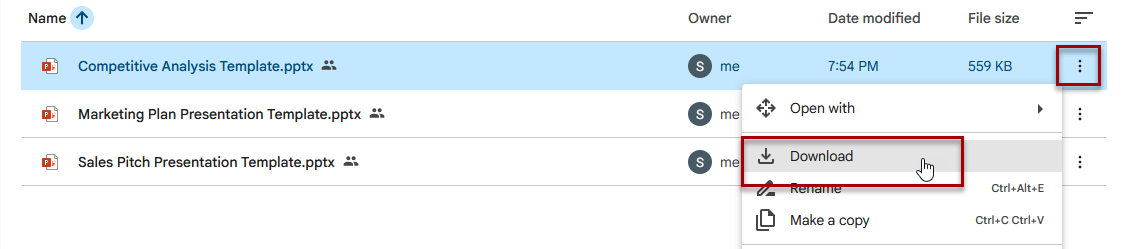
Click on a template name to view it (Google Sheets may alter some of the formatting) or to download a template, click on the 3 dots and choose download.
Key Concepts
A template = theme + slide layouts + sample content. It’s the full architecture of a presentation, not just its visual style.
PowerPoint Themes
A theme is a coordinated set of colors, fonts, and effects that PowerPoint applies automatically to keep your slides visually consistent with almost no manual formatting.
PowerPoint Templates
A PowerPoint template is the blueprint for an entire presentation. It’s a reusable file that defines slide layouts, theme colors, fonts, background graphics, and placeholder positions. It goes far beyond a theme, providing both design and structure.
Get the Most Out of the Research Process
While it might be tempting to use AI to assist with this project, remember: This project isn’t about having a completed project to turn in; it’s about educating yourself and preparing for an interview.
Sure, AI can be a helpful resource for helping you understand specific concepts or assisting with some initial research, but AI can be wrong sometimes and hallucinate information. It also removes the learning process you’d go through to complete this project, which is the entire point of this project.
By doing the research and the work yourself, you’ll have a much more thorough understanding of the company and concepts, enabling you to speak more confidently and hopefully start off on a new role, already prepared to do the job.
Templates
Below, I’ve divided the presentation templates into two categories:
- Research & Interview Prep – templates to research the company and prepare for an interview
- Practice the Work – templates where you can create presentations similar to what you might create in this role
Research & Interview Prep
Below are some basic research and interview prep templates to guide you through getting to know the company and role better so you feel more prepared for an interview.
30-60-90 Day Plan
A 30-60-90 day plan is a strategic roadmap that breaks your first three months in a new role into three core phases: learning (days 1-30), contributing (days 31-60), and leading (days 61-90). It aligns expectations between you and your manager, sets clear and measurable goals, and accelerates your path to productivity.
Resource: 30-60-90-Day Plan Template
Company & Product Research Brief
A company and product research brief is a short document that outlines the goals, target users, and main problems, making it a useful tool for almost any new role. Include company overview, products/services, target customers, competitors, recent initiatives, likely challenges, and questions to ask in the interview. This is the easiest “research-only” option and provides a practical way to organize what you learn.
Resource: Company & Product Research Brief Template
Competitive Analysis
A competitive analysis is a strategic process that involves identifying major rival businesses, evaluating their products, pricing and marketing tactics, and assessing their relative strengths and weaknesses to find opportunities in the market.
Below is a list of content typically included, or modify the content to fit your plan and preferences.
- Product offerings – compare features, quality, and design.
- Pricing strategies – review base costs, discounts, and subscription models.
- Marketing and sales – analyze channels, messaging, and promotional tactics.
- Customer experience – read reviews to find common complaints or high praise.
Resource: Competitive Analysis Template
Practice the Work – Ideas by Role
Below are some ideas of various presentation ideas based on role, with basic outlines of the information typically included in these types of presentations. It’s not necessary to provide all of the information in the outline – that’s just a general guideline – but researching this information will help you better understand the company, it’s products and services, and make you feel more prepared to interview for the role.
Marketing Plan
A marketing plan presentation is a great way to put yourself in the shoes of a marketer at the company by coming up with company goals, a target audience, and promotional strategies. By researching competitors, you can better understand the industry and what sets this company apart from others.
Below is a list of content typically included, or modify the content to fit your plan and preferences.
- Executive summary – provide a brief overview of goals, strategy, and expected results
- Mission & vision – the company’s purpose, core values, and long-term business direction
- Situational analysis – the current market position, brand history, strengths/weaknesses
- Competitor analysis – evaluation of rival companies
- Target audience – define the audience by age, behaviors, needs, pain points
- Value proposition – why customers should choose your product/company over competitors
- Marketing goals – measurable and achievable objectives
- Action plan – plans for marketing via various channels (e.g., social media, paid ads, email)
- Budget – a cost breakdown of the plan
- Key performance indicators (KPIs) – metrics to track success (e.g., conversion rates, web traffic)
- Timeline – a phased schedule mapping the milestones of this plan
Resource: Marketing Plan Presentation Template
Sales Pitch Deck
A sales pitch deck provides a perfect opportunity to learn about a company’s products, customers, and competition.
Below is a list of content typically included, or modify the content to fit your pitch topic and preferences.
- The hook – a bold claim, strong statistic, or short story to grab attention
- Problem – pain points and challenges prospective customers face
- Solution – how the product or service resolves the problem
- Value proposition – measurable outcomes or reduced risks
- Proof – case studies or testimonials to back up claims
- Pricing – publicly available pricing or package options
- Call to action – end with a clear next step, like scheduling a demo or starting a trial
Resource: Sales Pitch Presentation Template
Below are some additional ideas for presentations and what could be included for each (more templates on the way!):
- Campaign Plan – useful for marketing, communications, demand generation, content, social media, and events. Include audience, objective, messaging, channels, content/assets, timeline, measurement, and follow-up.
- Training or Onboarding Plan – excellent for instructional design, L&D, enablement, customer education, and people operations. Include audience, learning goals, current challenges, learning format, content plan, rollout, and measurement.
- Process Improvement Proposal – useful for operations, project management, product, CX, enablement, and analyst roles. Include current-state problem, friction points, root causes, proposed future state, implementation steps, and measures of success.
- Customer Journey / Experience Review – useful for UX, CX, marketing, product, customer success, and digital roles. Map awareness through adoption/retention and identify pain points, opportunities, and possible improvements.
- Product Launch / Go-to-Market Readiness Plan – useful for product marketing, enablement, training, product operations, and marketing roles. Include audiences, launch goals, internal readiness, customer communication, training needs, supporting assets, timeline, and success measures.
- Dashboard / Reporting Plan – useful for analytics, operations, marketing, sales ops, and data roles. Include the business question, metrics, data sources, audience, reporting cadence, sample dashboard layout, and how results would inform decisions.
- Case Study / Problem-Solving Presentation – probably the most flexible “practice the job” template. Give it a simple structure: problem, what I know, assumptions, analysis, proposed solution, implementation, risks, and measurement. Someone could use this for almost any role.
Step-by-Step Instructions
If you want to create your own PowerPoint presentation using a template, here’s a quick guide:
Step 1: Open a New PowerPoint & Search Templates
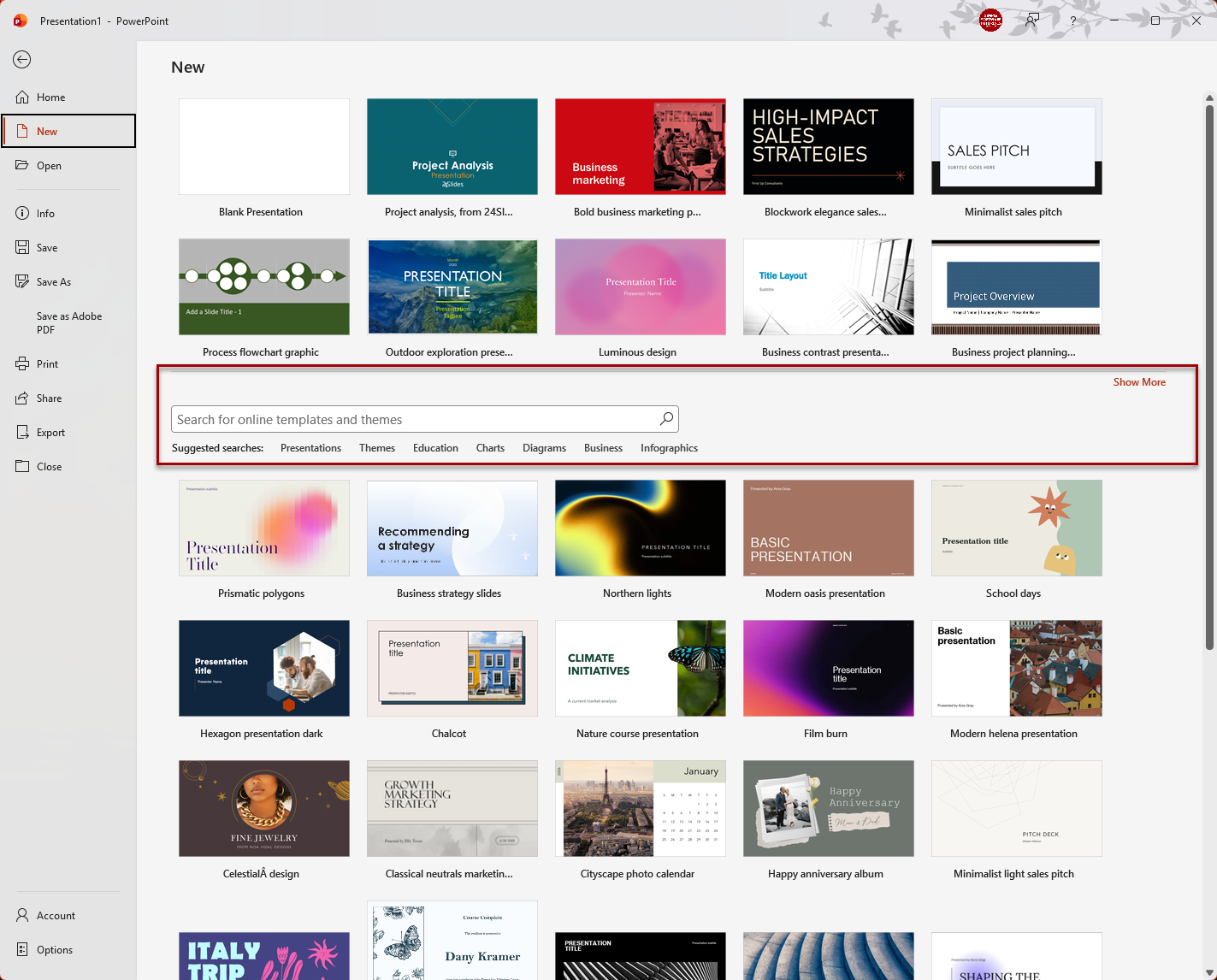
Creating a new PowerPoint file will automatically open the themes and templates page:
- Browse themes on the page
- Click on a suggested search category
- Search for specific templates and themes, such as sales or marketing
- Click “show more” to expand templates shown in the top part of this page
Step 2: Click to View details
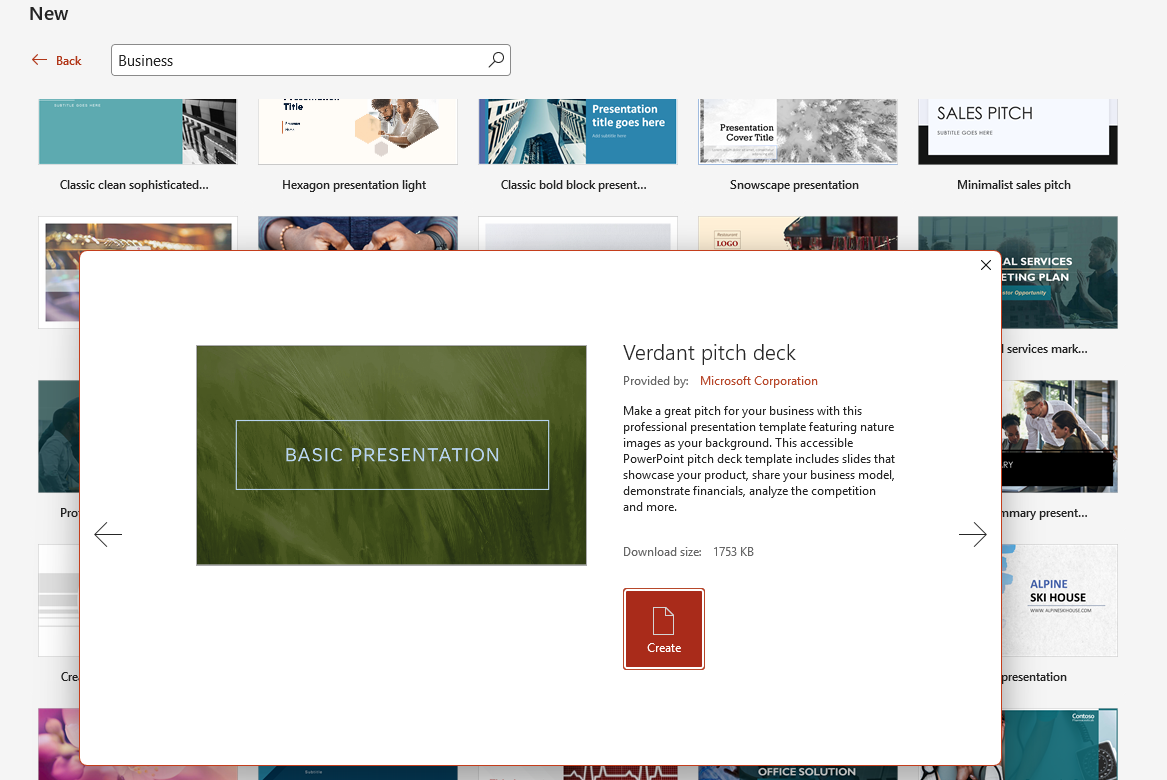
Click on a template to view its details.
Step 3: Create a Presentation from a Template
Once you’ve found a template you want to use, click on the create button to create a new presentation from that template.
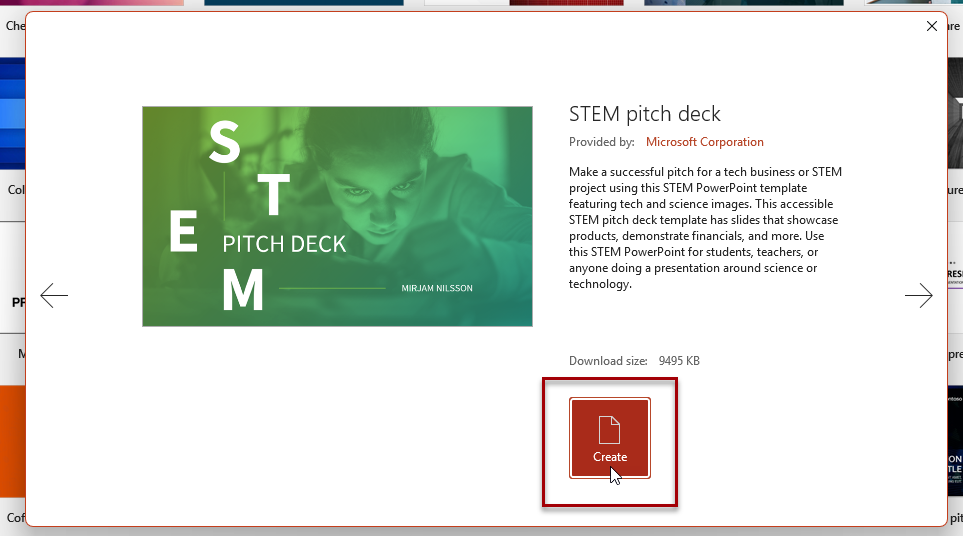
Step 4: Customize the Presentation with Your Own Content
- Start filling the presentation with your own content.
- View and modify the slide master by clicking view > slide master.
- Exit the slide master by clicking slide master tab > close master view.
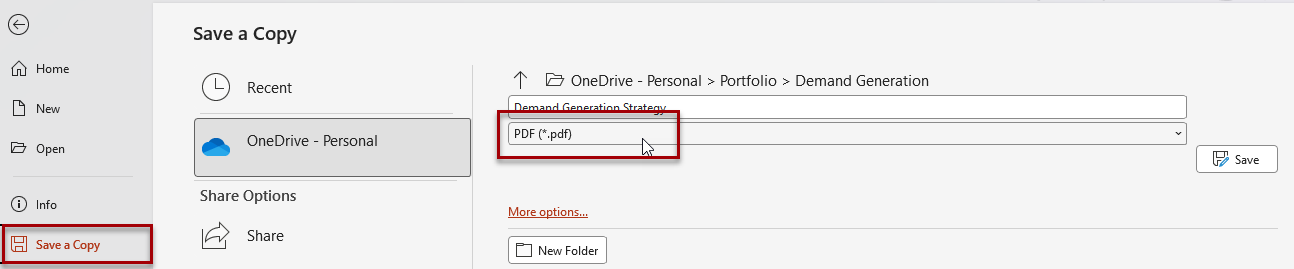
To save the presentation as a PDF, click file > save a copy and select PDF from the file type drop down.
Additional Tips
Don’t feel obligated to complete every slide in a template or add content in the order in which it appears on the presentation. Some sections may require more research, so add content when and how it best works for you.
Experiment with the slide master. I often find that templates don’t have the exact layouts I want to use, so I just create my own layouts in the slide master by duplicating one that’s close, modifying it to my preference, and renaming the layout so I’ll be able to easily find it when needed.
Save the presentation as a PDF to add it as a portfolio item on your website or as a project on LinkedIn. This preserves the formatting to ensure it appears how you designed it, and ensures it’s compatible for people to easily view.
Related
How to Add & Use Speaker Notes in PowerPoint
Learn how to add, format, and use speaker notes in Microsoft PowerPoint. This tutorial shows how to display the Notes pane, organize talking points, use Presenter View, and confidently present during in-person or online meetings while keeping your notes hidden from your audience.
How to Record Your Screen Using PowerPoint & Add It to a Slide
Learn how to record your screen directly in Microsoft PowerPoint and insert the recording into a presentation. This tutorial shows how to capture a specific area of your screen, record audio and mouse movements, and create software demonstrations, tutorials, or narrated presentations without additional screen recording software.

How to Change the Orientation in PowerPoint
Learn how to change slide orientation in Microsoft PowerPoint from landscape to portrait. This step-by-step tutorial shows where to find the Slide Size settings, explains the available layout options, and includes tips for preserving your slide content when changing orientations.
Stay Updated
There are two easy ways to get notified when new tutorials are published:
Subscribe on YouTube for new video tutorials: @SimpleSoftwareTutorials
or enter your email below to receive new blog posts directly in your inbox:

