

Searching Google is something many of us do every day, but getting useful results can take a little practice.
You do not need to know special commands or type the perfect question. A good search usually starts with a few clear words, then gets more specific as you learn what information is available.
In this guide, we’ll look at simple ways to improve your Google searches, narrow down results, find more reliable information, and know when it makes sense to use search instead of relying on an AI-generated answer.
What Does Google Search Actually Do?
Google is a search engine.
A search engine helps you find webpages, images, videos, documents, and other information on the internet.
This is different from a web browser.
Browsers include:
- Google Chrome
- Microsoft Edge
- Safari
- Firefox
Google Search is a service you can use from any of those browsers.
For example, you might open Microsoft Edge, go to Google, and search for information about Microsoft Word.
Start With the Main Idea
You can search Google using a full sentence, a question, or just a few keywords. All of these can work.
However, if your search is very broad or includes a lot of unnecessary information, the results may not be as useful.
For example: I need to know how to make the text on my Windows computer bigger because it is hard for me to read
could be shortened to: increase text size Windows 11
The shorter search tells Google what you want to do and gives it an important piece of context: you’re using Windows 11.
You do not need to make every search short. The goal is simply to make the important part of your question clear.
Add Context to Narrow the Results
If your first search is too broad, add more details.
For example, screenshot is very broad.
You could make it more useful by searching: screenshot Windows 11 or screenshot selected area Mac.
Useful details might include:
- operating system
- device
- program
- software version
- location
- year
- specific problem
For example: printer not working
might become: HP printer offline Windows 11
Adding context helps Google understand which version of the problem you are trying to solve.
Use the Words You See on the Screen
When you’re searching for help with software or an error, use the terminology the computer is already showing you.
For example, if Word displays an error containing the phrase file permission error, include those words in your search.
This: Word file permission error
is more useful than: Word is acting weird
The wording on buttons, menus, settings, and error messages can give you useful search terms even if you don’t fully understand what they mean yet.
Search an Exact Phrase With Quotation Marks
If you want Google to look for a specific phrase, put quotation marks around it.
For example: “Word cannot complete the save”
Quotation marks can be especially useful for:
- error messages
- unusual phrases
- quotes
- exact product names
- wording from a webpage or document
You do not need quotation marks for most everyday searches. Use them when the exact wording itself is important.
Exclude an Unwanted Word With a Minus Sign
Sometimes a word has more than one meaning, or Google keeps showing results about something you do not want.
You can place a minus sign immediately before a word to exclude it.
For example, jaguar -car could help reduce results about Jaguar vehicles.
For computer-related searches, you might use something like: windows screenshot -xbox if your results are being dominated by information about Xbox features.
This is an optional search trick, but it can be helpful when results keep going in the wrong direction.
Search a Specific Website
You can tell Google to search only one website by using:
site:
For example, site:support.microsoft.com screenshot Windows asks Google to look for results specifically on Microsoft’s support website.
You could also search: site:support.apple.com screenshot Mac
This can be especially helpful when you want official instructions but find the website’s own search tool difficult to use.
Search for a Specific File Type
Google can also help you find certain types of files.
Use: filetype:
For example, computer basics filetype:pdf asks Google to look for PDF files related to computer basics.
This can be helpful when looking for:
- manuals
- reports
- worksheets
- guides
- official documents
You probably will not need this for every search, but it is useful to know it exists.
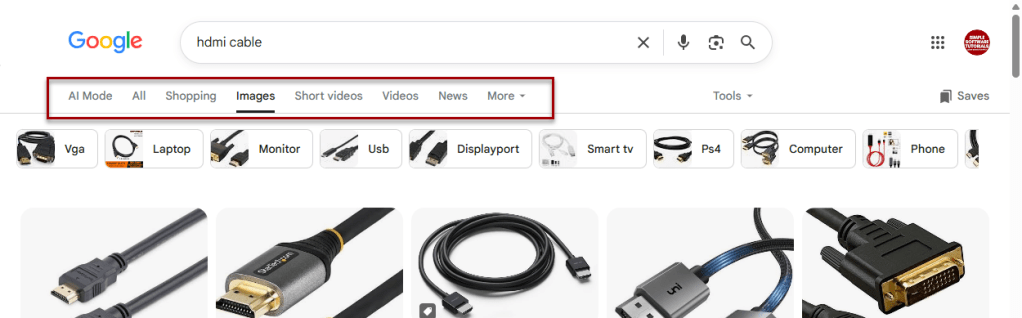
Use Google’s Search Filters
Search results often include options that let you focus on a particular type of content.
Depending on your search, you may see categories such as:
- All
- Images
- Videos
- News
- Shopping
- Maps
Use the filter that matches what you need.
For example:
- If you need to see what a cable looks like, Images may be useful.
- If you need to watch someone perform a task, Videos may be better.
- If you need information about something that happened recently, News may help.
You may also be able to filter results by date, which can be useful for software or other information that changes over time.
Watch for Sponsored Results
Some results at the top of a Google search may be advertisements. These are usually labeled Sponsored or otherwise identified as paid results.
A sponsored result is not necessarily bad or unsafe. However, it is important to understand that the company paid for that placement. It does not automatically mean Google decided it was the best or most trustworthy answer to your question.
Before clicking, look at the website and make sure it is actually the result you want.
Read the Result Before You Click
You can learn quite a bit about a search result without opening it.
Look at:
- the title
- the website or domain
- the short description
- the date, if one appears
Ask yourself:
- Does this result actually answer my question?
- Is this an official or familiar website?
- Does the information appear current?
- Does the title match what I searched for?
For example, if you’re trying to learn how to update Windows, a result from Microsoft’s official support site may be a better starting point than a random site offering a Windows repair program.
Use Official Sources When They Matter
Official sources are especially useful when you need instructions about:
- software
- operating systems
- accounts
- security
- banking
- government services
- product compatibility
Examples include:
- Microsoft Support
- Apple Support
- Google Help
- your bank’s official website
- a government agency’s official site
- documentation from the company that created the program
Other websites, forums, videos, and blogs can also be useful.
The important thing is knowing when the original source is the best place to verify information.
Check the Date
Some information changes quickly.
This is especially true for:
- Windows
- macOS
- browsers
- Microsoft 365
- Google products
- websites
- apps
- security information
An older tutorial may still rank highly even if the buttons and menus have changed.
When the topic can change, check:
- when the article was published
- when it was updated
- which software version it covers
- whether its screenshots look similar to what you see
You can also include the version in your search: change default browser Windows 11
rather than: change default browser Windows
You can also choose the search results time frame by clicking on Tools > Any Time and selecting a pre-set or custom range.

Open More Than One Result
The first search result is not always the best answer.
For troubleshooting, research, or anything important, consider opening more than one useful result.
You can compare:
- whether the instructions agree
- whether they apply to your version
- whether one explanation is easier to understand
- whether an official source confirms the information
This is especially helpful when you are unfamiliar with the topic.
Refine Your Search Instead of Starting Over
Searching is often a process. Your first search may be too broad.
For example: printer not working
The results may help you realize you need more detail.
You could refine it to: HP printer offline Windows 11
Then, if needed: HP printer offline Windows 11 Wi-Fi
Each search gives you information you can use to make the next one more specific. You do not have to know the perfect search before you begin.
Search for the Problem, Not the Solution You Assume
When troubleshooting, try not to decide what the solution is before you understand the problem.
For example, imagine websites are not loading in Chrome.
You might immediately search: how to reinstall Chrome
But reinstalling Chrome may not be necessary.
A better starting point would be: Chrome websites not loading Windows 11
That lets you investigate the actual symptom first.
The solution might turn out to be:
- an internet problem
- a browser extension
- a cache issue
- a website outage
- something else entirely
Describe what is happening before deciding what needs to be fixed.
Be Careful With Download Results
Search results sometimes include ads or websites offering software downloads.
Be especially careful with buttons that say things like:
- Download Now
- Fix Your PC
- Update Drivers
- Repair Windows
Before downloading software, make sure you know:
- what the program is
- who created it
- why you need it
- whether you are on the official website
Whenever possible, download software directly from the company that makes it or from a trusted app store.
Do not assume that a large Download button is the download you were actually looking for.
Google Search vs. AI Answers
Search engines and AI tools can both be helpful, but they work differently:
- Google Search helps you find sources that already exist online.
- AI tools generate a response based on the question you ask.
AI can be helpful for:
- explaining unfamiliar terminology
- helping you understand an error
- suggesting possible search phrases
- summarizing complicated information
- helping you think through a problem
Search can be especially useful when you need:
- official instructions
- current information
- multiple sources
- confirmation that something is correct
- a specific webpage or document
A useful approach is to combine them.
For example:
- Ask AI to explain an unfamiliar error message.
- Use what you learned to create a better Google search.
- Find official or reliable instructions.
- Verify important details before making changes.
AI can be a useful guide, but it does not eliminate the need to know how to find and evaluate information yourself.
A Simple Formula for Better Searches
When you are not sure what to type, try: Topic + device or program + what you want to do
For example: screenshot + Windows 11 + selected area
becomes: screenshot selected area Windows 11
Or:
Word + table of contents + headings
Or:
MacBook + check storage + macOS
You do not have to type the plus signs. They simply show the different pieces of information you may want to include.
Another way to think about it is: What am I working with? + What am I trying to do? + What detail matters?
Try It: Improve These Searches
Practice turning broad searches into more specific ones.
Example 1
Broad: computer broken
More useful: Windows 11 laptop won’t connect to Wi-Fi
Example 2
Broad: Word problem
More useful: Word document won’t save file permission error
Example 3
Broad: screenshot
More useful: take screenshot selected area Mac
Example 4
Broad: printer
More useful: Canon printer showing offline Windows 11 Wi-Fi
Try thinking of a problem you’ve searched for recently.
Ask yourself:
- What device or program was I using?
- What was I trying to do?
- What happened instead?
- Did I see specific wording or an error message?
Then build your search using those details.
Search Is a Skill, Not a Test
There is no single perfect way to search Google.
You can begin with a question, a few keywords, or whatever information you already have.
If the results are not useful, adjust your search:
- Add more context.
- Remove unnecessary words.
- Use the exact wording from an error.
- Try a different result.
- Check an official source.
Searching effectively is less about knowing a secret set of commands and more about learning how to describe what you need, evaluate what you find, and refine your search when the first attempt does not give you the answer.
The more you practice, the easier that process becomes.
Related

iPhone Shortcut: Add a Restart Button to Your Control Center
Learn how to create an iPhone shortcut that lets you restart your phone directly from Control Center. This step-by-step tutorial walks you through creating a Restart shortcut in Apple’s Shortcuts app and adding it to Control Center for quick, convenient access whenever you need to restart your iPhone.
iPhone Shortcut: Automatically Lock and Unlock Screen Orientation by App
Learn how to automatically lock and unlock screen orientation when using specific iPhone apps. This step-by-step tutorial shows you how to use Apple’s Shortcuts app to create automations that prevent unwanted screen rotation, then turn Orientation Lock off when you leave the selected apps. No manual adjustments needed!

How to Delete One or Multiple iPhone Shortcuts
Learn two easy ways to delete shortcuts from the Shortcuts app on your iPhone. This step-by-step tutorial shows you how to remove an individual shortcut using the action menu or select and delete multiple shortcuts at once, making it easy to clean up shortcuts you no longer need.
Stay Updated
There are two easy ways to get notified when new tutorials are published:
Subscribe on YouTube for new video tutorials: @SimpleSoftwareTutorials
or enter your email below to receive new blog posts directly in your inbox:

