

Computer hardware includes the physical equipment you use when working with a computer.
That can include obvious things like a monitor, keyboard, and mouse, but it also includes parts inside the computer, connected devices such as printers and webcams, and even the ports used to connect everything together.
You do not need to know how to build a computer to understand the hardware you use. The goal of this guide is simply to help you put names to the equipment you see and understand what each part does.
What Is Computer Hardware?
Computer hardware is the physical equipment that makes up a computer system. If you can physically touch it, plug it in, or connect it to your computer, it is generally considered hardware.
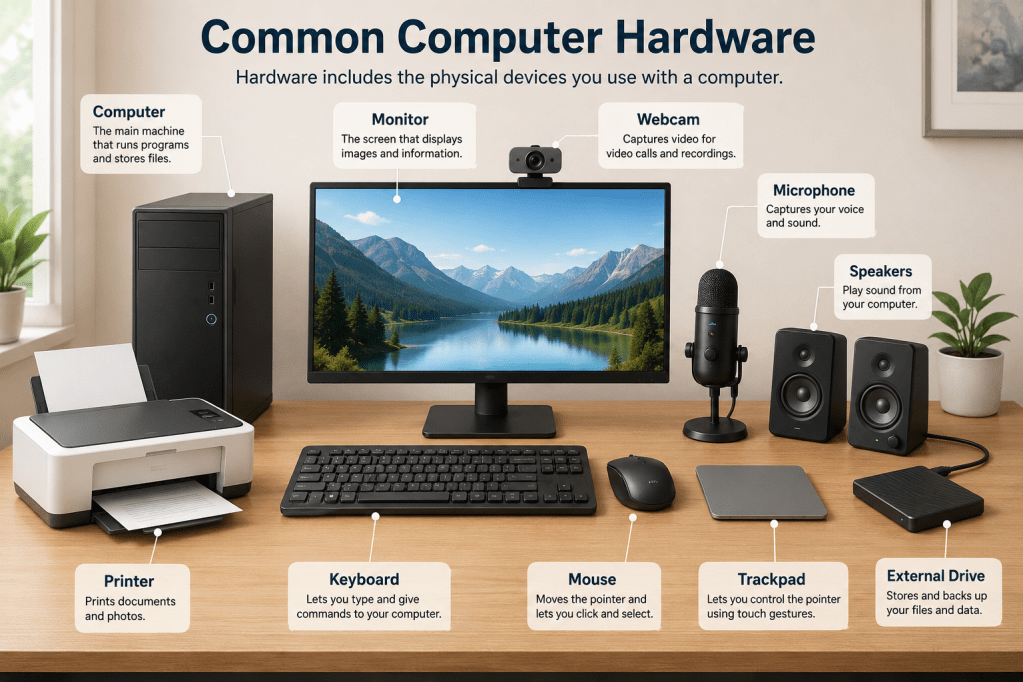
Examples include:
- computer
- monitor
- keyboard
- mouse
- trackpad
- webcam
- microphone
- speakers
- printer
- external drive
There are also important hardware components inside the computer, including the processor, memory, and storage. Hardware works together with software, which includes things like Windows, macOS, Microsoft Word, and web browsers.
Related: Hardware vs. Software: What’s the Difference?
The Computer vs. the Monitor
One of the most useful distinctions to understand is that, on a traditional desktop setup, the monitor and computer are not the same thing:
- The computer is the machine that contains the processor, memory, storage, and other internal components.
- The monitor is the screen that displays what the computer is doing.
Turning off the monitor does not usually turn off the computer itself.
You can think of it a little like turning off a television screen while leaving a game console or streaming device running. The display may be off, but the device doing the work can still be powered on.
What About Laptops?
Laptops combine many pieces into one device.
A laptop typically includes:
- the computer itself
- screen
- keyboard
- trackpad
- speakers
- microphone
- webcam
- battery
Because everything is built together, the distinction between the computer and monitor is less obvious.
What Is an All-in-One Computer?
An all-in-one computer also combines the computer and display into one unit. At first glance, it may look like a monitor, but the computer components are built into the same enclosure.
How to Turn a Computer On and Off
Most computers have a physical power button marked with the power symbol. On a desktop computer, the power button may be located on the computer case rather than the monitor.
On a laptop, it may be:
- above the keyboard
- beside the keyboard
- built into one of the keyboard keys
- combined with a fingerprint reader
Turning a Computer On
Press the computer’s power button once and give it time to start. If you are using a desktop computer, make sure the monitor is also turned on.
Turning a Computer Off
When possible, use the operating system’s Shut Down command rather than holding down the physical power button.
In Windows, for example, you can usually select: Start → Power → Shut down
Holding down the physical power button is generally better reserved for situations where the computer is completely unresponsive.
Shut Down, Restart, and Sleep
These options do different things.
- Shut Down : Turns the computer off.
- Restart: Turns the computer off and then starts it again automatically.
- Sleep: Places the computer into a low-power state while keeping your current session available.
Simply closing a laptop lid often puts it to sleep rather than shutting it down.
The Monitor
A monitor displays visual information from the computer.
This includes:
- windows
- webpages
- documents
- images
- videos
- menus
- the desktop
Monitors may have their own controls for things such as:
- power
- brightness
- input source
- display settings
A monitor may connect to a computer using a cable such as:
- HDMI
- DisplayPort
- USB-C
You do not need to memorize these connection types right away. It is simply useful to know that the monitor and computer communicate through a physical or wireless connection.
The Keyboard
A physical keyboard lets you type and give commands to the computer.
The familiar QWERTY letter layout is similar to the keyboard shown on most phones, but a computer keyboard includes many additional keys.
Shift
Hold Shift while pressing a letter to type one capital letter.
For example Shift + A types a capital A.
You do not need to turn Caps Lock on every time you want to capitalize one letter.
Caps Lock
Caps Lock keeps letters capitalized until you turn it off. This can be useful when typing several capital letters in a row, but Shift is usually more convenient for normal capitalization.
Enter or Return
Depending on what you are doing, Enter may:
- start a new paragraph
- confirm a selection
- submit a form
- open a selected item
On a Mac, the key may also be labeled Return.
Backspace
Backspace usually deletes the character immediately to the left of the text cursor.
Delete
Delete may remove:
- the character to the right of the text cursor
- a selected file
- a selected object
Its exact behavior depends on what you are doing.
Tab
Tab can:
- move to the next field in a form
- move between buttons or controls
- create indentation in some programs
Arrow Keys
The arrow keys can move:
- the text cursor
- a selected item
- a webpage or menu selection
Ctrl, Command, Alt, and Option
These keys are often used in combination with other keys to create keyboard shortcuts.
For example: Ctrl + C on Windows or Command + C on Mac copies a selected item.
If you want to learn more, see 10 Keyboard Shortcuts Everyone Should Know.
Getting Comfortable With a Physical Keyboard
Typing on a physical keyboard can feel very different from typing on a phone. Even though the letter layout may look familiar, physical typing requires different muscle memory.
Some people type without looking at the keyboard. Others look down frequently while typing. Both are fine.
If you currently type slowly or use a hunt-and-peck style, you can still use a computer effectively. Typing speed usually improves with practice.
The important thing is becoming comfortable enough to:
- find the keys you need
- use Shift for capitalization
- use Backspace and Delete
- use basic shortcuts
- move through forms and documents
The Mouse
A mouse controls the pointer you see on the screen. Moving the physical mouse moves the pointer.
Common mouse actions include:
Left-click
A normal click is commonly used to:
- select something
- place the text cursor
- press a button
- choose a menu option
Double-click
Double-clicking means clicking twice quickly.
It is commonly used to:
- open a file
- open a folder
- launch a program
Right-click
Right-clicking usually opens a menu with additional options related to the item you selected.
For example, right-clicking a file might give you options to:
- rename it
- copy it
- delete it
- view its properties
Scroll Wheel
The wheel between the mouse buttons is commonly used to move up and down a page.
Click and Drag
Clicking and holding the mouse button while moving the mouse is called dragging.
You may use this to:
- move a file
- select text
- resize something
- move an object
The Trackpad
Most laptops include a trackpad below the keyboard. A trackpad performs many of the same functions as a mouse.
Common actions include:
- moving one finger to move the pointer
- tapping or clicking to select
- using two fingers to scroll
- using a secondary click or gesture for right-click options
The exact gestures can vary between Windows laptops and Macs. You can also connect a physical mouse to most laptops if that feels more comfortable.
Pointer vs. Text Cursor
You may hear the word cursor used in different ways.
- The mouse pointer is the arrow or other symbol that moves around the screen when you move the mouse or trackpad.
- The text cursor, also called the insertion point, is the blinking line that shows where your next typed character will appear.
For example, you might use the mouse pointer to click in the middle of a sentence, which then moves the text cursor to that location.
Ports and Connections
A port is a physical connection point on a computer. Different ports allow you to connect different types of hardware.
Common examples include:
USB-A
The traditional rectangular USB port.
It may be used for:
- flash drives
- keyboards
- mice
- printers
- external drives
USB-C
A smaller, rounded connection that is increasingly common on newer computers.
It may be used for:
- charging
- external drives
- displays
- phones
- other accessories
HDMI
Commonly used to connect a computer to:
- monitor
- television
- projector
Headphone or Audio Jack
Used for wired headphones, speakers, or microphones.
Ethernet
Used for a wired network connection.
Power or Charging Port
Connects the computer to its power adapter.
You do not need to memorize every port. If you need to connect something, you can usually compare the shape of the cable connector with the available ports.
Wired vs. Wireless Devices
Some hardware connects to your computer with a cable. Other devices connect wirelessly.
Wired Devices
Examples include:
- USB keyboard
- wired mouse
- Ethernet connection
- wired headphones
- printer connected by USB
Wireless Devices
Examples include:
- Bluetooth mouse
- Bluetooth keyboard
- wireless headphones
- Wi-Fi connection
Wireless does not always mean Wi-Fi. Different wireless technologies serve different purposes.
Wi-Fi vs. Internet vs. Cellular Data
These terms are often used interchangeably, but they mean different things.
Internet
The internet is the larger network that allows devices around the world to communicate.
You may use the internet to:
- browse websites
- send email
- stream videos
- use cloud software
Wi-Fi
Wi-Fi is one way your device can connect to a local network. That network often provides access to the internet. Wi-Fi is not another word for the internet itself. It is possible to be connected to Wi-Fi but still have no working internet connection.
Cellular Data
Phones and some other devices can also connect to the internet using cellular data through a mobile carrier.
Your phone may therefore access the internet through either:
- Wi-Fi
- cellular data
Both provide internet access, but they use different types of connections.
Bluetooth vs. Wi-Fi
Bluetooth is generally used to connect devices that are physically near each other.
Examples include:
- mouse
- keyboard
- headphones
- speakers
Wi-Fi is commonly used to connect your computer to a network and the internet.
Both are wireless technologies, but they serve different purposes.
Webcam, Microphone, Speakers, and Headphones
These pieces of hardware are especially important for video calls and online meetings.
Webcam
A webcam captures video. Laptops often have a webcam built into the top of the screen. Desktop users may connect a separate webcam.
Microphone
A microphone captures sound. Many laptops and webcams include built-in microphones.
Speakers
Speakers play sound from the computer. They may be built into the computer or connected separately.
Headphones or Headset
Headphones let you hear computer audio privately. A headset may also include a microphone.
Printers and Other Peripherals
You may encounter the word peripheral when reading computer instructions. A peripheral is simply an additional hardware device that works with the computer.
Examples include:
- printer
- scanner
- webcam
- external keyboard
- mouse
- drawing tablet
- external storage drive
You do not need to memorize the term, but knowing what it means can make technical instructions easier to understand.
External Storage Devices
External storage lets you keep files on a physical device outside your computer.
Common examples include:
USB Flash Drive
A small portable storage device that plugs into a USB port.
External Hard Drive
A larger storage device often used for backups or storing large amounts of data.
External SSD
Similar to an external hard drive, but uses solid-state storage.
Memory Card
Small storage media commonly used in cameras and other devices.
External storage is different from cloud storage. A USB drive or external hard drive is a physical piece of hardware. Services such as OneDrive, Google Drive, and iCloud store files through online services.
What Is Inside the Computer?
Most of the hardware you use every day is visible, but some important components are inside the computer.
You do not need to understand these in detail, but recognizing the names can help when reading computer specifications or troubleshooting information.
Processor or CPU
The processor, often called the CPU, handles much of the computer’s processing work. You can think of it as one of the main parts responsible for carrying out instructions.
Memory or RAM
Memory, also called RAM, gives the computer temporary working space while programs are running. More memory can allow the computer to work more comfortably with multiple or demanding programs.
Storage
Storage is where the computer keeps:
- programs
- documents
- photos
- videos
- other files
Most modern computers use an SSD, or solid-state drive. Older computers may use a traditional hard drive.
Graphics Processor or GPU
The GPU helps process graphics and visual information.
It is especially important for activities such as:
- gaming
- video editing
- 3D graphics
- other visually demanding tasks
Motherboard
The motherboard is the main board that connects many of the computer’s internal components.
Battery or Power Supply
A laptop usually has a rechargeable battery. A desktop computer typically uses a power supply connected to an electrical outlet.
Laptop vs. Desktop vs. All-in-One
Computers can package their hardware in different ways.
Laptop
A laptop usually combines:
- computer
- monitor
- keyboard
- trackpad
- webcam
- microphone
- speakers
- battery
into one portable device.
Desktop
A traditional desktop setup usually has separate components such as:
- computer case
- monitor
- keyboard
- mouse
You may also add speakers, webcam, printer, and other accessories.
All-in-One
An all-in-one computer contains the computer components inside the same unit as the display. This gives it a cleaner setup while still using a larger desktop-style screen.
Input and Output Devices
You may also hear hardware described as input or output devices.
Input
Input devices let you provide information to the computer.
Examples include:
- keyboard
- mouse
- trackpad
- microphone
- webcam
Output
Output devices give information back to you.
Examples include:
- monitor
- speakers
- headphones
- printer
Some devices can handle both input and output.
You do not need to memorize these categories, but the terms may appear in computer settings or technical instructions.
Try It: Identify Your Computer Hardware
Take a look at the computer setup you use most often.
See if you can identify:
- Are you using a laptop, desktop, or all-in-one computer?
- If you have a desktop, can you identify the computer separately from the monitor?
- Where is the computer’s power button?
- Are you using a mouse, trackpad, or both?
- Can you find the Shift, Ctrl or Command, Backspace, Delete, and Tab keys?
- Which ports can you recognize?
- Are any devices connected through Bluetooth?
- Are you connected to the internet using Wi-Fi or Ethernet?
- Does your computer have a webcam and microphone built in?
- Do you use any external storage devices?
You do not need to identify every part perfectly.
The point is simply to start putting names to the hardware you already use.
You Don’t Need to Know How to Build a Computer
Understanding computer hardware does not mean you need to know how to take a computer apart or replace its internal components.
For everyday use, it is much more helpful to understand:
- which device does what
- how common devices connect
- the difference between your computer and monitor
- how to use a keyboard and mouse
- what Wi-Fi, Bluetooth, and internet connections mean
- what basic terms such as memory and storage refer to
Once these pieces become familiar, many computer instructions and troubleshooting steps become easier to understand.
You are not learning how to build a computer; you are simply learning the names and purposes of the equipment you already use.
Related

Hardware vs. Software: What’s the Difference?
Learn the difference between computer hardware and software in simple terms. This guide explains what counts as hardware, what software does, how the two work together, and where operating systems, apps, and files fit in so common computer terminology is easier to understand.
How to Check Your macOS Version and MacBook Model
Learn how to check your macOS version, MacBook model, chip or processor, memory, and storage. This simple guide shows where to find important Mac information you may need for software compatibility, troubleshooting, updates, or technical support, with clear steps you can follow on your own Mac.

Stay Updated
There are two easy ways to get notified when new tutorials are published:
Subscribe on YouTube for new video tutorials: @SimpleSoftwareTutorials
or enter your email below to receive new blog posts directly in your inbox:

