
Have you ever clicked Send in Gmail and immediately noticed a typo, forgot an attachment, or realized you weren’t quite ready to send the message?
Gmail’s Undo Send feature gives you a short window to cancel the message before it is actually sent. By default, that cancellation period is only 5 seconds, but you can increase it to as much as 30 seconds.
In this tutorial, I’ll show you how to unsend an email in Gmail, where to find the Undo Send setting, and how to change the cancellation period so you have more time to catch a mistake.
What You’ll Learn
- How undo send works in Gmail
- How to unsend an email
- How to change the undo send time limit
- How to manage undo send settings from a mobile device
Video Tutorial
How “Undo Send” Works in Gmail
Gmail does not actually recall an email from the recipient’s inbox. Instead, it holds the email in your own outbox for the duration of your chosen time limit (e.g., 30 seconds) before actually sending it.
Here is what you should be aware of because of this delay:
- Delayed Delivery: If you change your limit to 30 seconds, every single email you send will arrive 30 seconds later than it used to.
- Time-Sensitive Emails: If you are on the phone with someone and say, “I am emailing you the file right now,” they will not see it immediately. It will sit in your Gmail queue for 30 seconds before sending.
- No Way to Bypass: You cannot skip the countdown for individual emails. Even if you are 100% sure the email is perfect, it will still wait out the full 30 seconds.
- Closing the Browser: If you click send and immediately close your browser tab or laptop lid before the 30 seconds are up, the email may fail to send or get stuck until you open Gmail again.
Step-by-Step Instructions
Below are instructions for how to unsend an email in Gmail and how to increase the time limit for unsending emails. I recommend testing this by sending an email to yourself so you can get comfortable using the feature before you actually need to use it.
How to Unsend an Email
- Send the email: Compose and send your message as you normally do.
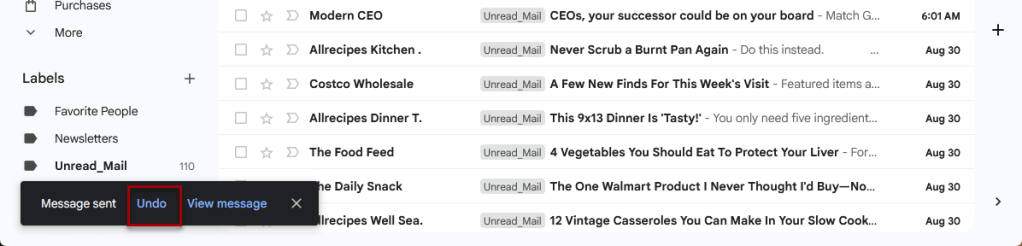
- Click Undo: Look at the bottom left of your screen for the “Message sent” notification and click Undo before the timer expires.
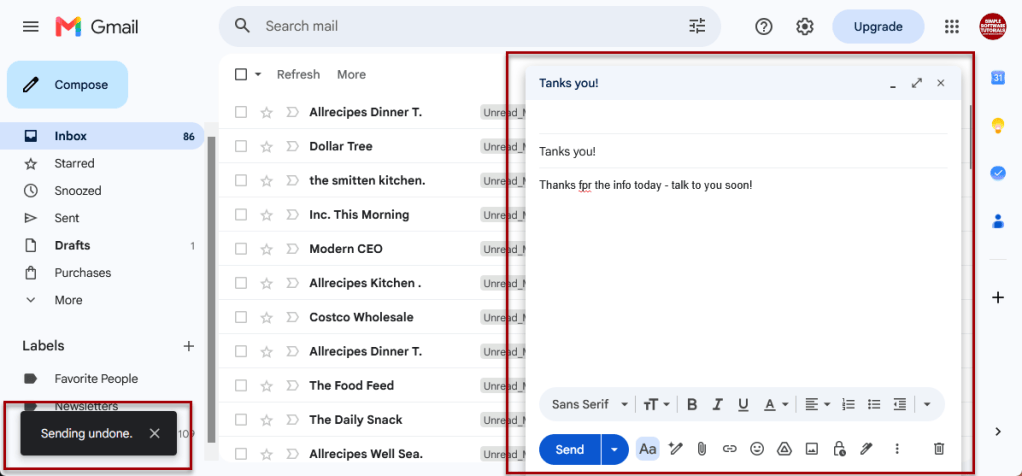
- Edit your draft: The email will reopen as a draft so you can change or delete it.
How to Increase the Time Limit
By default, Gmail gives you only 5 seconds to change your mind. You can extend this window to up to 30 seconds on a computer:
- Open Gmail on your computer.
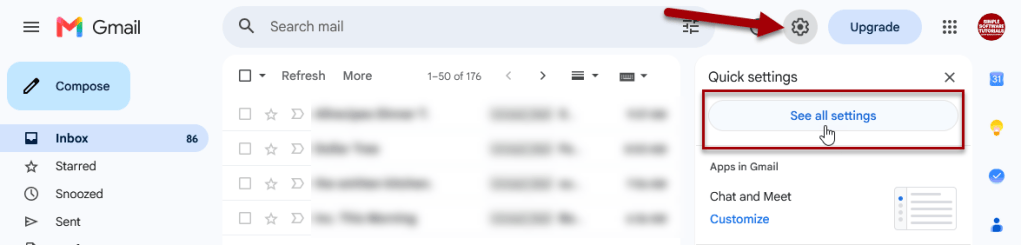
- Click the Settings icon in the top right.
- Click See all settings.
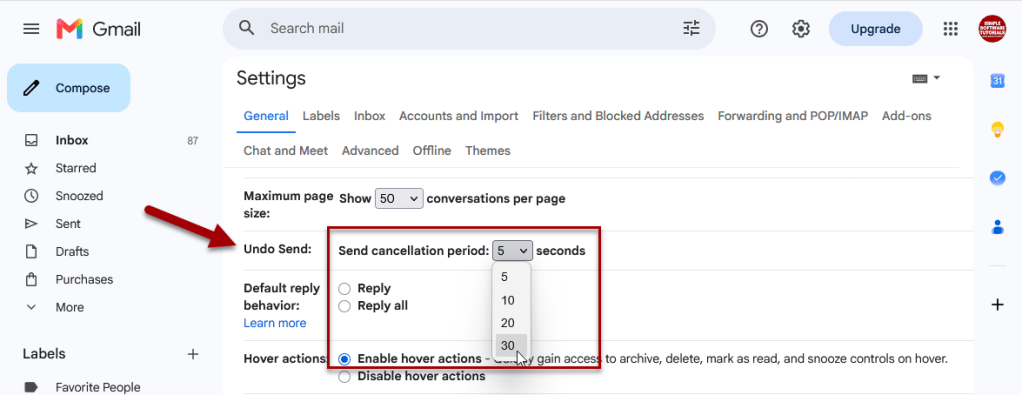
- On the General tab, find the Undo Send row.
- Change the cancellation period from 5 seconds to up to 30 seconds.
- Scroll to the bottom and click Save changes.
How to Change the Undo Send Time Limit Without a Computer
Undo send settings cannot be managed through the Gmail mobile app, but can be managed on a mobile browser:
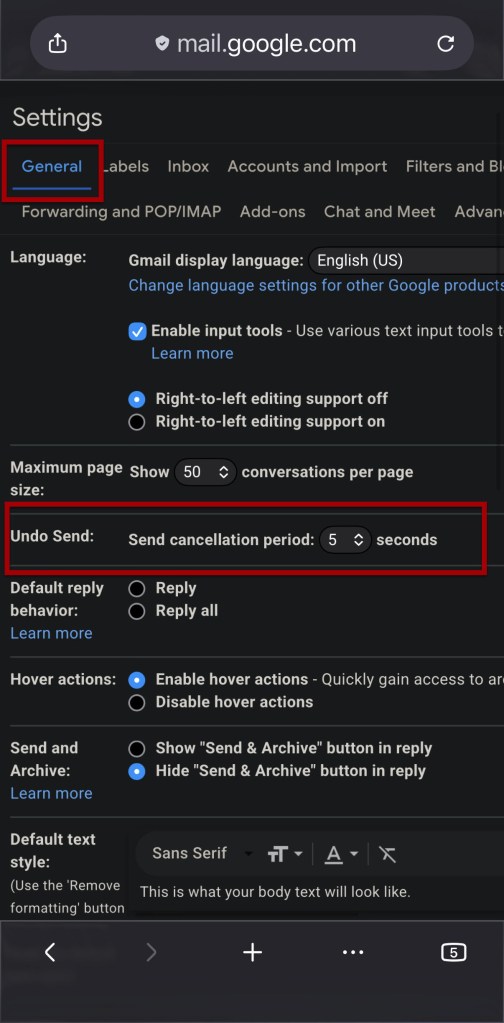
- Open your mobile browser (like Google Chrome or Safari) and go to mail.google.com.
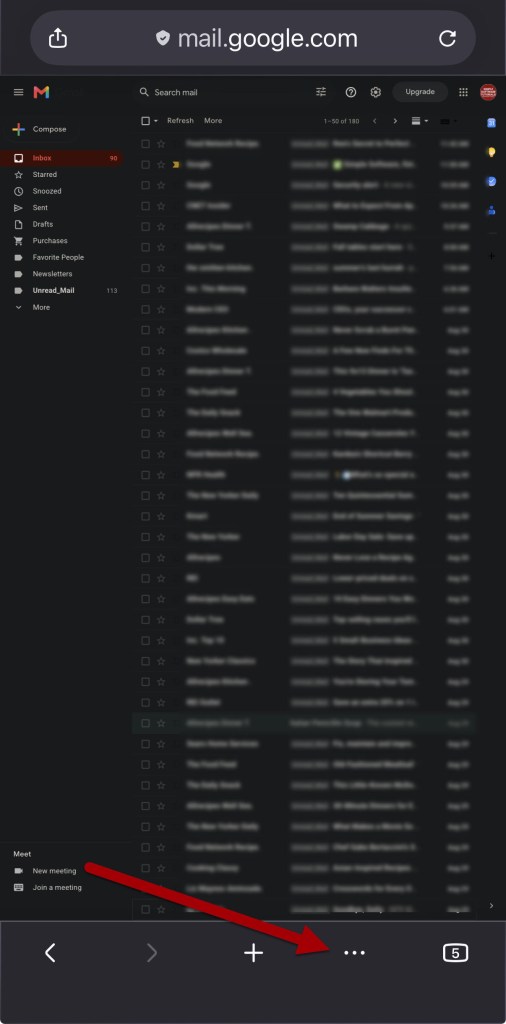
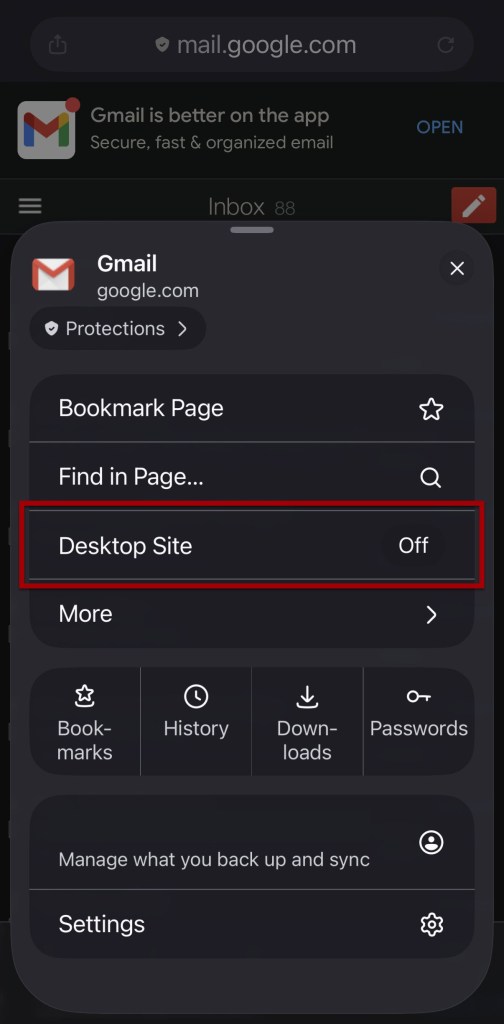
- Open your browser’s menu (usually three dots or an “aA” icon) and select Request Desktop Site.
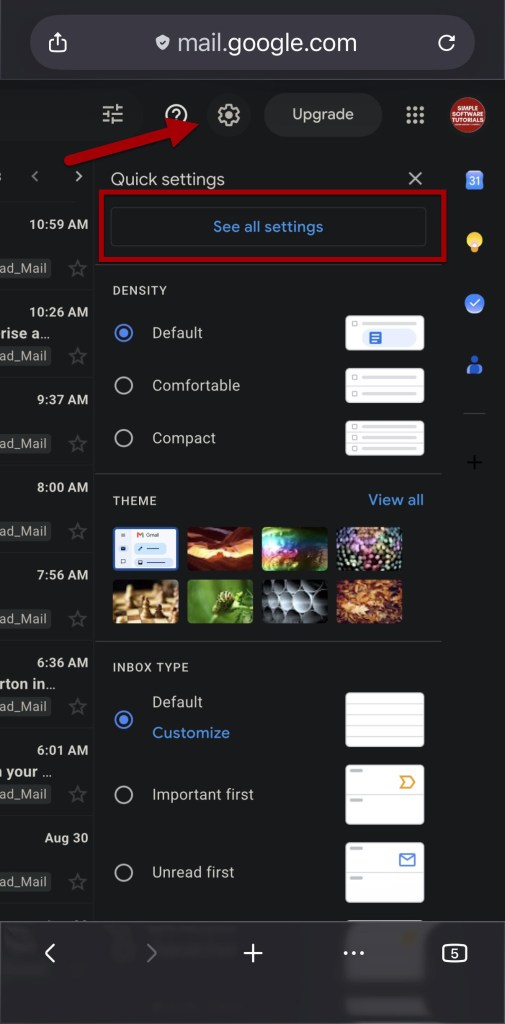
- Log into your account, zoom in on the top right corner, and tap the Settings icon > See all settings.
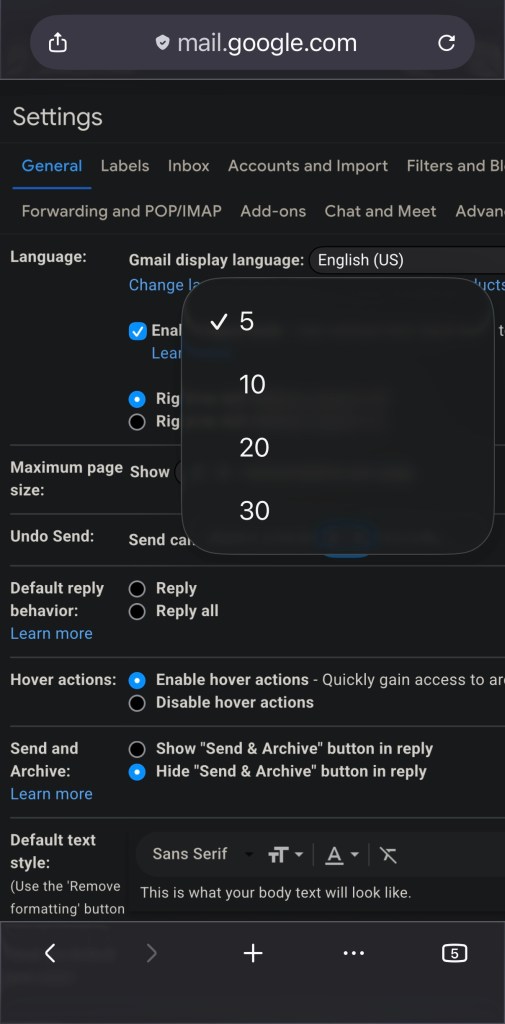
- Under the General tab, find Undo Send and change the dropdown to 30 seconds.
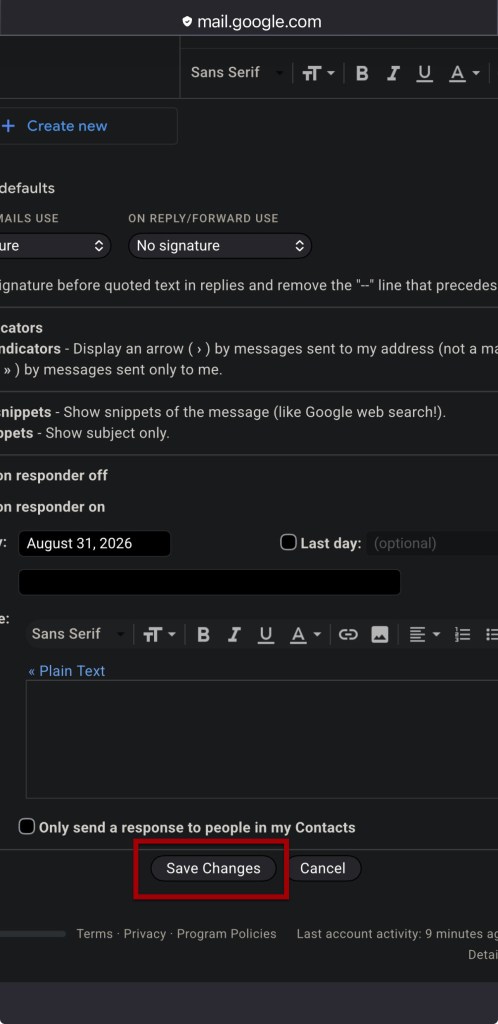
- Scroll to the bottom, tap Save Changes, and restart your Gmail app.
Once saved via the desktop view, your new 30-second time limit will automatically sync and apply to your mobile app.
Note: The below screenshots are from Firefox browser, but the process should be similar for other browsers.
Related

How to Schedule an Email in Gmail
Learn how to schedule an email in Gmail so your message is sent at the right time. This tutorial covers how to schedule, view, cancel, and reschedule emails on desktop and mobile, plus practical uses, scheduling limits, time zone considerations, and other helpful tips.
How to Label Emails From a Specific Date Range in Gmail
Learn how to find Gmail emails from a specific date range using after: and before: search operators, then create and apply a label to organize those messages for easy access later. This tutorial also includes practical copy-and-paste date range examples for years, months, projects, travel, taxes, and more.
Stay Updated
There are two easy ways to get notified when new tutorials are published:
Subscribe on YouTube for new video tutorials: @SimpleSoftwareTutorials
or enter your email below to receive new blog posts directly in your inbox:

