
Sometimes an email arrives before you’re ready to deal with it. Maybe you need to respond later in the week, review a reservation closer to the travel date, pay a bill on payday, or remember to follow up on a message you sent.
Gmail’s Snooze feature lets you temporarily remove an email from your Inbox and have it return at a date and time you choose. When the snooze period ends, the message comes back to the top of your Inbox so it’s easier to notice and take action.
In this tutorial, I’ll show you how to snooze and unsnooze emails on a computer and in the Gmail mobile app, how to snooze messages you’ve sent as a follow-up reminder, and how to change Gmail’s default snooze times.
What You’ll Learn
In this tutorial, you’ll learn how to:
- Snooze an email on a computer or in the Gmail mobile app
- Find and unsnooze messages before their scheduled return time
- Snooze a sent email to remind yourself to follow up later
- Change Gmail’s default snooze times
- Find snoozed emails and snooze multiple messages at once
- Use snoozing for common work and personal reminders
Jump to a section:
- Snoozing a Received Email on a Computer
- Snoozing a Sent Email on a Computer
- Unsnoozing an Email on a Computer
- Snoozing a Received Email on the Gmail Mobile App
- Snoozing a Sent Email on the Gmail Mobile App
- Unsnoozing an Email on the Gmail Mobile App
- Changing Default Snooze Times in Gmail
Common Uses
Snoozing an email in Gmail is an easy way to manage attention and time without forgetting about important tasks. It acts as a digital pause button for an inbox, moving messages out of sight until they can be handled.
Managing Workload & Focus
- Batching tasks: Grouping similar emails (like bills, project updates, or newsletters) to handle all at once later in the week.
- Reducing clutter: Keeping the main inbox clean and focused only on the current hour’s priorities to lower stress.
- Delaying replies: Postponing a response until working hours if an email is read late at night or over the weekend.
Timing-Specific Actions
- Travel and event planning: Snoozing flight itineraries, hotel reservations, or concert tickets until the morning of the event.
- Meeting preparation: Hiding agendas or presentation notes until 30 minutes before the scheduled meeting.
- Follow-up reminders: Snoozing an email you sent to a client for three days so you remember to check in if they haven’t replied.
Personal Logistics
- Bill payments: Snoozing a digital invoice until payday or the specific day bills are scheduled to be paid.
- Online shopping: Holding package tracking numbers or return labels out of sight until the delivery date or the weekend.
Video Tutorial
How Gmail Snooze Works
When you snooze an email:
- It temporarily leaves your Inbox. The message is still available in Gmail, but it no longer appears in your regular Inbox view.
- You choose when it returns. At the selected date and time, Gmail brings the message back to the top of your Inbox.
- You can still access it anytime. Snoozed messages are available under Snoozed in Gmail, or you can search for them using
in:snoozed. - You can unsnooze it early. If you want the message back before its scheduled return time, you can unsnooze it manually.
Step-by-Step Instructions
Below are instructions detailing how to snooze or unsnooze an email on a computer or using the Gmail mobile app.
Snoozing a Received Email on a Computer
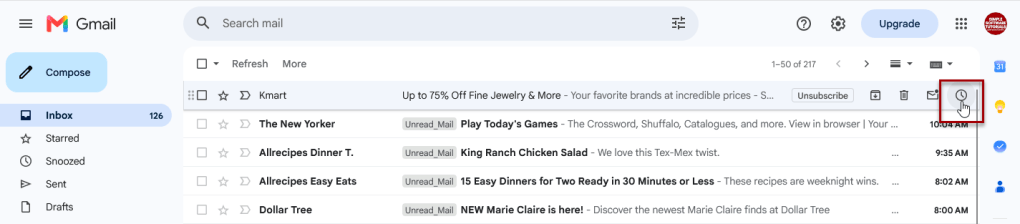
From your inbox, hover over the email in your list, click the clock icon (Snooze) on the right.
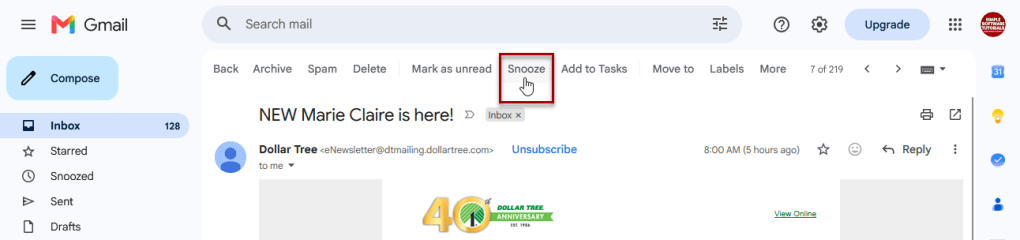
Or, when viewing the email, click on the Snooze button or clock icon.
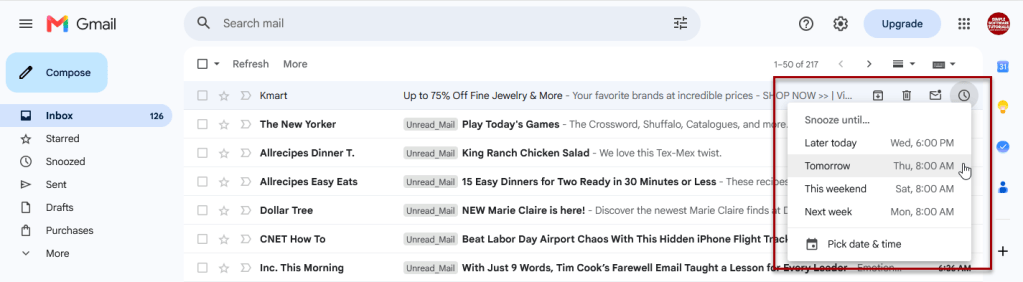
Select a “snooze until” option or click Pick date & time to set a custom snooze until date and time.
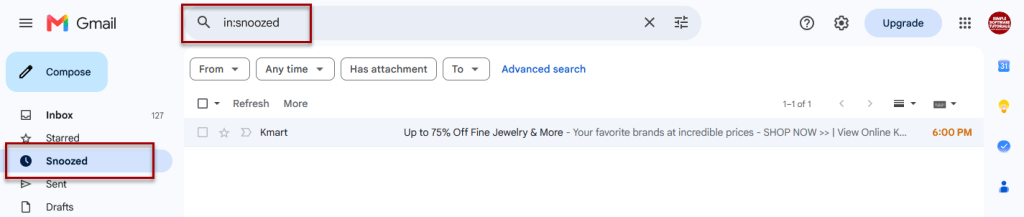
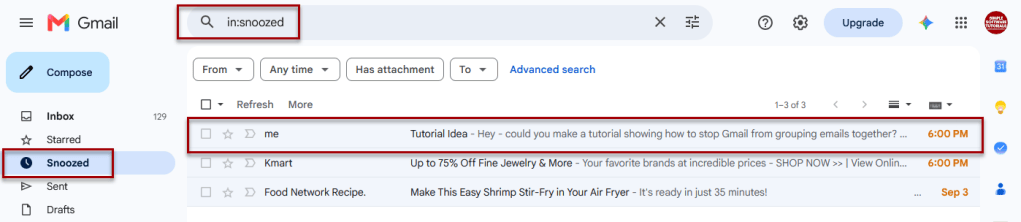
The email will now appear in the Snoozed section in Gmail and can also be found by typing in:snoozed in the search box.
Snoozing a Sent Email on a Computer
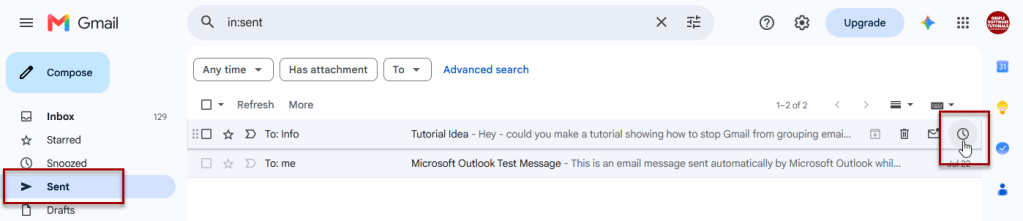
From your sent folder, hover over the email in your list, click the clock icon (Snooze) on the right.
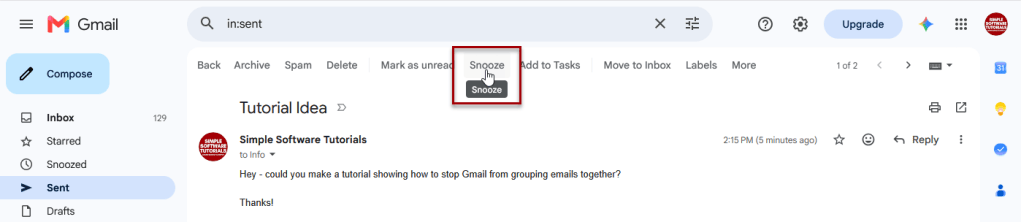
Or, when viewing the sent email, click on the Snooze button or clock icon.
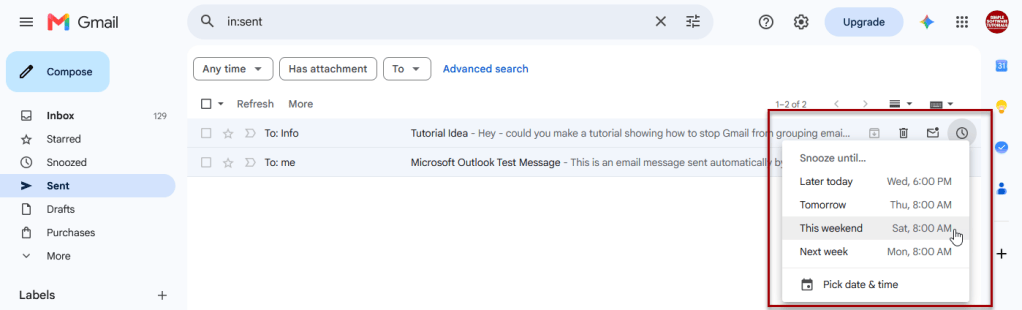
Select a “snooze until” option or click Pick date & time to set a custom snooze until date and time.
The email will now appear in the Snoozed section in Gmail and can also be found by typing in:snoozed in the search box.
Unsnoozing an Email on a Computer
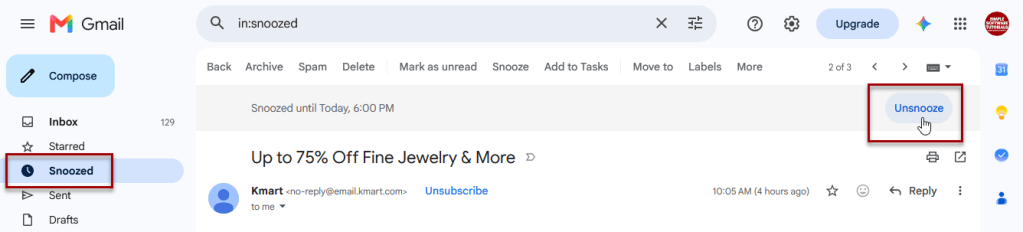
To unsnooze an email on a computer, simply open the snoozed email (found in the Snoozed folder), then click on Unsnooze.
The email will be removed from the snoozed folder and return to the inbox.
Snoozing a Received Email on the Gmail Mobile App
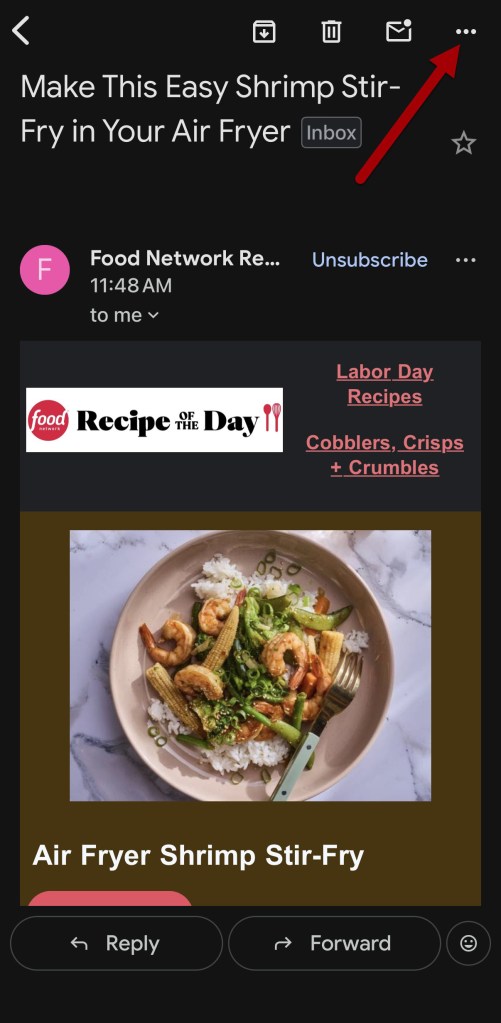
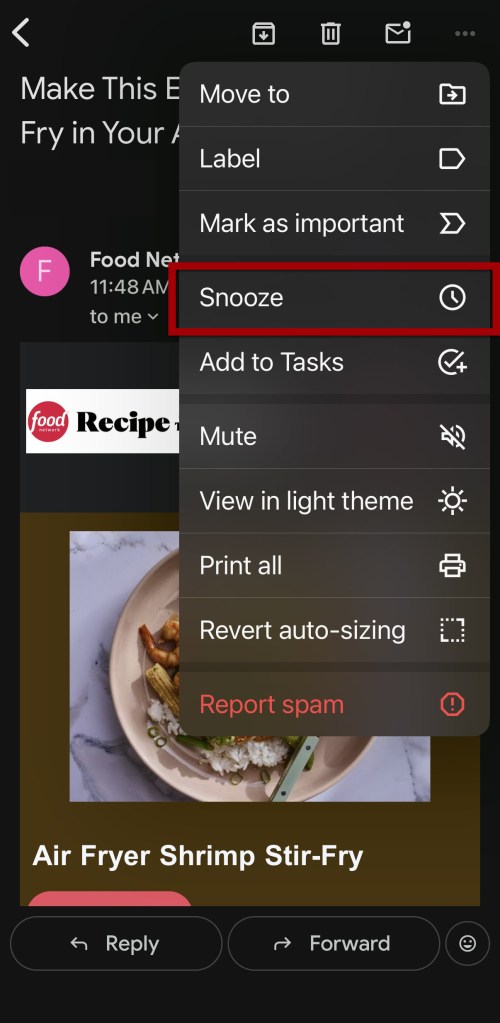
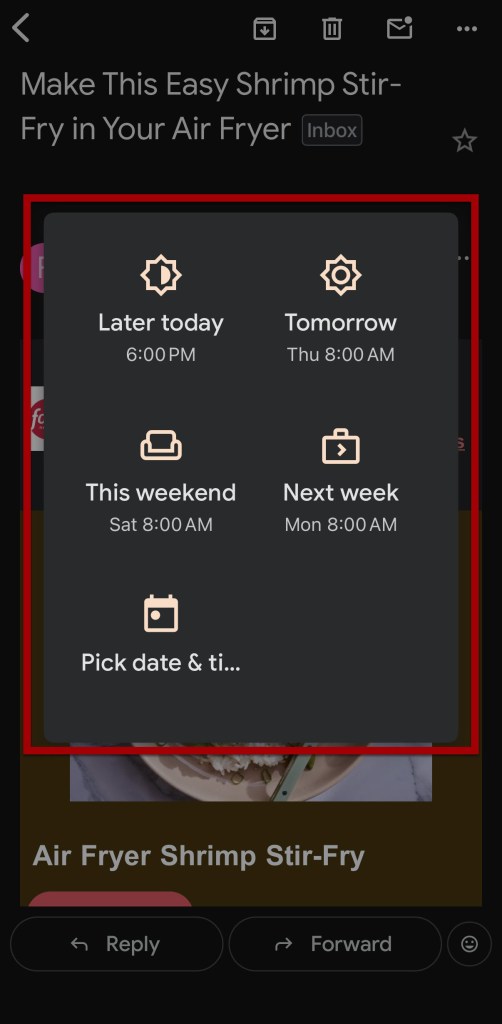
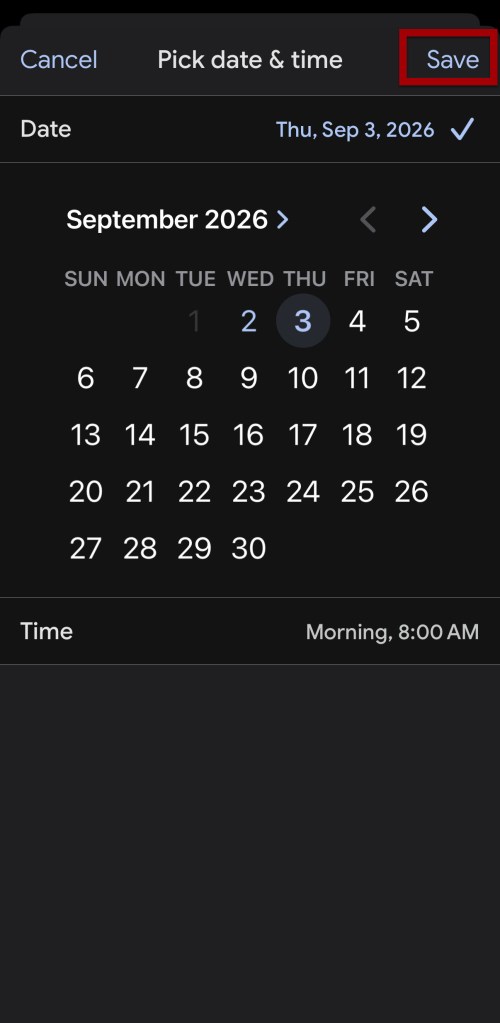
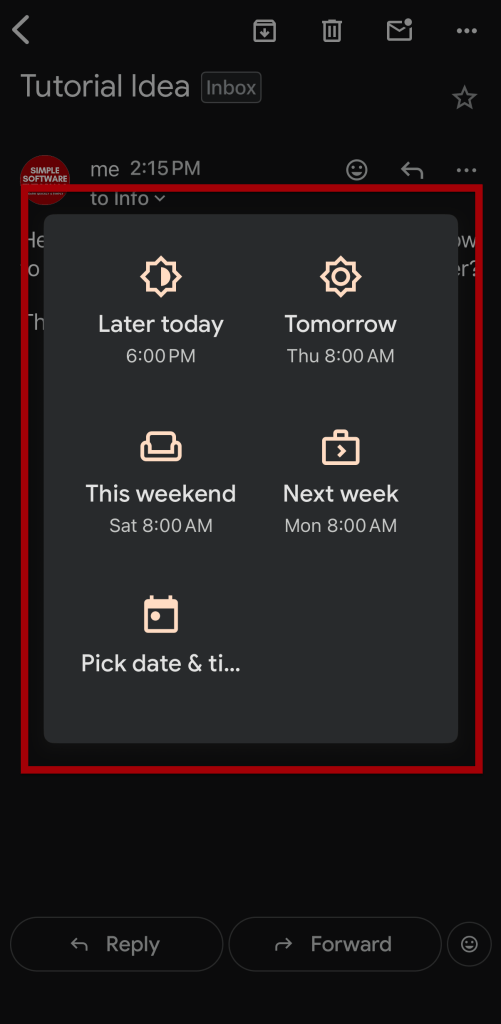
Open the email, tap the three dots in the top right corner, and select Snooze.
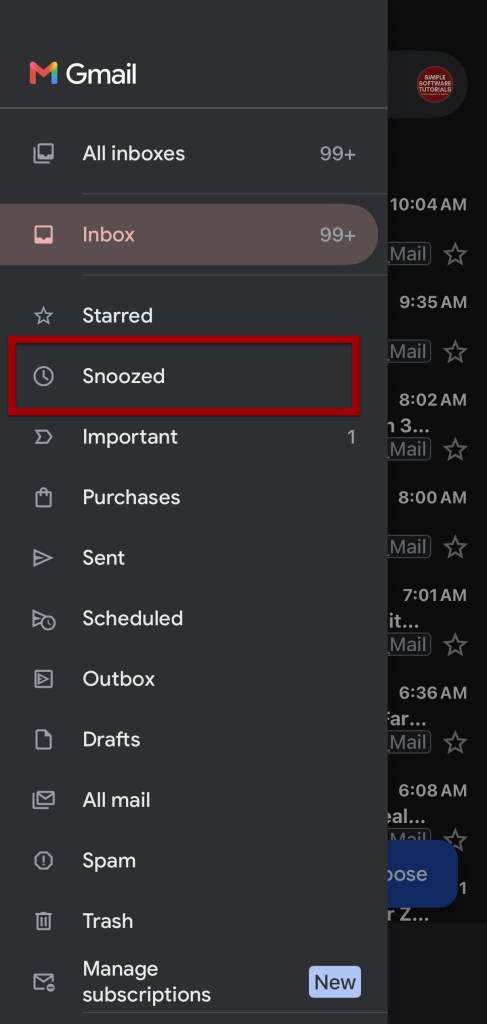
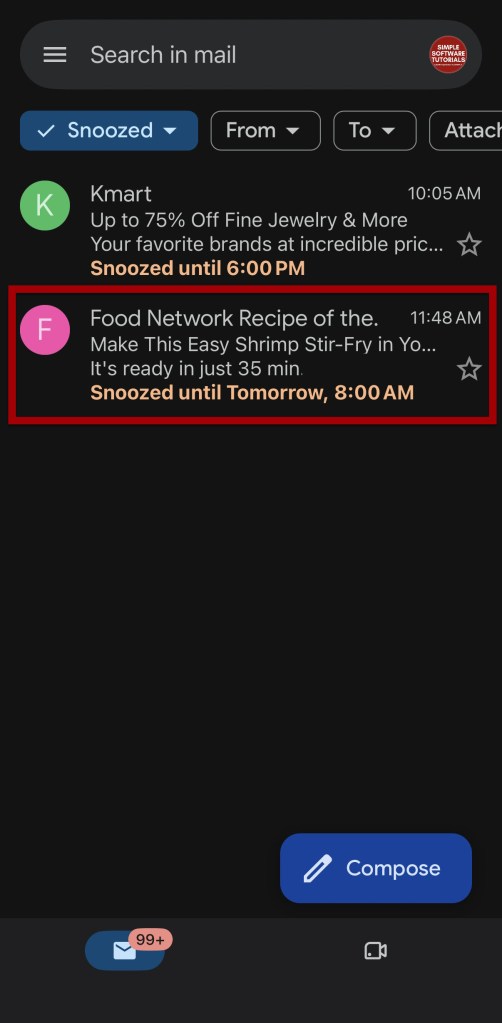
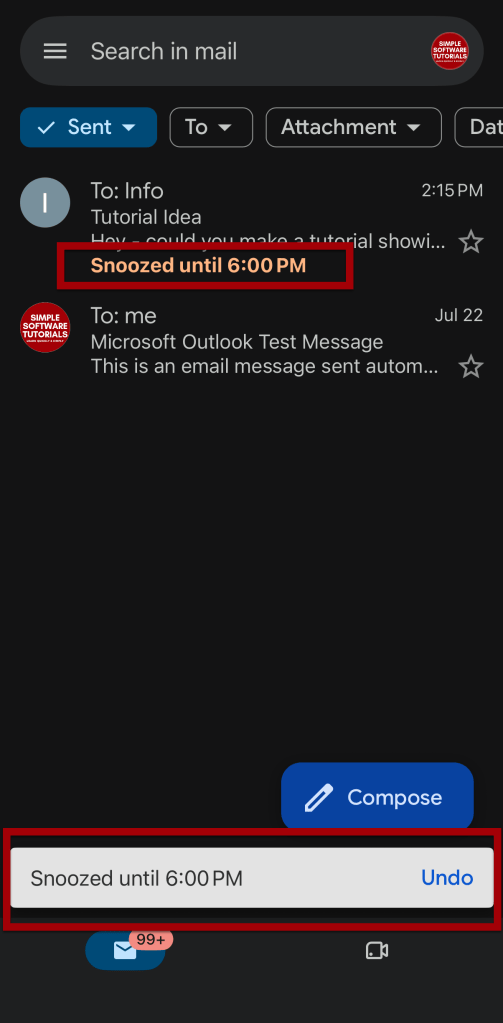
The email will now appear in the Snoozed section in Gmail and the “snooze until” date and time will appear under the email.
Snoozing a Sent Email on the Gmail Mobile App
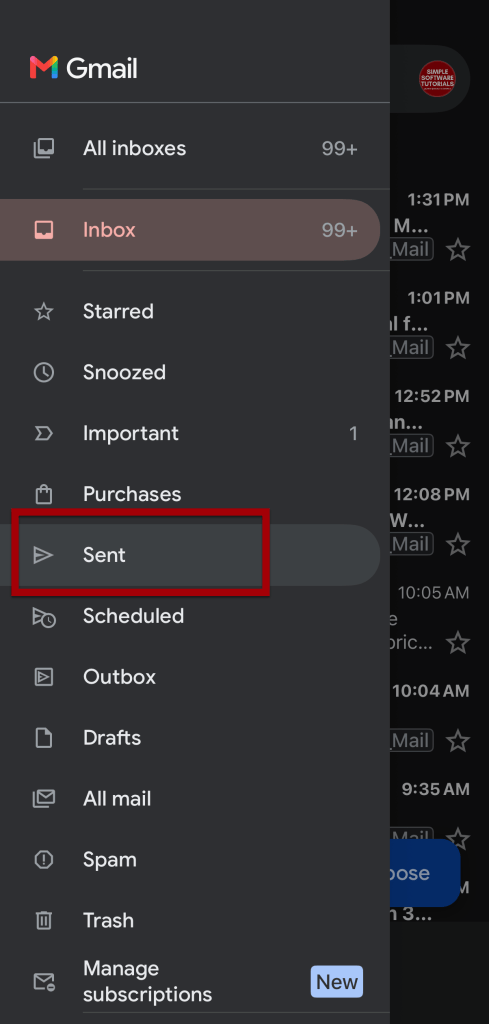
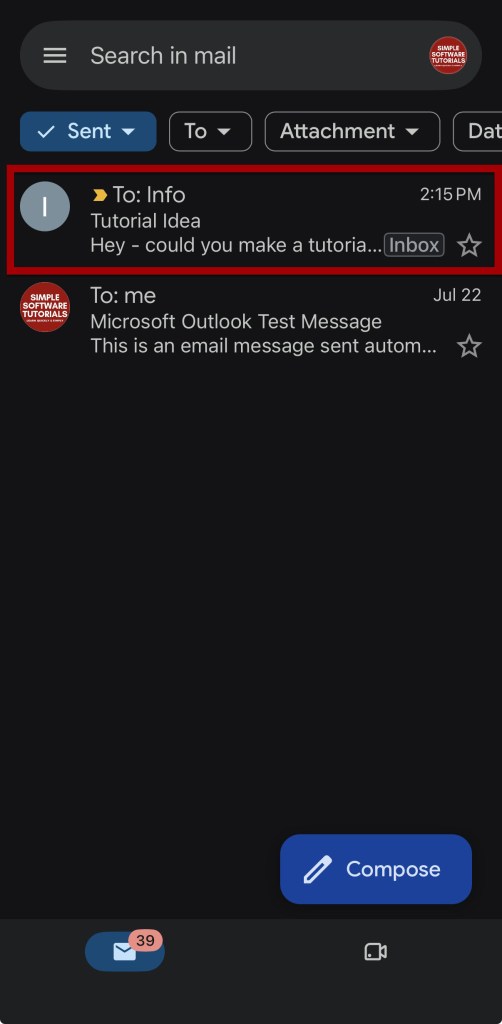
Tap the 3 lines on the top left to open the menu, then tap on Sent to view sent emails
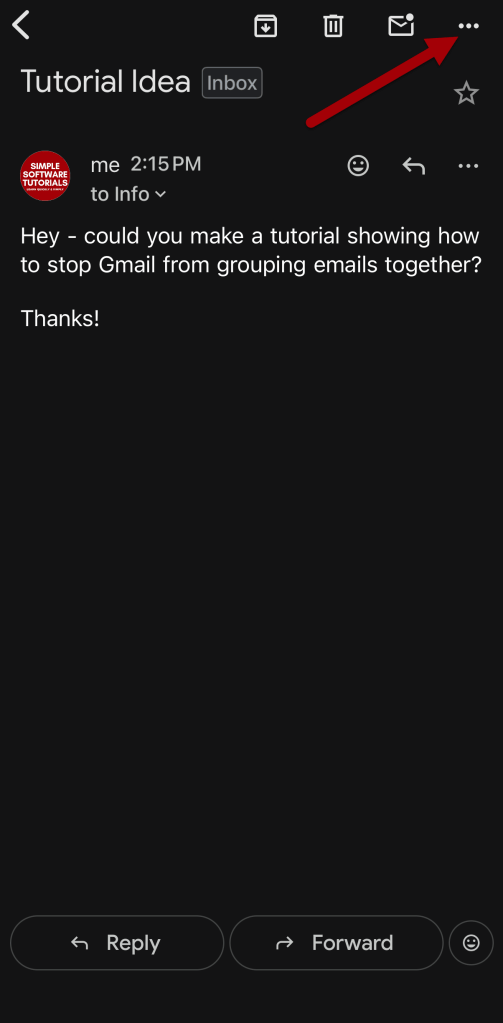
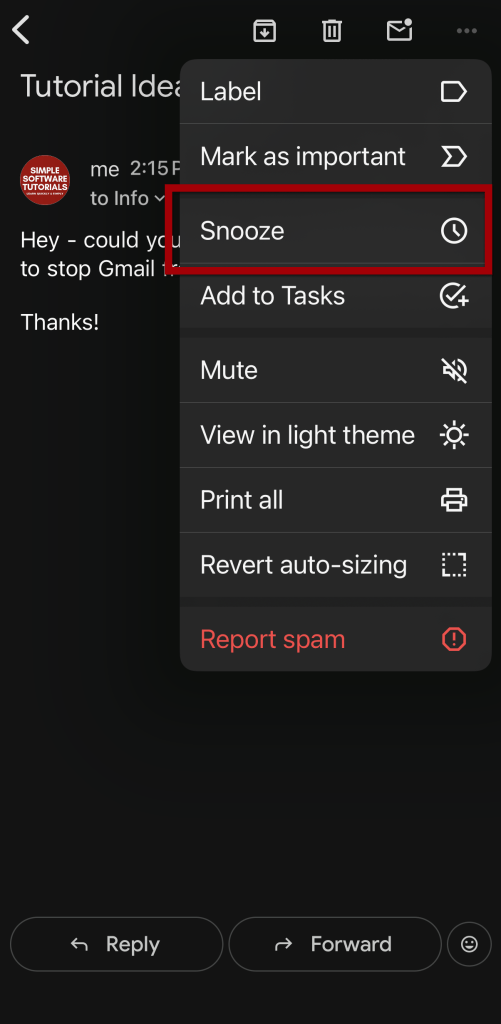
Open the sent email you want to snooze, then tap the three dots in the top right corner, and select Snooze. Select a default snooze time or pick a custom date and time.
The email will now appear in the Snoozed section in Gmail and the “snooze until” date and time will appear under the email.
Unsnoozing an Email on the Gmail Mobile App
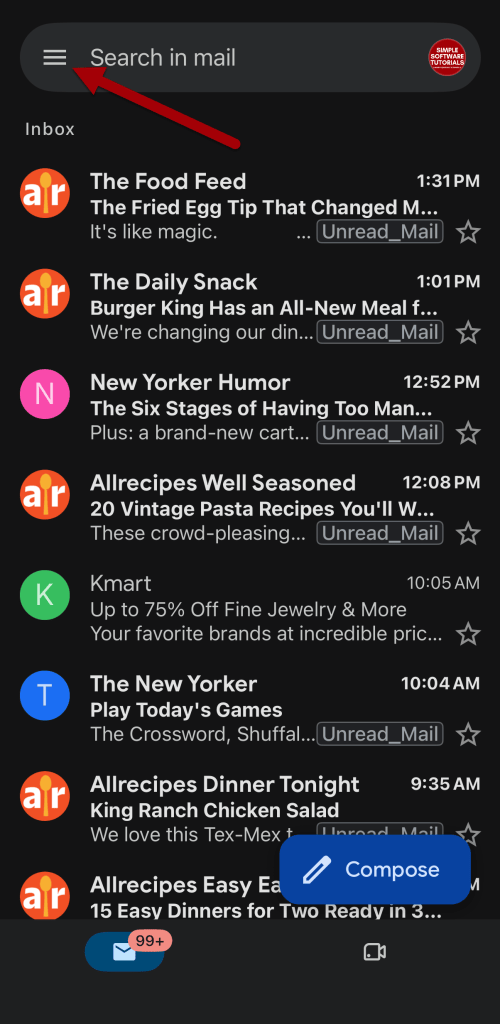
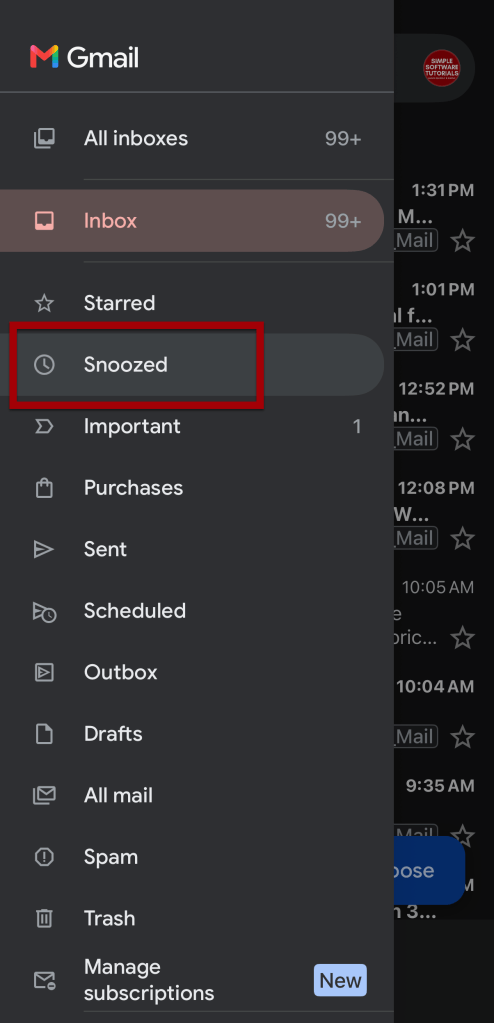
Tap the 3 lines on the top left to open the menu, then tap on Snoozed to view snoozed emails.
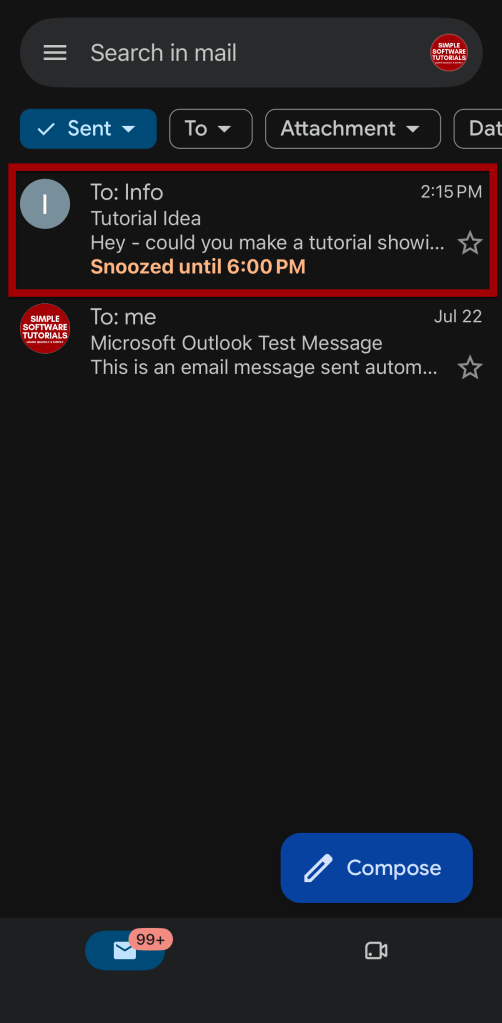
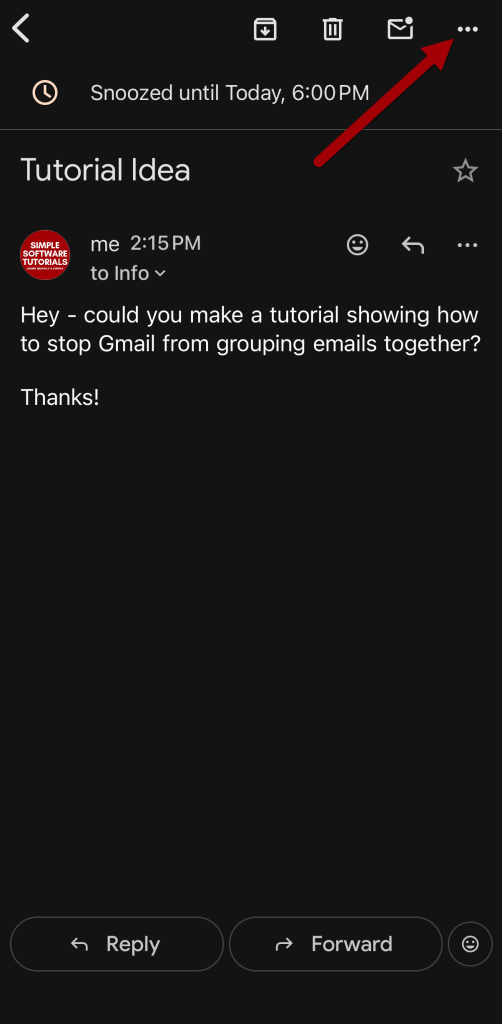
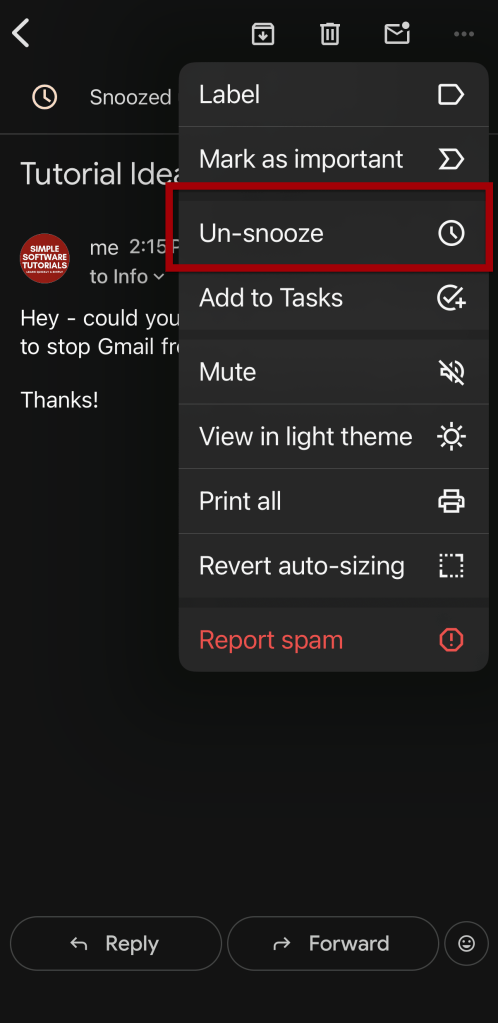
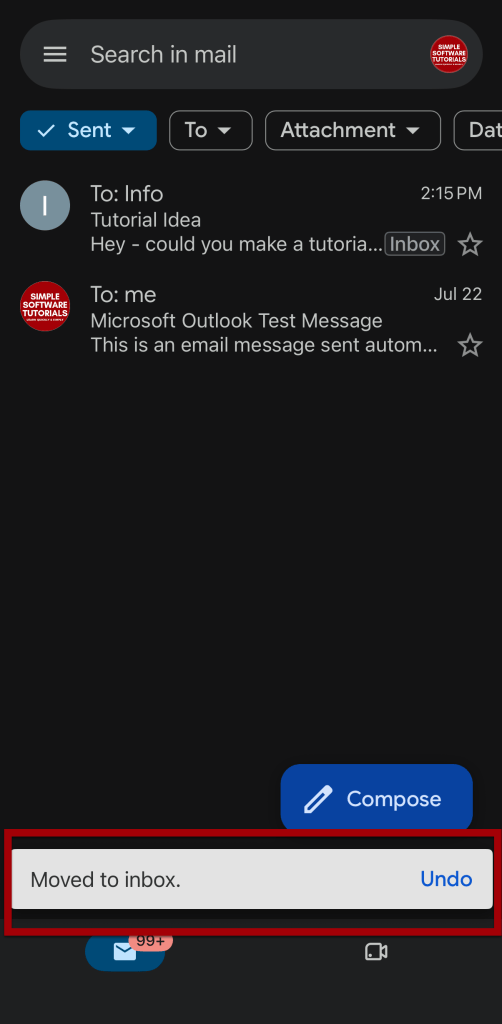
Open the sent email you want to unsnooze, then tap the three dots in the top right corner, and select Un-snooze.
The email will return to the inbox.
Changing Default Snooze Times in Gmail
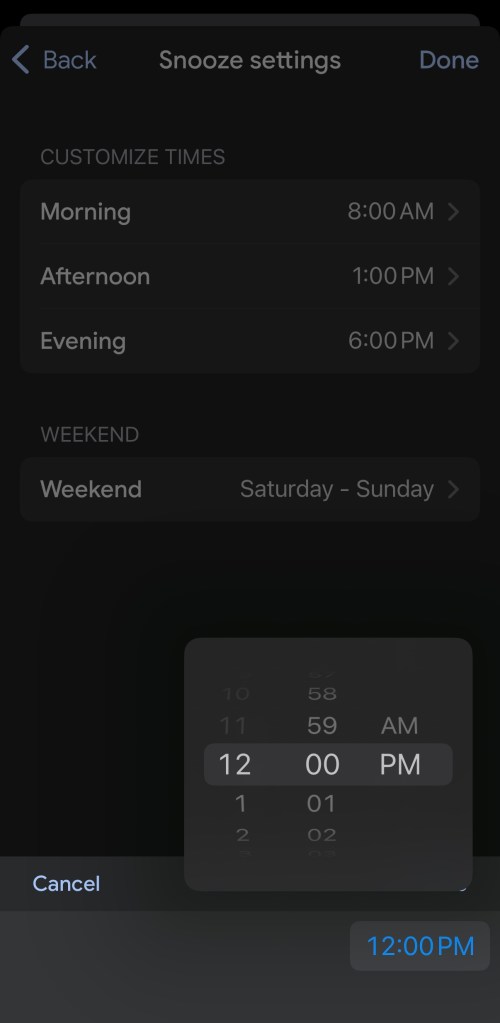
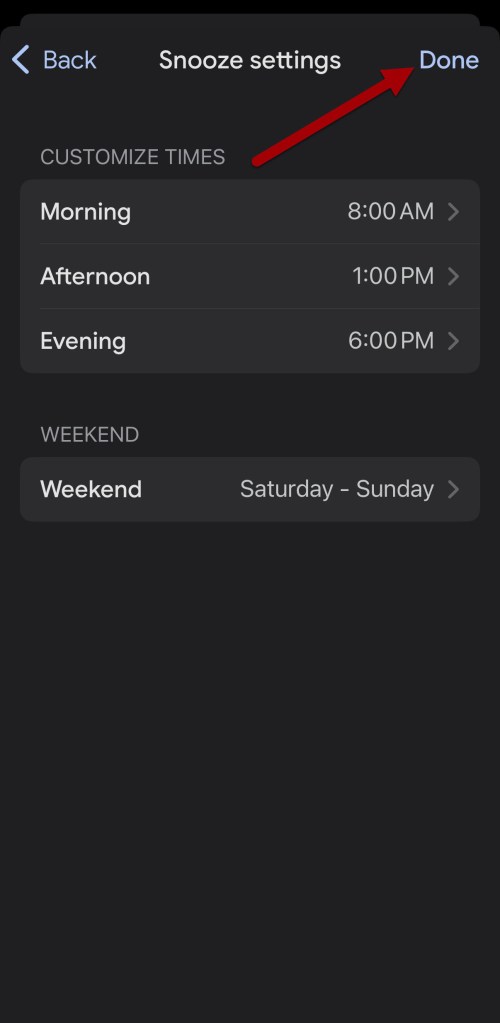
Gmail provides suggested snooze times such as Morning, Afternoon, and Evening. If those times don’t fit your schedule, you can customize them through the Gmail mobile app.
Changing Default Times on the Gmail Mobile App
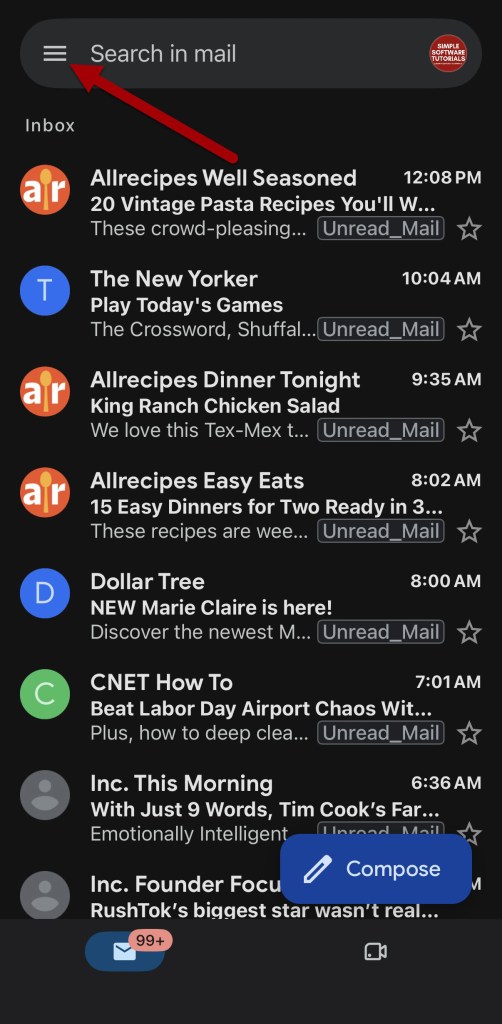
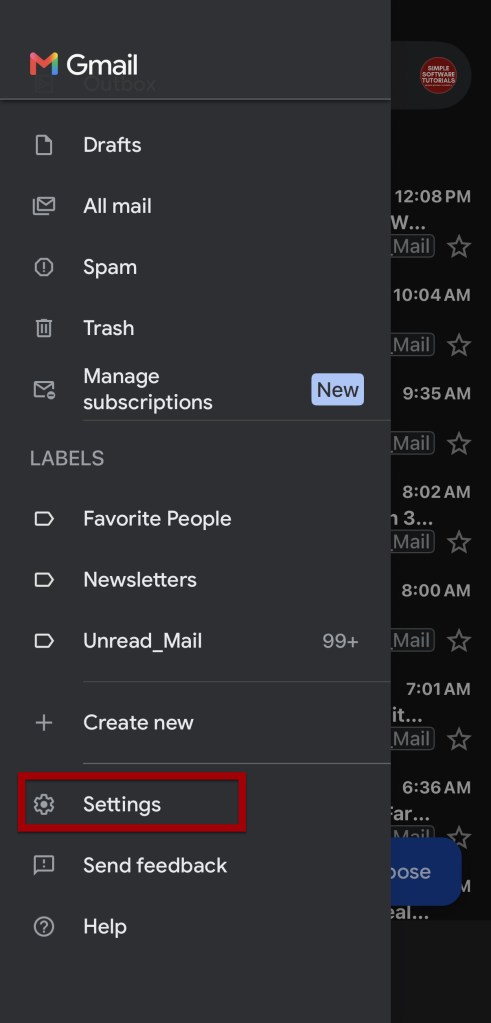
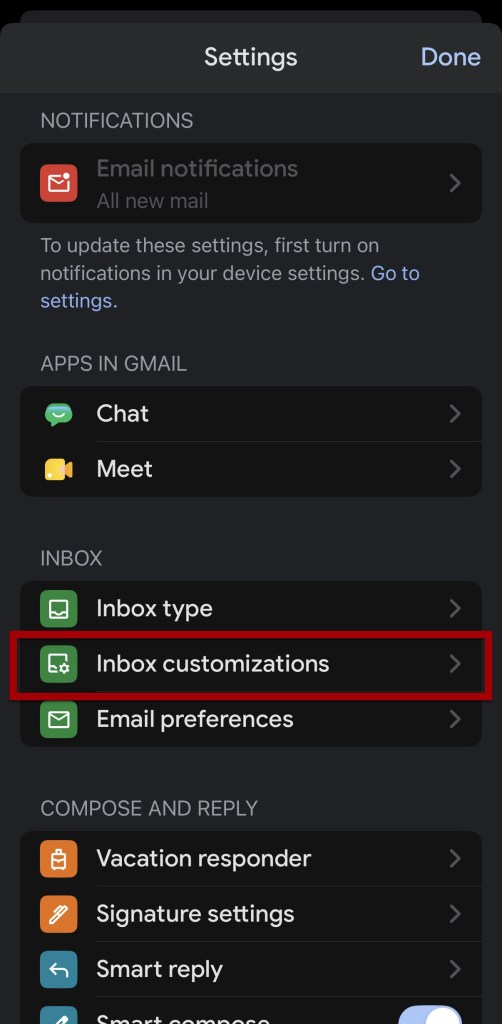
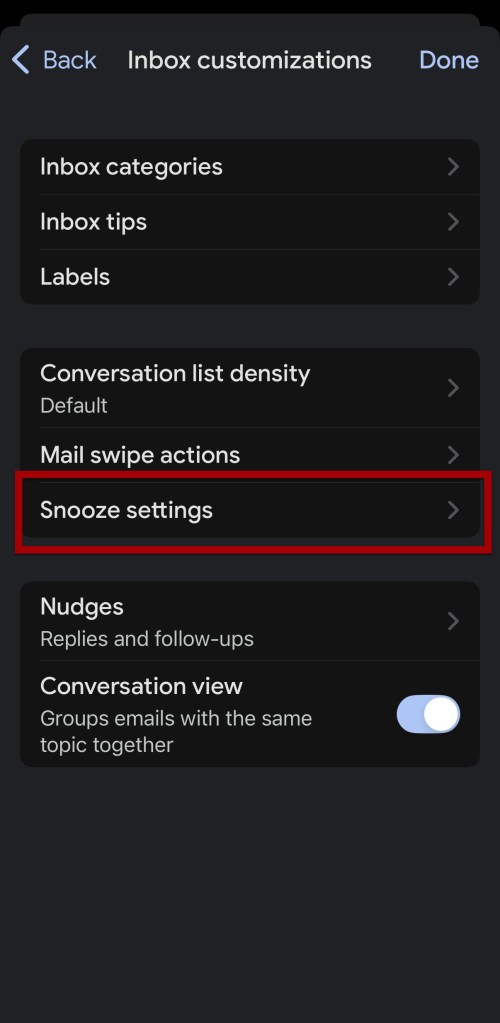
You can easily adjust the “Morning”, “Afternoon”, and “Evening” triggers directly inside the Gmail app.
- Open the Gmail app.
- Tap the Menu icon (three horizontal lines) in the top left corner.
- Scroll down and tap Settings.
- Tap your specific email account (if you have more than one synced).
- Under the Inbox section, tap Inbox customizations.
- Tap Snooze settings.
- Select Morning, Afternoon, or Evening
Once saved in the mobile app, they will automatically override and update the desktop web interface defaults.
What About the Google Keep Workaround?
You may come across older instructions that recommend changing Gmail’s default snooze times through Google Keep. That workaround is no longer available because Google removed the Reminder Defaults setting from Keep when reminders were moved to Google Tasks.
If you want to change Gmail’s default Morning, Afternoon, or Evening snooze times now, use the Snooze settings available in the Gmail mobile app.
More Gmail Snooze Tips
Once you know the basics of snoozing and unsnoozing messages, there are a few additional ways to make the feature even more useful. These tips can help you find snoozed emails faster, manage follow-ups, and use Snooze more efficiently on both desktop and mobile.
The Search Cheat Code
Type in:snoozed into the Gmail search box to quickly display all of your snoozed messages.
The “Sent Email” Follow-Up Trick
You can actually snooze emails you sent. If you email a client and need to follow up in four days, go to your Sent folder and snooze that outgoing message. It will pop back into your inbox in four days, serving as a perfect reminder to check in.
Calendar Conflicts
When you snooze an email, it does not create an event or reminder on your Google Calendar. It only lives inside the Gmail ecosystem. If you need a hard deadline block on your calendar, you have to create that manually.
Bulk Snoozing
You don’t have to snooze threads one by one. You can check the boxes next to multiple emails in your inbox, click the single clock icon at the top of the page, and postpone dozens of messages to the exact same time simultaneously.
Optional: Configure Snooze as a Mobile Swipe Action
Gmail officially supports assigning Snooze to a left or right swipe in the mobile app.
Related

How to Schedule an Email in Gmail
Learn how to schedule an email in Gmail so your message is sent at the right time. This tutorial covers how to schedule, view, cancel, and reschedule emails on desktop and mobile, plus practical uses, scheduling limits, time zone considerations, and other helpful tips.

How to Label Emails From a Specific Date Range in Gmail
Learn how to find Gmail emails from a specific date range using after: and before: search operators, then create and apply a label to organize those messages for easy access later. This tutorial also includes practical copy-and-paste date range examples for years, months, projects, travel, taxes, and more.
Stay Updated
There are two easy ways to get notified when new tutorials are published:
Subscribe on YouTube for new video tutorials: @SimpleSoftwareTutorials
or enter your email below to receive new blog posts directly in your inbox:

