
If you have a large number of unread emails in Gmail, it can be tempting to simply select everything in your Inbox and mark it as read. That works in some cases, but it may not catch unread messages located outside your current Inbox view.
In this tutorial, I’ll show you the quick method first, then explain how to find all unread messages using the is:unread search operator or Gmail’s search options so you can mark the full set of matching emails as read.
I’ll also cover how to do the same thing in the Gmail mobile app and explain why some selection methods that appear to work may leave unread messages behind.
What You’ll Learn
In this tutorial, you’ll learn how to:
- Quickly select messages and mark them as read in Gmail
- Understand why selecting everything in your Inbox may not catch every unread email
- Find unread messages using the is:unread search operator
- Find unread messages using Gmail’s search options
- Select all matching unread messages, including results beyond the current page
- Mark all matching emails as read
- Mark emails as read using the Gmail mobile app
Video Tutorial
Before You Start: Why “Select All” May Not Actually Select All Unread Email
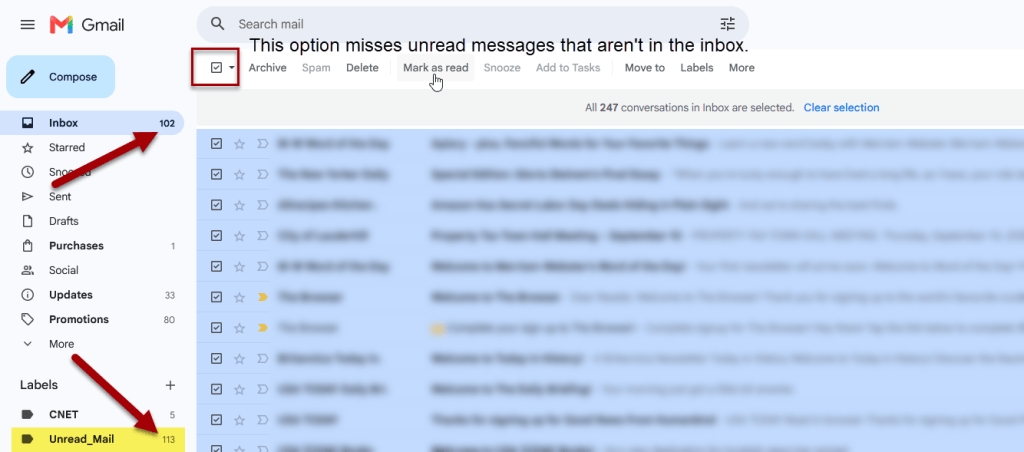
Gmail has a few options that look like they should mark every unread email as read, such as selecting everything in your Inbox or choosing Unread from the selection menu. The problem is that those options only work within the messages you’re currently viewing, so they can miss unread emails elsewhere in Gmail.
Selecting all in Inbox only affects Inbox.
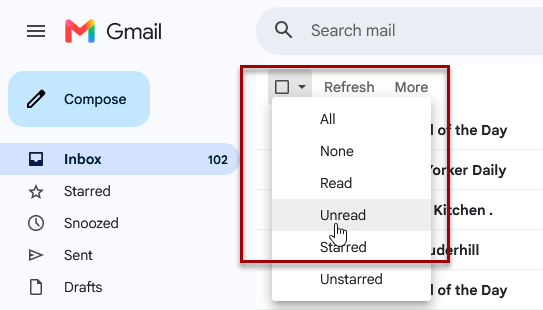
Choosing Unread from the selection dropdown only selects unread messages in the current view/page.
- Searching for unread messages first defines the correct set of messages.
- Then Select all conversations that match this search lets you act on the entire result set rather than just the visible page.
Step-by-Step Instructions
Steps on Computer
- Open Gmail in your web browser.
- Type
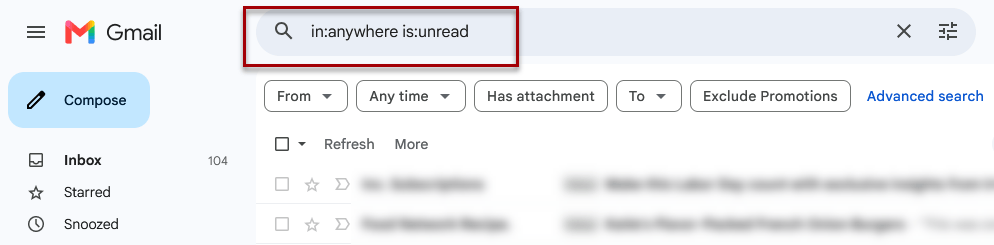
is:unreadinto the search bar at the top and press Enter.- Optional: to include unread messages in spam and trash, use in:anywhere is:unread
- You can also click on the search options icon in the search box and choose search > unread mail
- Click the Select All check box in the top-left corner of the email list (above the list of messages).
- Click the blue text link that says “Select all conversations that match this search”.
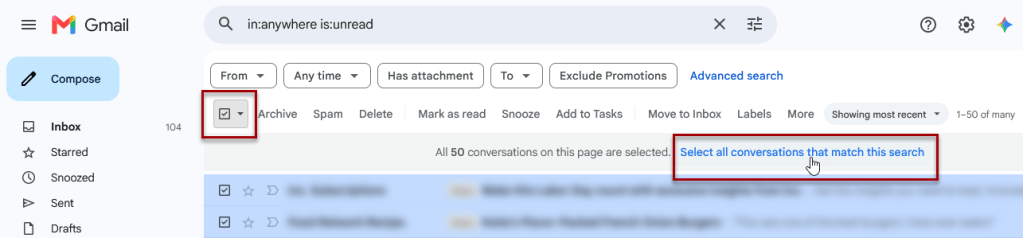
- Click the Mark as read button if you have text labels or the open envelope icon at the top menu.
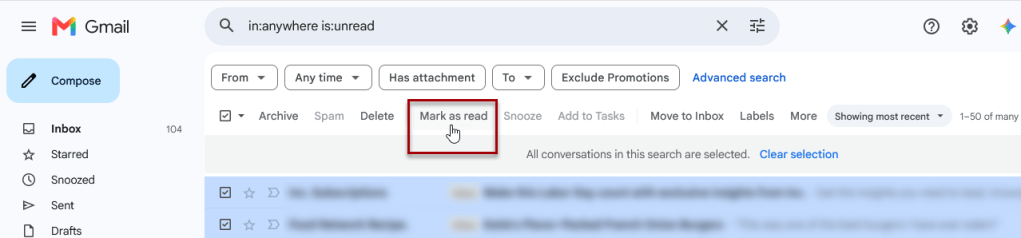
- Confirm the bulk action if a pop-up appears.
Steps on Mobile App
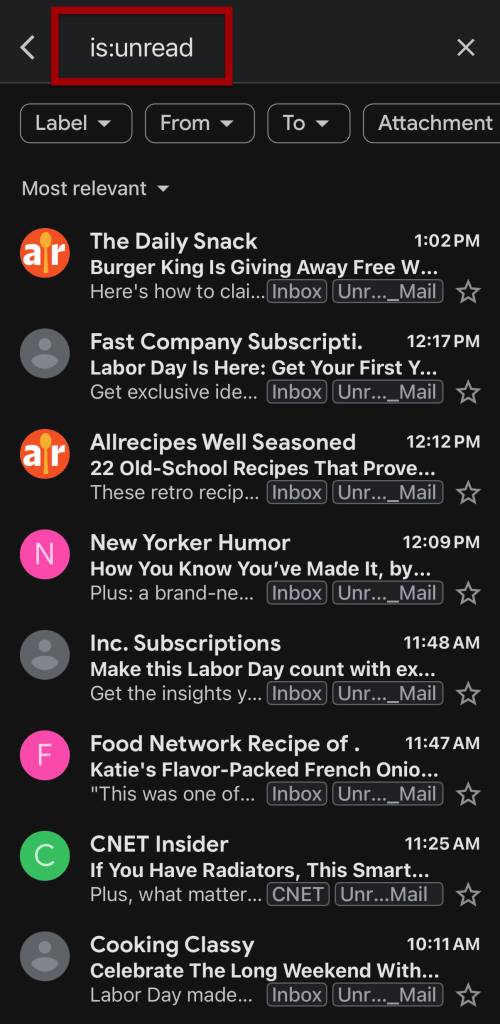
Tip: You can also type is:unread in your search box before selecting any messages to find only unread emails. This is helpful if your unread emails aren’t within the first 50-100 emails in your inbox so you won’t have to scroll as far.
- Open the Gmail app on your phone or tablet.
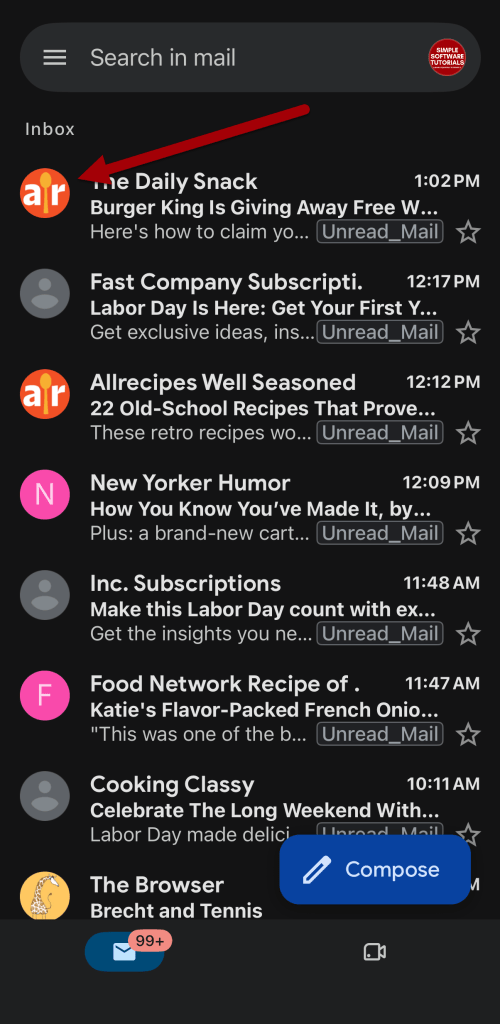
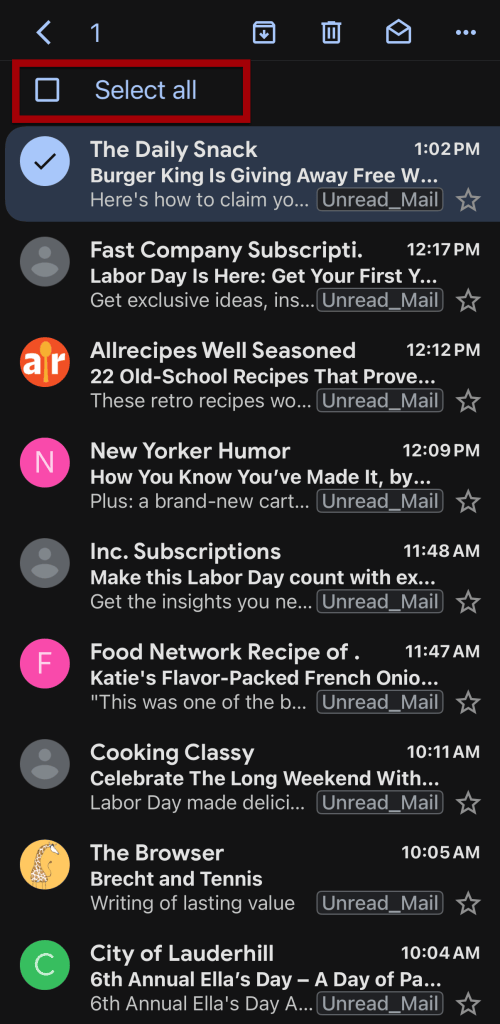
- Tap a sender’s profile picture next to an email to select it.
- Tap the box next to Select all in the top left corner.
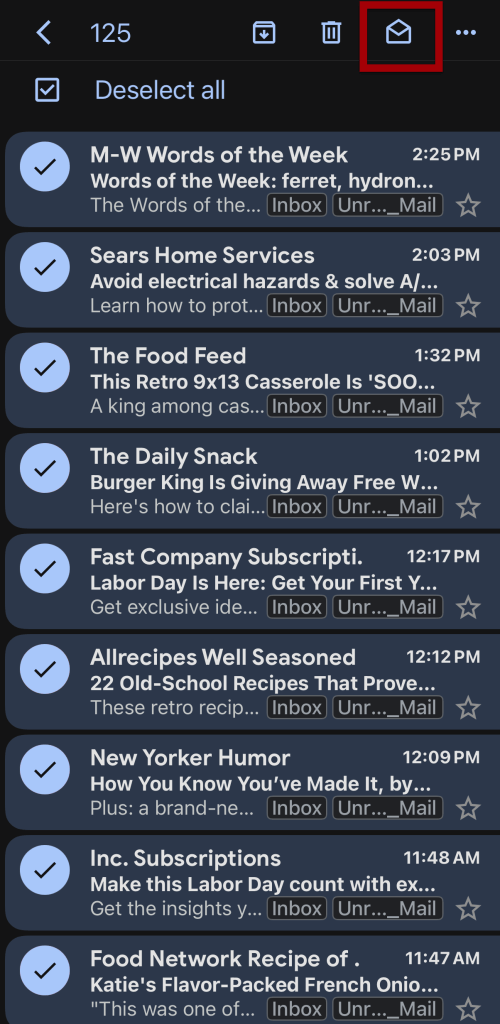
- Scroll down to select more messages if you have many pages loaded, or use the desktop version for massive accounts.
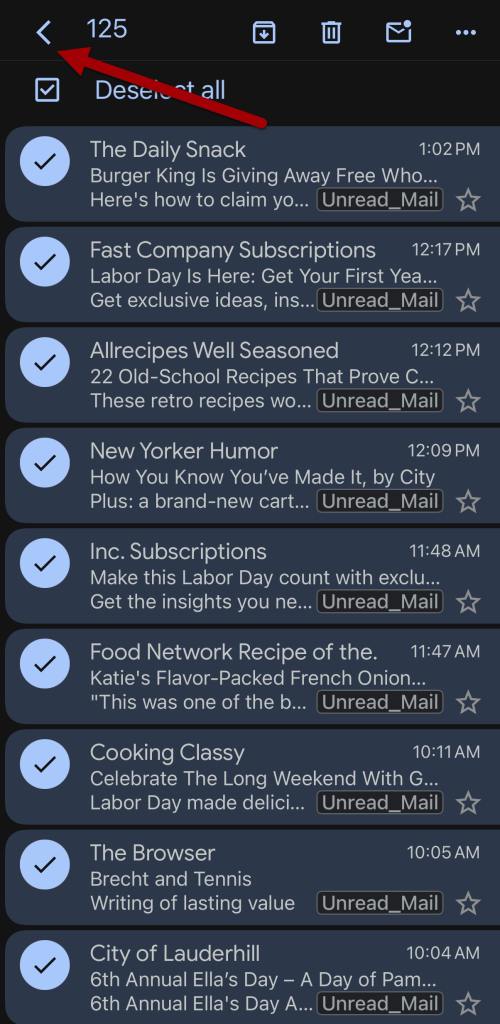
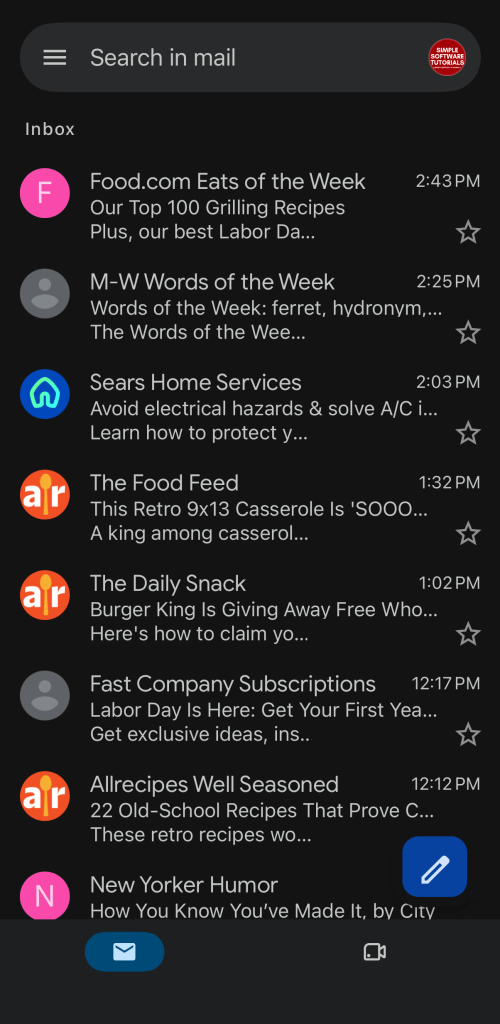
- Tap Mark as read in the top right corner.
Related Features
Check out this tutorial to learn how to automatically label all of your unread emails so you can easily view all of them with one click.
Related

How to Schedule an Email in Gmail
Learn how to schedule an email in Gmail so your message is sent at the right time. This tutorial covers how to schedule, view, cancel, and reschedule emails on desktop and mobile, plus practical uses, scheduling limits, time zone considerations, and other helpful tips.
How to Label Emails From a Specific Date Range in Gmail
Learn how to find Gmail emails from a specific date range using after: and before: search operators, then create and apply a label to organize those messages for easy access later. This tutorial also includes practical copy-and-paste date range examples for years, months, projects, travel, taxes, and more.
How to Automatically Apply a Label Based on Email Age in Gmail
Learn how to automatically apply a Gmail label based on email age using Google Apps Script. This tutorial shows how to create the label, customize an `older_than:` rule, test and authorize the script, and set up a daily trigger so older messages are labeled automatically.
Stay Updated
There are two easy ways to get notified when new tutorials are published:
Subscribe on YouTube for new video tutorials: @SimpleSoftwareTutorials
or enter your email below to receive new blog posts directly in your inbox:

