
If you want to organize older Gmail messages by year, project, tax period, travel dates, or another specific span of time, Gmail’s search operators make it easy to narrow down exactly which emails you want to find.
Adding a label to those messages gives you a simple way to group them together so you can return to them later without repeating the same search.
In this tutorial, I’ll show you how to use the after: and before: search operators to find all emails from a specific date range, using 2025 as an example. Then I’ll walk through how to create a Gmail label and apply it to those matching messages so you can easily find them again later.
I’ll also share several practical date-range examples you can copy, paste, and adjust for your own needs, including full years, months, quarters, project periods, tax years, travel dates, and more.
Common Uses
- Label all emails from a specific year, such as 2015
- Group emails from a particular month or quarter
- Organize older emails before doing a cleanup
- Separate emails from a specific project period
- Label messages from a tax year or record-keeping period
- Group emails from a travel period, move, job search, or other time-based event
Video Tutorial
Breaking Down the Search
A search operator is a special command you can type into Gmail’s search box to narrow down your results. Instead of searching for a word or sender, search operators let you tell Gmail exactly what type of messages you want to find, for example, emails received within a specific date range.
For Gmail date searches, the basic structure is: after:YYYY/MM/DD before:YYYY/MM/DD
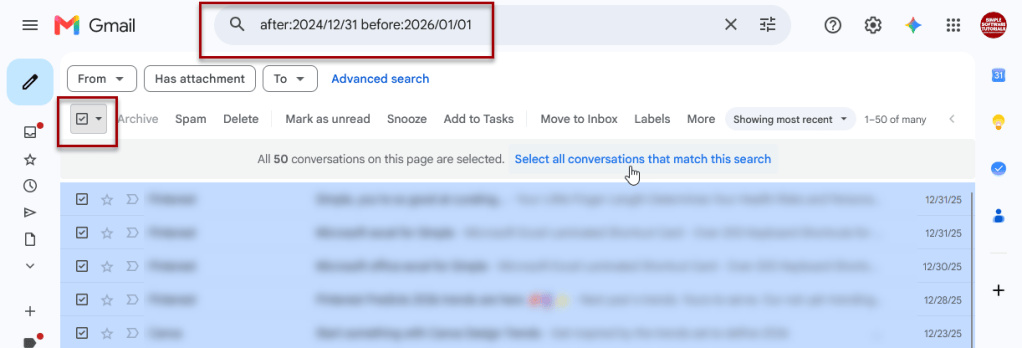
For this method, I use: after:2024/12/31 before:2026/01/01
This range lets me target only emails I received in 2025 since the range begins after the last day of 2024 until before the first day of 2026.
Here are some other examples:
- All emails from 2015
after:2014/12/31 before:2016/01/01 - All emails from January 2024
after:2023/12/31 before:2024/02/01 - All emails from 2025 or earlier
before:2026/01/01 - All emails from the first quarter of 2025
after:2024/12/31 before:2025/04/01 - Emails from a specific project period
Example: March 15 through June 30, 2025after:2025/03/14 before:2025/07/01 - Emails from a tax year
Example: all of 2023after:2022/12/31 before:2024/01/01 - Emails from a vacation or travel period
Example: July 1 through July 15, 2025after:2025/06/30 before:2025/07/16 - Emails from a job-search period
Example: September through December 2024after:2024/08/31 before:2025/01/01 - Emails from a specific quarter
Example: Q4 2023after:2023/09/30 before:2024/01/01
Gmail’s after: and before: operators define the boundaries of the search. To capture an entire date range, use the day before your starting date with after: and the day after your ending date with before:.
Step-by-Step Instructions
The following instructions were written to target emails received in 2025, but can be easily modified to fit whatever range you want using the search operator guidance above.
Remember, for Gmail date searches, the basic structure is: after:YYYY/MM/DD before:YYYY/MM/DD
Labeling Emails From a Date Range
1. In Gmail, use the before and after search operators for the email date range you want to search for.
For example, since I want to target emails received in 2025, I’ll type: after:2024/12/31 before:2026/01/01.

2. Select all the emails from the search results by checking the select all checkbox and also clicking on select all conversations that match this search.
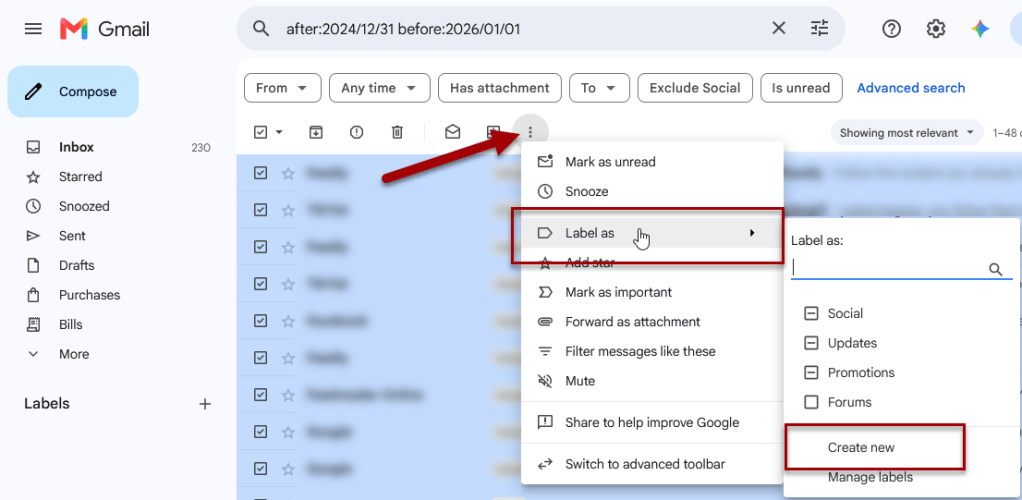
3. Create a new label for these emails. The following steps may vary slightly depending on your Gmail button label settings.
If you have icon labels as shown below, click on the 3 dots > Label as > Create new.
Tip: Change your Gmail icon buttons to text buttons.
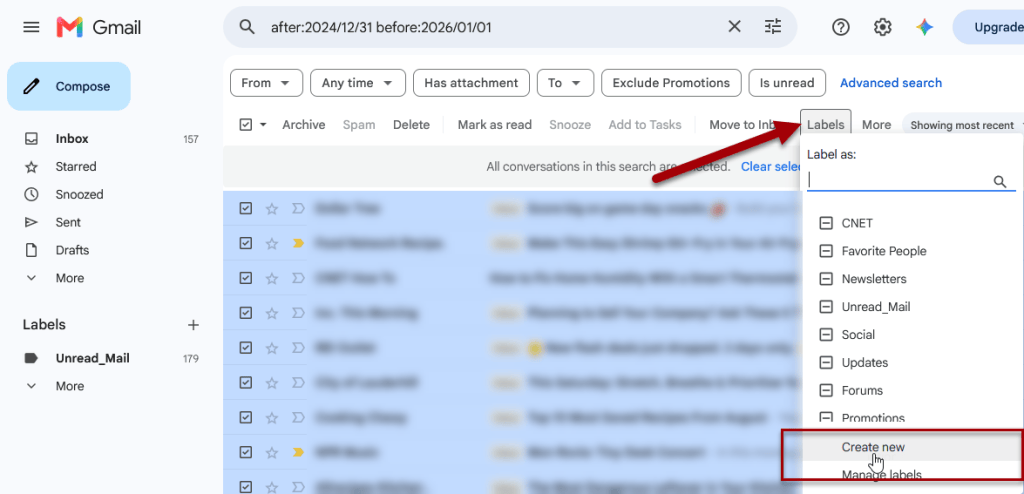
If you have text labels, click on Labels > Create new.
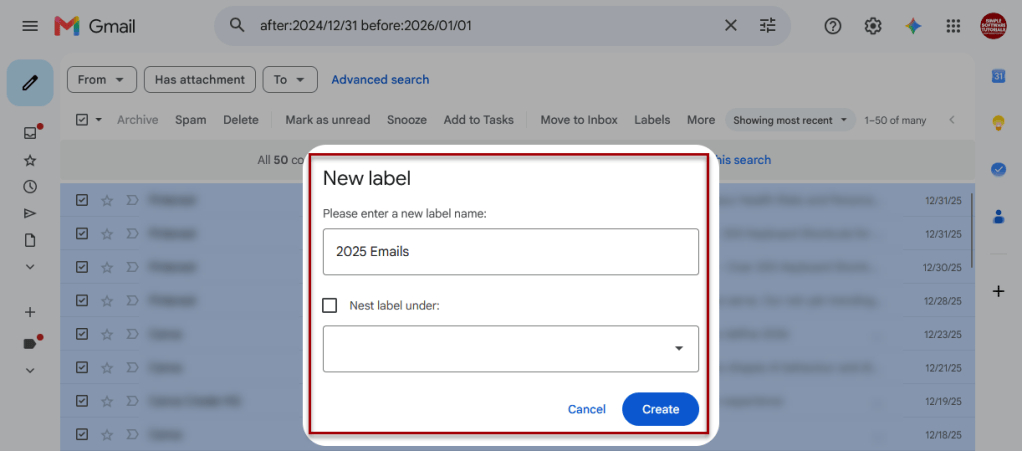
4. Give your label a name. I’m using 2025 Emails since this will apply to emails from 2025. Then click Create.
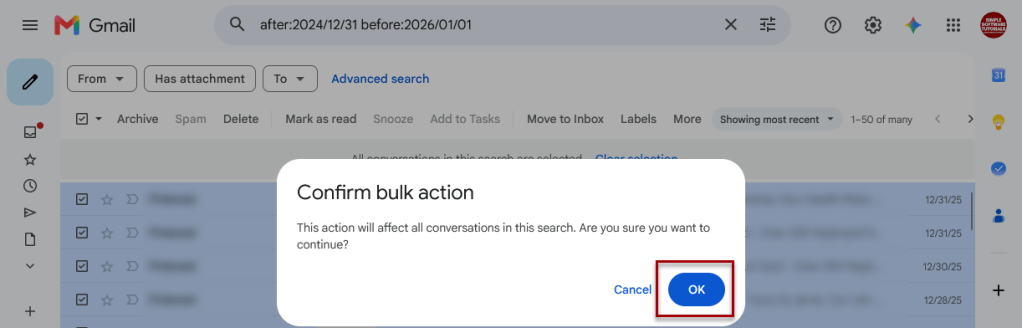
6. A Confirm bulk action message may appear – click the blue OK button to confirm.
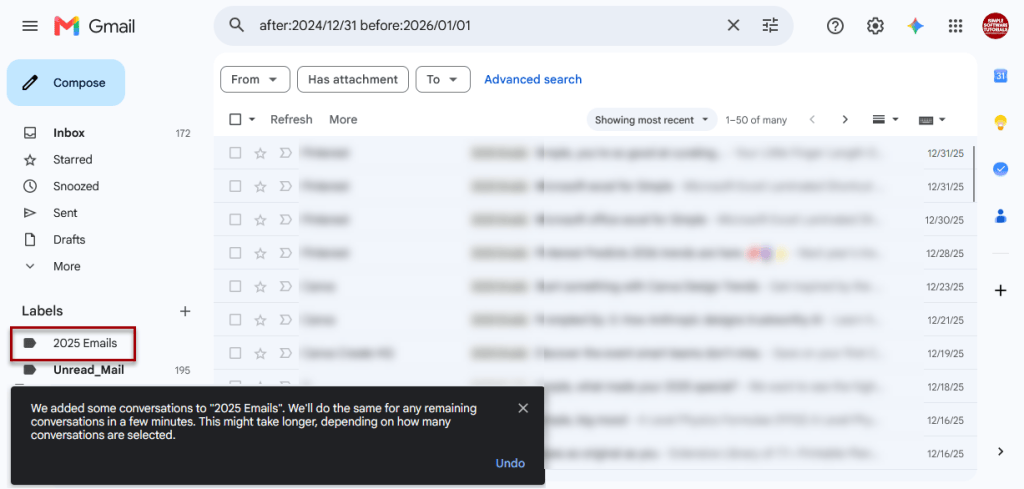
You should now see your new label in Gmail’s left-side navigation and may see a message stating that it may take some time to apply this label to all selected messages – there is nothing you need to do at this point; the label will be applied shortly.
The number displayed beside the label represents unread mail associated with that label. Click the label whenever you want to view these emails.
Related Tutorial
You may also find this guide helpful:
How to Find and Delete Old Promotional Emails in Gmail
Learn how to find and delete old promotional emails in Gmail without wiping out everything before a certain date. This tutorial shows how to use Gmail search operators, review messages by sender, select all matching emails, bulk delete them, and clear Trash when you’re ready.
Related

How to Schedule an Email in Gmail
Learn how to schedule an email in Gmail so your message is sent at the right time. This tutorial covers how to schedule, view, cancel, and reschedule emails on desktop and mobile, plus practical uses, scheduling limits, time zone considerations, and other helpful tips.
How to Automatically Apply a Label Based on Email Age in Gmail
Learn how to automatically apply a Gmail label based on email age using Google Apps Script. This tutorial shows how to create the label, customize an `older_than:` rule, test and authorize the script, and set up a daily trigger so older messages are labeled automatically.
Stay Updated
There are two easy ways to get notified when new tutorials are published:
Subscribe on YouTube for new video tutorials: @SimpleSoftwareTutorials
or enter your email below to receive new blog posts directly in your inbox:

