
If you’re learning VBA (Visual Basic for Applications), recording macros, or working with Excel automation, you’ll first need to enable a few settings that aren’t turned on by default.
This guide walks you through enabling the Developer tab, allowing Excel to run VBA macros, and enabling access to the VBA project object model. These settings are commonly required when creating, editing, or testing VBA code.
New to VBA?
VBA (Visual Basic for Applications) is Excel’s built-in programming language that allows you to automate repetitive tasks and create custom tools. Before you can record or write VBA code, you’ll need to enable the Developer tab and adjust a few settings, which this guide walks you through.
What You’ll Learn
- How to display the Developer tab in Excel
- How to access the Visual Basic Editor (VBE)
- How to enable macro support
- What the “Trust access to the VBA project object model” setting does
- Basic security considerations when working with VBA
Common Uses
- Learning VBA programming
- Recording and editing Excel macros
- Automating repetitive tasks
- Using VBA-based workbooks
- Developing custom Excel tools
- Following VBA tutorials or courses
Requirements & Compatibility
These steps apply to the Windows desktop versions of Microsoft Excel, including:
- Microsoft 365
- Excel 2024
- Excel 2021
- Excel 2019
- Excel 2016
If you’re using Excel for Mac, the Developer tab is enabled in a different location. Excel for the web does not support the VBA editor.
Practice & Resources
No practice files are required for this tutorial.
Simply open Excel and follow the screenshots below to enable the required settings.
Breaking Down the Concepts
Developer Tab
The Developer tab provides access to Excel’s advanced development tools, including:
- Visual Basic Editor (VBA)
- Macro Recorder
- Existing macros
- Form Controls
- ActiveX Controls
- Add-ins
Microsoft hides this tab by default because most Excel users never need it.
Why it’s used
If you’re writing VBA code or working with automation, nearly everything starts from the Developer tab.
Visual Basic for Applications (VBA)
VBA is Excel’s built-in programming language.
Instead of performing repetitive tasks manually, you can write code that tells Excel exactly what to do.
Examples include:
- Formatting reports
- Importing data
- Creating buttons
- Automating repetitive work
- Building custom tools
Macros
A macro is simply a series of recorded or written VBA instructions.
When you run a macro, Excel performs those actions automatically.
Macros can save a tremendous amount of time, but because they contain executable code, they should only be enabled in workbooks from trusted sources.
Trust Access to the VBA Project Object Model
This setting allows one VBA project to interact with another VBA project programmatically.
Most beginners won’t need this immediately, but some advanced VBA projects and third-party tools require it.
Why it’s used
Without this setting enabled, certain automation tasks that generate or modify VBA code cannot run.
Step-by-Step Instructions
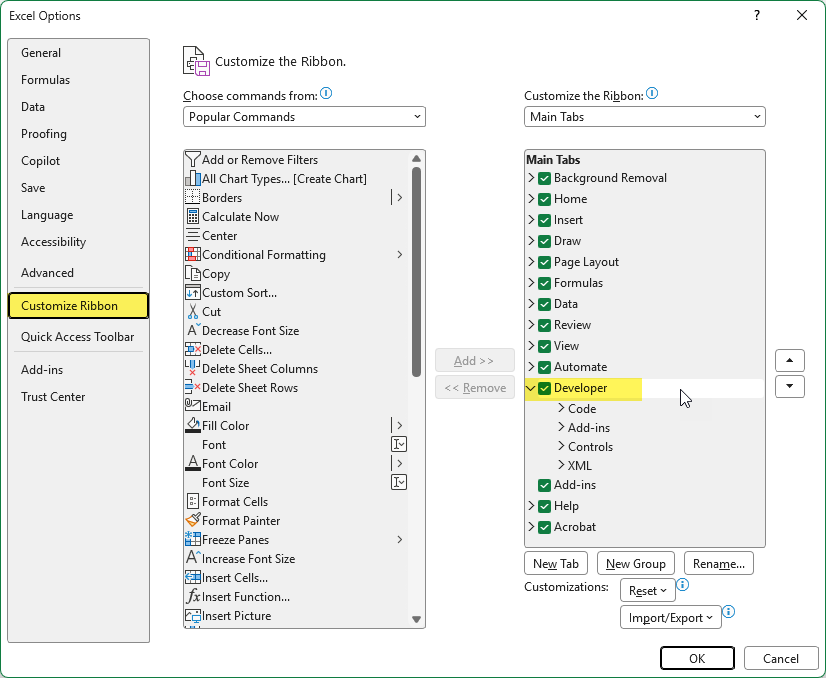
- Click File → Options.
- Select Customize Ribbon.
- Under Main Tabs, check Developer.
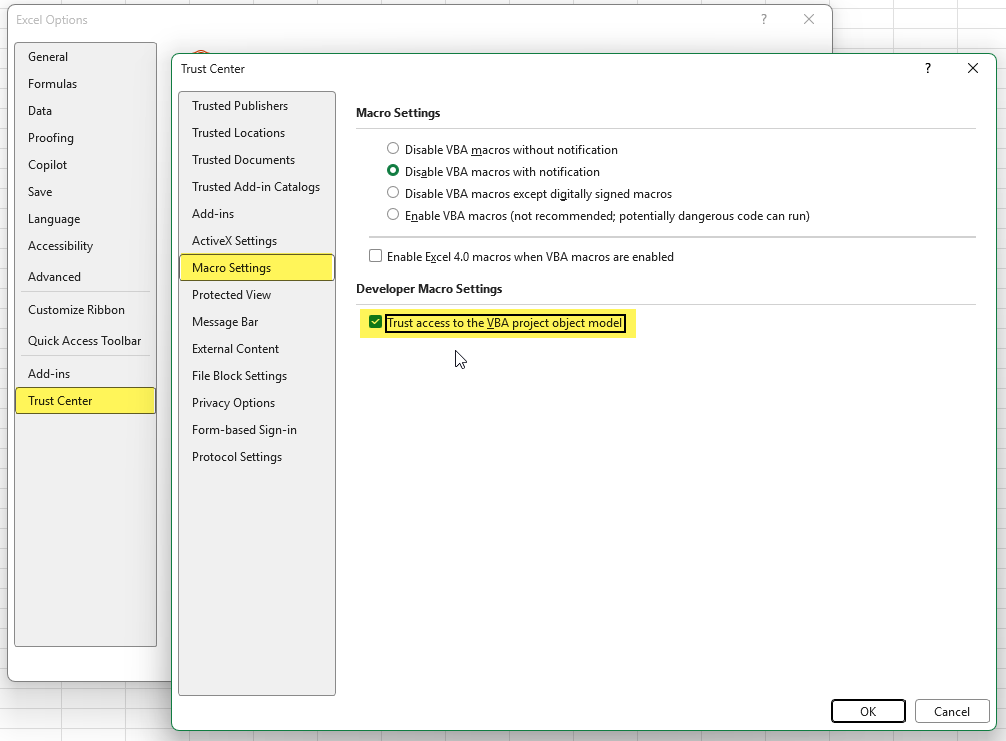
- Click Trust Center.
- Select Trust Center Settings.
- Open Macro Settings.
- Choose the macro setting appropriate for your environment.
- If required for your project, check Trust access to the VBA project object model.
- Click OK to save your changes.
The Developer tab should now appear in Excel.
Please ensure you are running Windows Defender or similar security to ensure you are protected while macros are enabled. Click here for more information.
Additional Tips
Security Consideration
Macros can contain executable code. Only enable macros in workbooks you trust, and consider returning your macro settings to a more secure option after you’re finished working with VBA.
Keyboard Shortcut
Once the Developer tab is enabled:
- Alt + F11 opens the Visual Basic Editor.
- Alt + F8 opens the Macros dialog.
These shortcuts work even if you’re not actively using the Developer tab.
Related
How to Remove Extra Spaces in Excel
Learn how to remove extra spaces from text in Microsoft Excel using the TRIM function. This beginner-friendly tutorial explains what TRIM removes, when to use it, and why it’s one of the most useful functions for cleaning imported or inconsistent data.


How to Create an Order Form with Drop-Down Menus in Microsoft Excel
Learn how to create a professional order form in Microsoft Excel using drop-down menus, Data Validation, and named ranges. This step-by-step tutorial also covers formatting dates, ZIP codes, and credit card fields to build cleaner, more accurate spreadsheets for real-world business use.
Stay Updated
There are two easy ways to get notified when new tutorials are published:
Subscribe on YouTube for new video tutorials: @SimpleSoftwareTutorials
or enter your email below to receive new blog posts directly in your inbox:

