

If you’ve created custom fields in Jira but can’t figure out why they aren’t appearing when you create a Story, you’re not alone. Many new Jira users assume that creating a custom field automatically makes it available within their projects. In reality, there’s one additional step.
In this tutorial, I’ll show you how to create a Field Scheme, which tells Jira which custom fields should be available for your Stories. I’ll use my Job Search project as an example, but the same process can be used for virtually any Company-managed Jira project.
What You’ll Learn
- Understand what a Field Scheme is
- Learn why custom fields don’t automatically appear on Stories
- Create a new Field Scheme
- Adding the Field Scheme to a Space
- Prepare your project for custom fields
- Understand how Field Schemes fit into the overall customization process
Common Uses
- Job search tracking
- Project management
- Product development
- Content planning
- Marketing workflows
- Customer onboarding
- Team collaboration
- Any Company-managed Jira project that uses custom fields
Requirements / Compatibility
- Jira Cloud account
- Company-managed space
- Permission to manage Jira work items and field schemes
Note: These instructions apply to Company-managed spaces. Team-managed spaces use a different approach for customizing fields.
Understanding How Jira Works
One of the first things that confuses many new Jira users is that creating a custom field doesn’t automatically make it appear when creating a Story.
That’s because Jira separates creating a field from deciding where that field should be used.
A Field Scheme acts like a collection or container that tells Jira which fields belong together for a particular type of work.
Think of the process like this:
Plan your information ↓Create a Field Scheme ↓Create Custom Fields ↓Add the Custom Fields to the Field Scheme ↓Update the work item layout ↓Create Story Templates ↓Create Job Stories
Creating the Field Scheme first gives you a place to organize your custom fields as you build them. Later tutorials in this series will show how to create those custom fields and add them to the Field Scheme so they appear on your Stories.
Although the term Field Scheme may sound technical, you can simply think of it as the place where you organize the custom fields you want your Stories to use.
Video
This video demonstrates how to complete steps 1-5 in the instructions below.
This video demonstrates how to complete step 6 in the instructions below.
Step-by-Step Instructions
Note: These instructions are for spaces set up as Company Managed.
Step 1: Navigate to work items
- When you’re logged into Jira:
- Click on the settings icon on the top right of the page
- Click on Work Items

Step 2: Navigate to field schemes
From the work types management page:
- Hover over the sidebar navigation icon on the top left (if the sidebar is not already open) and click on Field Schemes

Step 3: Create a field scheme
- Click on Create Field Scheme
- Enter a name (I named mine “Job Search Story Field Scheme”)
- Add a description (My description: “Custom fields to be used for job search stories.”)
- Click Create


Step 4: Your field scheme has been created
After clicking create, you will see your field schemes page.

You may also notice that there are fields associated with this field scheme. Those can be managed by clicking on the 3 dots to the right of the theme (and this is how custom fields can be added), but I just left the fields as-is for now.

Step 5: Add the field scheme to your space
The last step is to add the field scheme to your space so it can be used for story items.
- Click on the 3 dots in the action column
- Click on Spaces using this scheme
- A slide out will display any spaces using this scheme. If your space is not listed here, click on add spaces.
- A list of available spaces will be shown. Check the box next to the space you want to add the field scheme to (e.g., Job Search).
- Click on Add 1 space
- A confirmation message will appear confirming that the space has been added to the field scheme.


Step 6: Controlling what details appear on a story
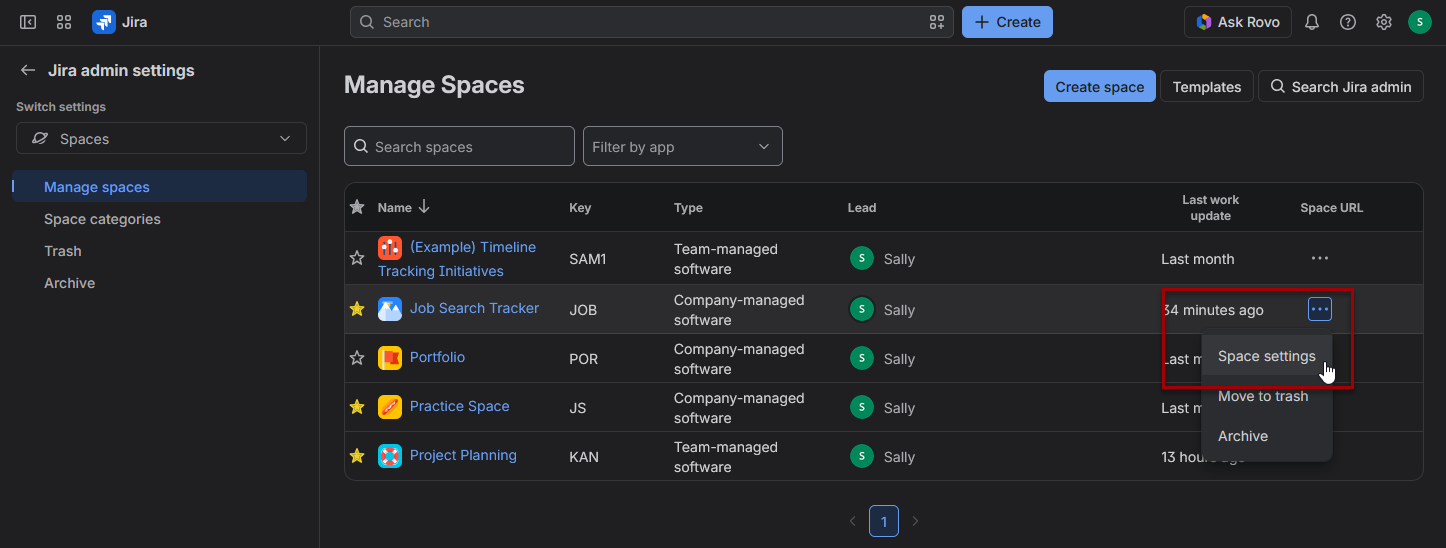
- Go to Space settings (settings icon > spaces > click the 3 dots next to the space > space settings)
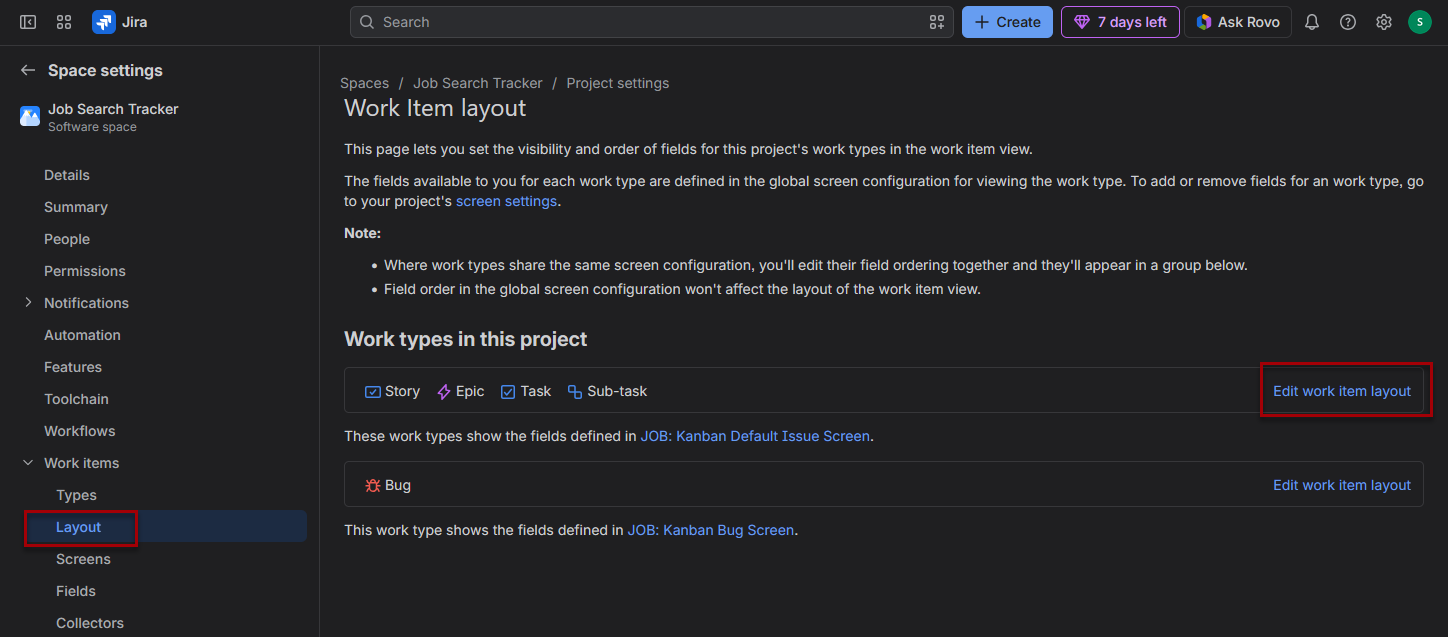
- Select Work items (left menu > work items)
- Select Layout
- Find the Story work type/layout
- Click Edit work item layout
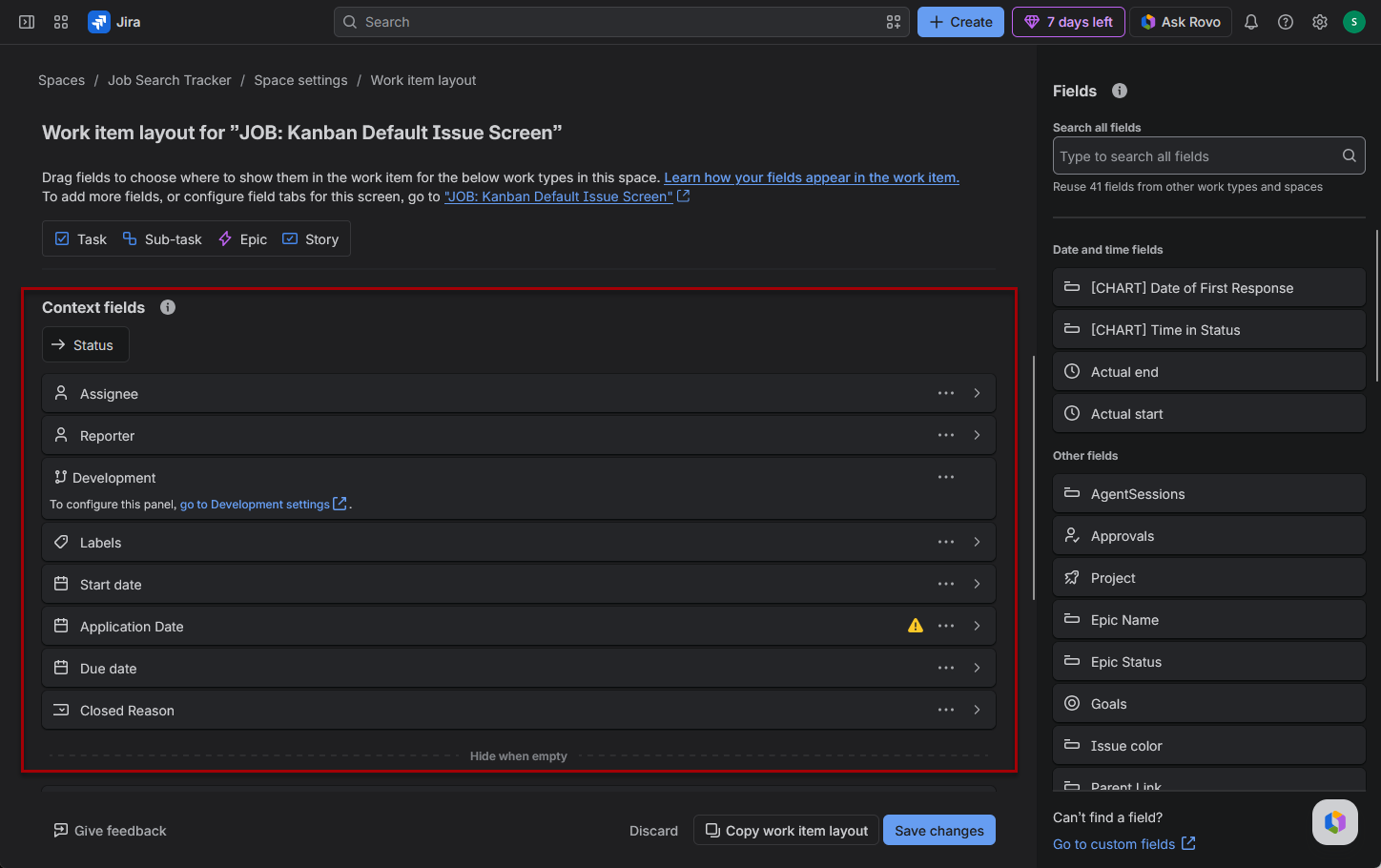
- You should see sections for description fields, context fields, and hide when empty
- Drag your custom fields into the section where you want them
- Save the changes
Tip: For the details panel, you want the Context fields section. Fields placed above the “Hide when empty” divider appear in the Details group.
Additional Tips
Helpful Tip
Create your Field Scheme before building custom fields. Since Jira asks which Field Scheme a new custom field should be added to, having it ready makes the rest of the setup process much smoother.
Common Mistake
Many users assume creating a custom field automatically makes it available on Stories.
Instead, custom fields must first be associated with the appropriate Field Scheme before they can be used within your project.
Version Differences
This tutorial uses the current Jira Cloud interface for Company-managed spaces. Menus and terminology may change over time, but the overall concept of organizing custom fields through a Field Scheme remains the same.
Related Jira Support Articles
- Add custom fields to your space – https://support.atlassian.com/jira-software-cloud/docs/add-custom-fields-to-your-project/
- Create a new field – https://support.atlassian.com/jira-cloud-administration/docs/create-a-custom-field/
- Manage and administer team-managed spaces – https://support.atlassian.com/jira-software-cloud/docs/manage-and-administer-team-managed-projects/
- Manage Jira Cloud spaces (Company-Managed) – https://support.atlassian.com/jira-software-cloud/docs/lead-agile-projects-with-jira-software-cloud/
Related Posts

How to Customize the Details Section of a Jira Story
Learn how to customize the Details section of a Jira Story so the fields you actually need are easy to see and edit. This guide walks through creating custom fields, updating the Story layout, controlling what appears in the details section, and troubleshooting missing fields in a Company-managed Jira space.

How I’m Actually Using My Jira Job Tracker
See how I’m actually using my Jira Job Tracker to save potential jobs, clone a template Story, record listing details, preserve job descriptions, and move opportunities through a flexible Kanban workflow. This practical walkthrough shows that job tracking can be simple, useful, and easy to adapt.

3 Job Opportunity Templates to Organize Your Job Search
Choose from three reusable job-opportunity templates designed to organize applications, company research, contacts, interviews, documents, follow-ups, and outcomes. Start with a minimalist, standard, or maximalist version, then copy, paste, and customize it for Jira, OneNote, Notion, or another job-tracking system.
Something went wrong. Please refresh the page and/or try again.
Stay Updated
There are two easy ways to get notified when new tutorials are published:
Subscribe on YouTube for new video tutorials: @SimpleSoftwareTutorials
or enter your email below to receive new blog posts directly in your inbox:

