
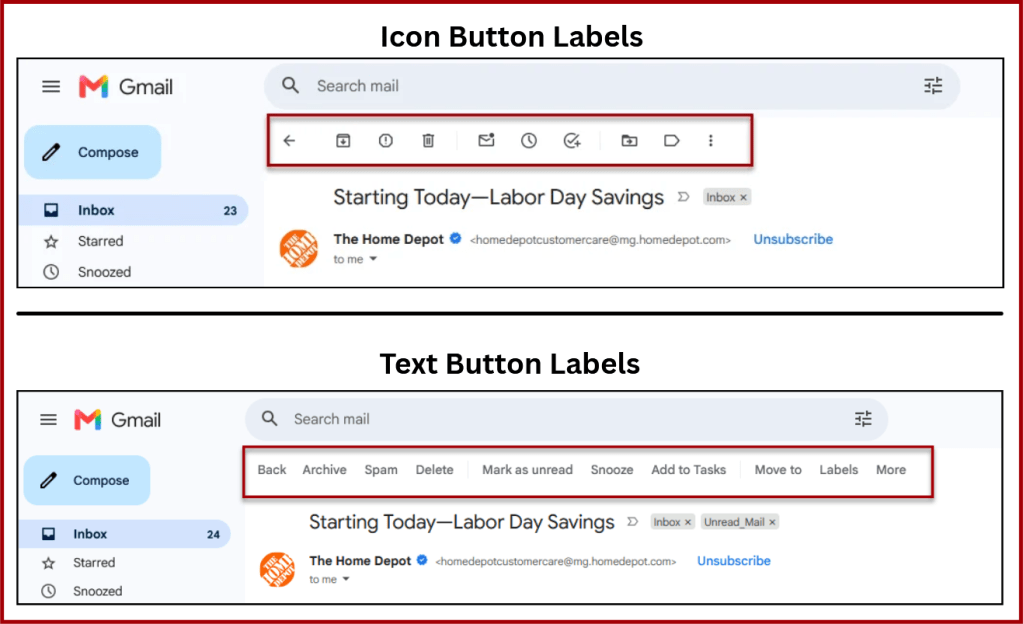
Gmail includes a toolbar with buttons for common actions such as archiving, deleting, reporting spam, marking messages as unread, and more. By default, many of these buttons appear as icons rather than words.
If you don’t immediately recognize what each icon means, that can slow you down because you may need to hover over a button to see its label before clicking it.
In this tutorial, I’ll show you how to change Gmail’s toolbar buttons from icons to text labels. It only takes a minute to update the setting, and it can make Gmail easier and faster to use if you prefer clear, descriptive buttons instead of symbols.
Video Tutorial
Step-by-Step Instructions
Note: This setting changes the main top action toolbar when you select or view an email. The main navigation panel on the far-left sidebar (Inbox, Sent, Starred) will continue to display its standard companion icons next to their text names.
1. Click the Settings (gear) icon in the top right corner.

2. Click See all settings.

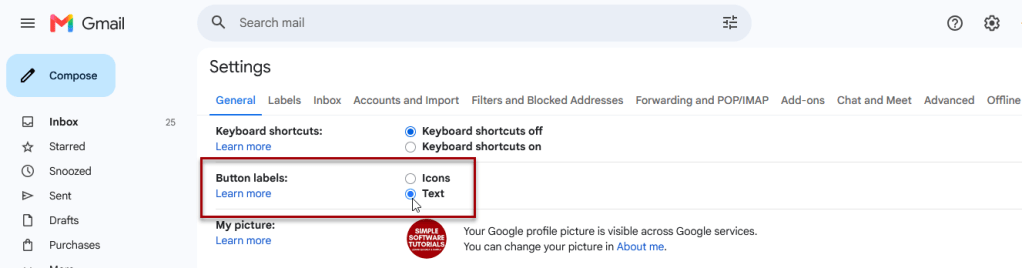
3. Under the General tab, scroll down until you find the Button labels section. Switch the selection from Icons to Text.
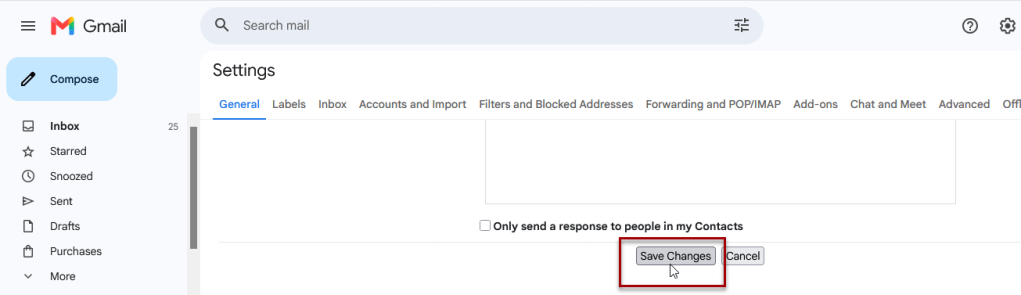
4. Scroll to the very bottom of the page and click Save Changes.
5. Your browser will automatically refresh, and your action toolbar (like Delete, Archive, and Mark as Read) will now display as text.

Related

How to Schedule an Email in Gmail
Learn how to schedule an email in Gmail so your message is sent at the right time. This tutorial covers how to schedule, view, cancel, and reschedule emails on desktop and mobile, plus practical uses, scheduling limits, time zone considerations, and other helpful tips.
How to Label Emails From a Specific Date Range in Gmail
Learn how to find Gmail emails from a specific date range using after: and before: search operators, then create and apply a label to organize those messages for easy access later. This tutorial also includes practical copy-and-paste date range examples for years, months, projects, travel, taxes, and more.
Stay Updated
There are two easy ways to get notified when new tutorials are published:
Subscribe on YouTube for new video tutorials: @SimpleSoftwareTutorials
or enter your email below to receive new blog posts directly in your inbox:

