

If you archive an email in Gmail, it disappears from your Inbox – but it isn’t deleted. That can make archived messages surprisingly difficult to find, especially because Gmail doesn’t include a clearly labeled Archive folder.
In this tutorial, I’ll explain what Gmail’s archive actually is, how messages end up there, and why archived emails are stored the way they are. Then I’ll show you how to find archived emails on a computer, in the Gmail mobile app, and with a quick search method.
I’ll also share a tip for using Gmail filters to automatically archive certain types of messages, along with a few practical examples of when that kind of automation can be useful.
About the Gmail Archive
An archived email in Gmail is a message moved out of your main inbox view and stored permanently inside All Mail, and it ends up there when you click the Archive button, swipe an email on mobile, or when someone replies to an archived thread.
What is the Archive?
- All Mail Repository: The archive is not a separate physical folder; it is the All Mail master label that stores every non-deleted, non-spam email in your account.
- Safe Storage: Archived emails are never automatically deleted like items in the Trash. They remain fully searchable forever.
How Do Emails End Up in the Archive?
- Manual Archiving: Clicking the archive icon (a box with a down arrow) while reading or hovering over a message in your inbox.
- Swipe Actions: Swiping left or right on a message in the mobile app if your swipe shortcut is set to archive.
- Automatic Reply Return: If you archive a conversation and a new reply arrives, Gmail automatically unarchives the thread back into your inbox.
Why Isn’t It Labeled as Archive?
- Label System vs. Folders: Gmail does not use traditional folders where a file can only exist in one place. Instead, it uses a Label System.
- Removing the Inbox Tag: Your main inbox is just a view of messages carrying the “Inbox” label. Archiving simply strips away the “Inbox” label from the message, leaving it visible only under All Mail (and any custom labels you added).
Step-by-Step Instructions
The below instructions explain how to find archived emails in Gmail using a computer, the Gmail mobile app, and using the quick search method.
Using a Computer
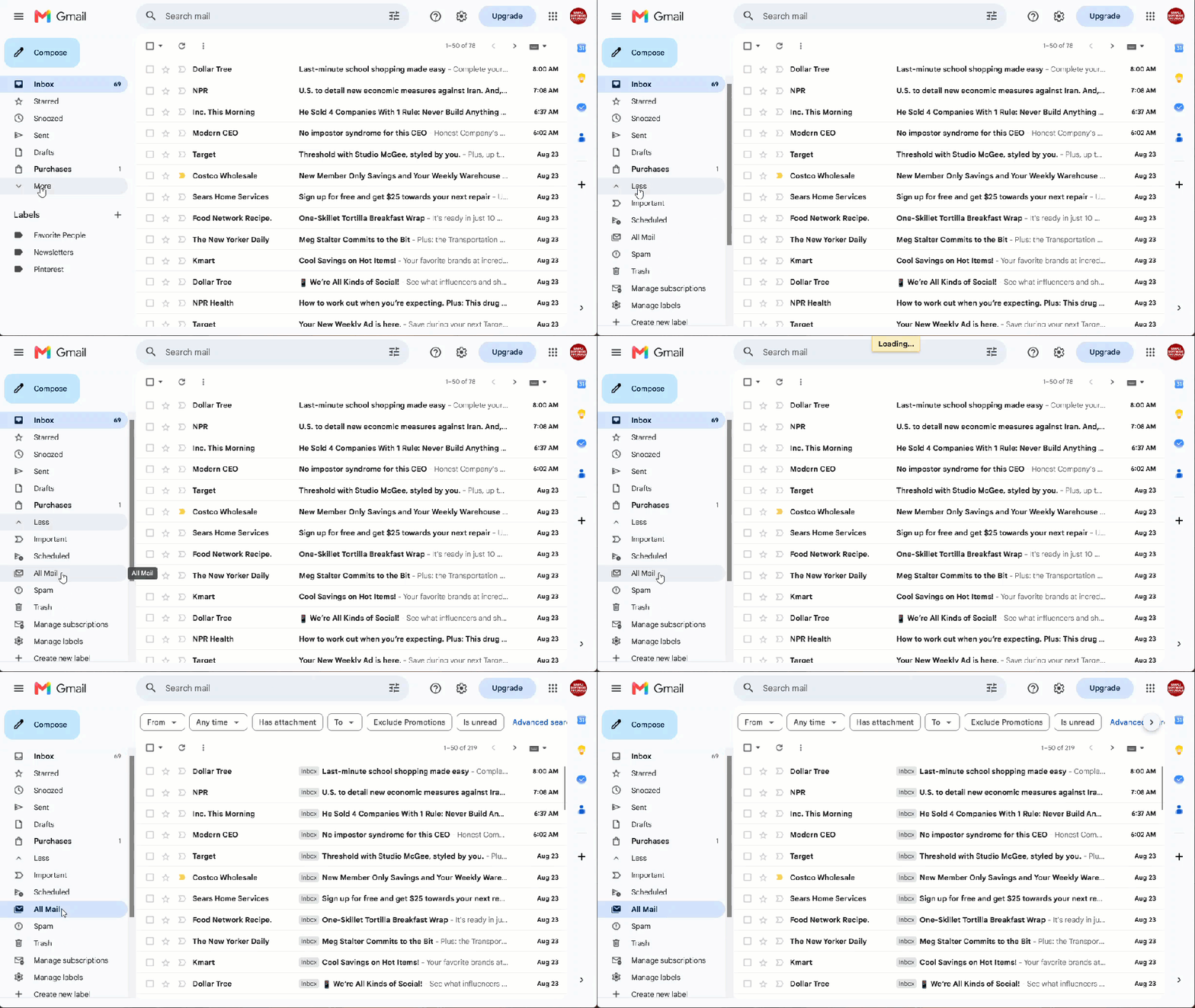
- Click More in the left-hand menu below your standard labels.
- Click All Mail.
- Look for your message. Archived emails do not show an “Inbox” label next to them.
- To move an email back, open or select it and click Move to inbox.
Quick Search Method
- Type
in:archiveor-label:inbox -label:sentin the top search bar and press Enter to filter out active inbox and sent mail.

Using the Mobile App
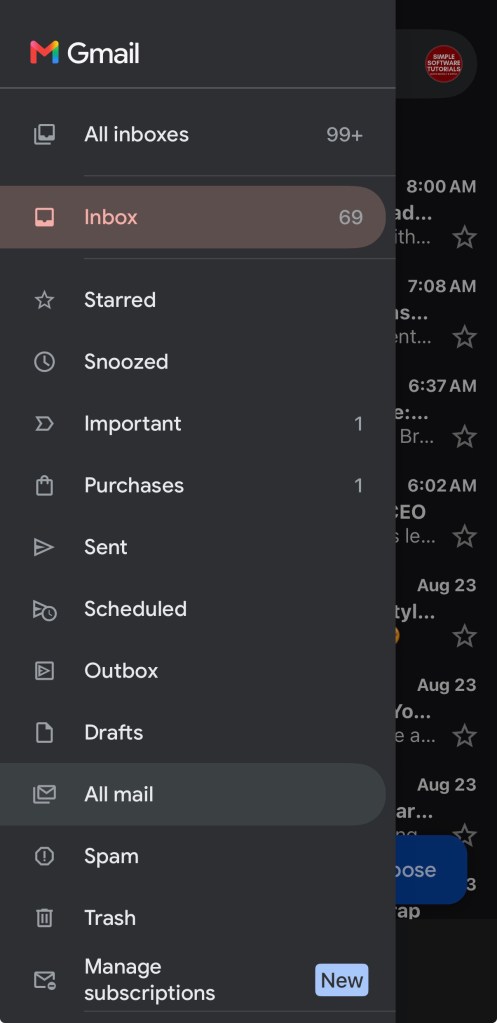
- Tap the Menu icon (three lines) in the top left corner.
- Tap All Mail.
- If you want a message back in your inbox:
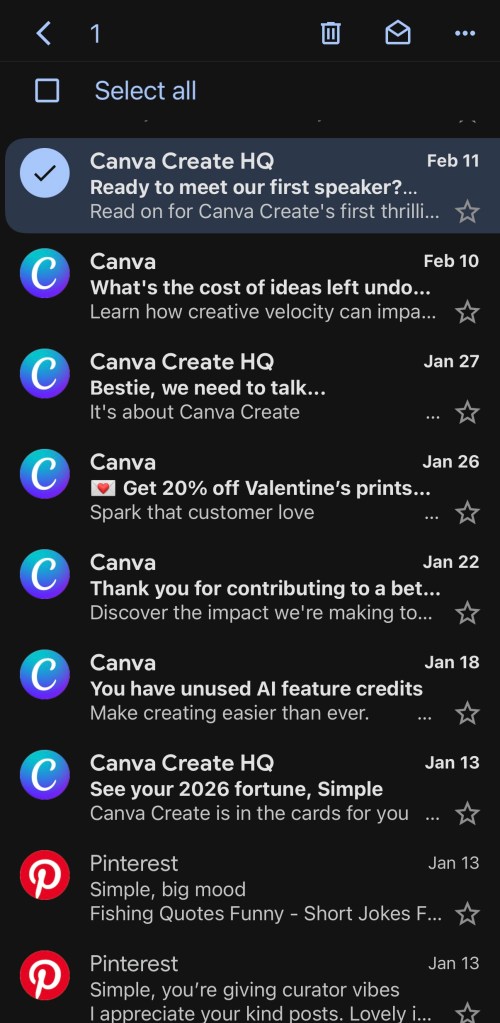
- Find the message
- Press or hold the message to select it
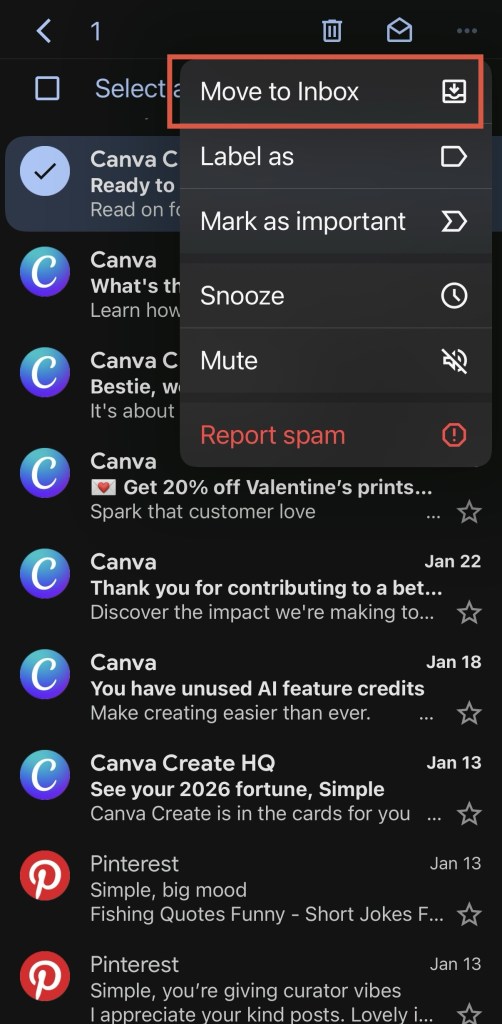
- Tap on the 3 dots in the top right corner and select Move to inbox.
Additional Tips
To automatically archive specific incoming emails in Gmail, you need to create a filter using a web browser on a computer and check the box to skip the inbox.
How to Create a Filter to Automatically Archive Specific Emails in Gmail
- Click the Show search options icon inside the search bar at the top of Gmail.
- Enter your criteria (e.g., a specific sender in the From field or keywords in the Has the words field).
- Click Create filter at the bottom of the search window.
- Check the box for Skip the Inbox (Archive it).
- Check Also apply filter to matching conversations if you want to archive existing emails that fit this rule.
- Click Create filter to finalize and save your rule.
Common Automation Examples
- Newsletters: Put
Unsubscribein the Has the words field to keep promotional emails out of your main view. - Specific Senders: Put
boss@company.comornoreply@bank.comin the From field to route specific people or alerts away from the inbox.
Related

How to Schedule an Email in Gmail
Learn how to schedule an email in Gmail so your message is sent at the right time. This tutorial covers how to schedule, view, cancel, and reschedule emails on desktop and mobile, plus practical uses, scheduling limits, time zone considerations, and other helpful tips.
How to Label Emails From a Specific Date Range in Gmail
Learn how to find Gmail emails from a specific date range using after: and before: search operators, then create and apply a label to organize those messages for easy access later. This tutorial also includes practical copy-and-paste date range examples for years, months, projects, travel, taxes, and more.

Stay Updated
There are two easy ways to get notified when new tutorials are published:
Subscribe on YouTube for new video tutorials: @SimpleSoftwareTutorials
or enter your email below to receive new blog posts directly in your inbox:

